How-to
Remove a password from a PDF
A PDF password prevents the file from opening unless you type the right passphrase. If you know the password but are tired of entering it every time you open the document, or if you want to share the file without forcing recipients to type a code, you can remove the protection permanently. This tool does that entirely in your browser, using a compiled version of qpdf. Your document is never uploaded.
Step by step
- Open the PDF Unlock tool and drop in the protected PDF. The tool uses qpdf compiled to WebAssembly, so the entire decryption process runs locally in your browser tab, not on a remote server.
- Type the password you already know into the password field. Leave the field empty only if the PDF restricts permissions (printing, copying text) but does not require a password to open. Click Run to start the process.
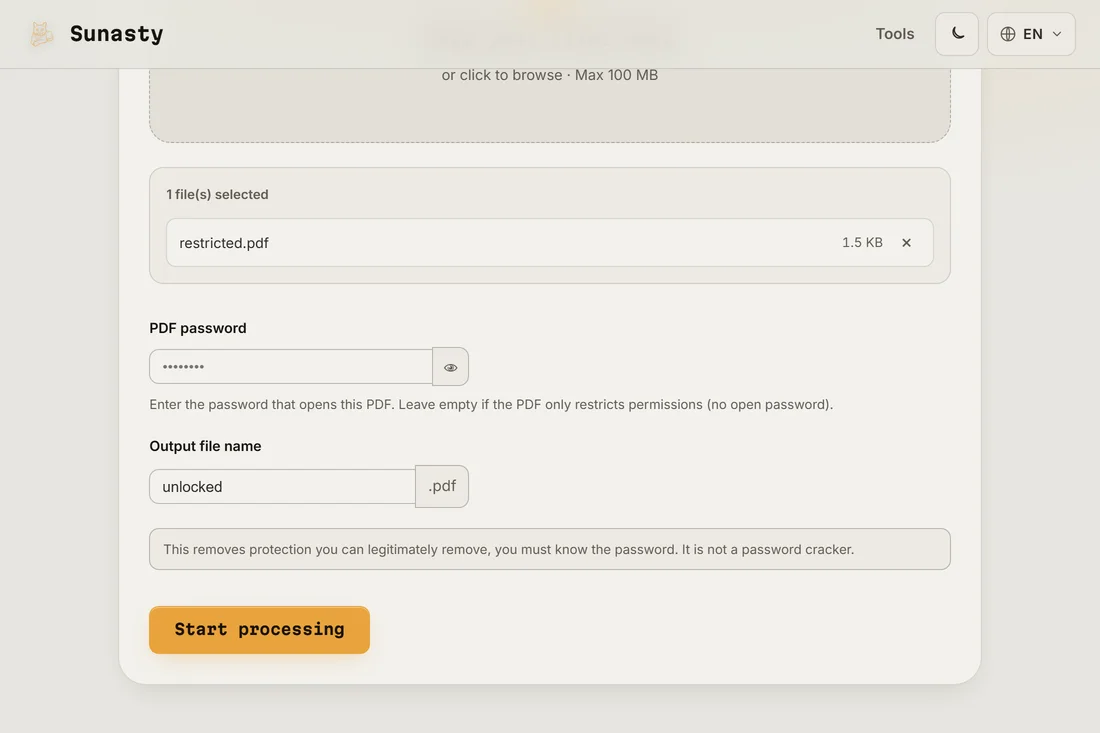
- Download the unlocked PDF. Open it to confirm it no longer prompts for a password. The file size and content are identical to the original: only the password protection metadata has been removed.
What this tool does and what it does not
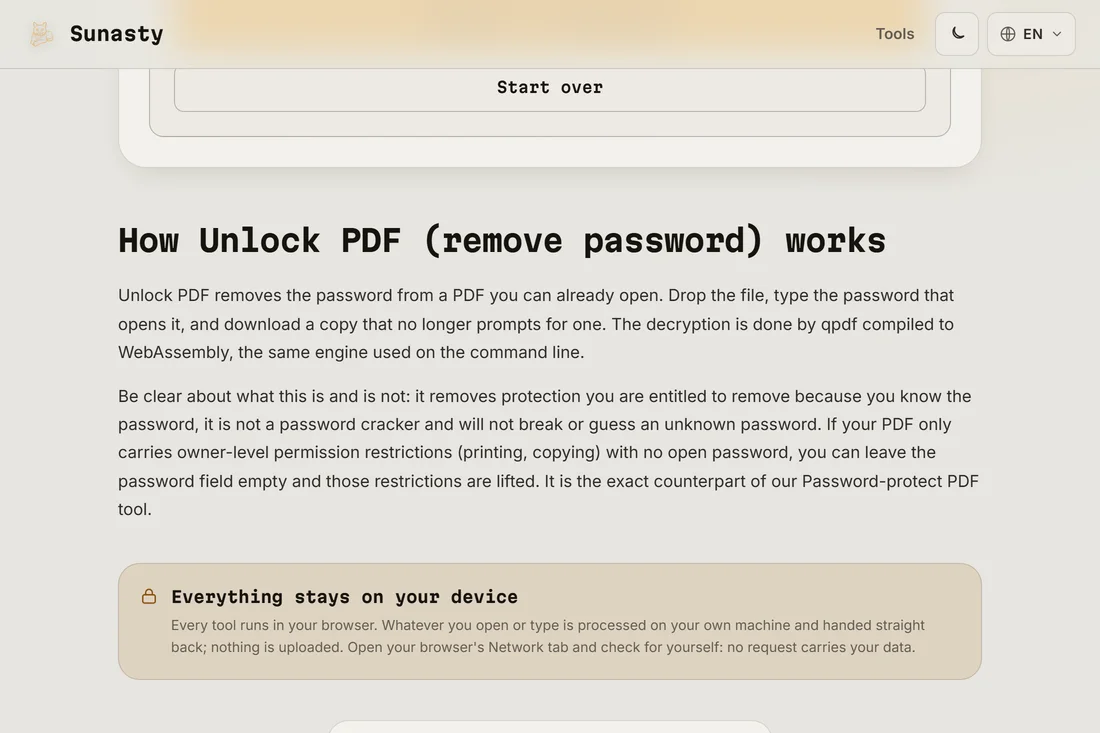
This tool removes a password that you already know from a PDF that you are entitled to open. It is not a password cracker: it does not try millions of combinations or use any dictionary attack. If you have forgotten the password or do not know it, this tool cannot help. The technical mechanism is qpdf's decrypt operation, which verifies the password you supply against the PDF's encryption metadata, then writes a clean copy without the protection layer. The whole operation happens in your tab via WebAssembly.
Other things you can do once the PDF is unlocked
Once a PDF is unlocked you can compress it, split it, merge it with other documents or sign it, all with the other PDF tools on this site. If you want to protect the file again with a different password, or share it with collaborators who need to read but not edit it, use the PDF password tool to add a new password. All these tools work locally in your browser.
The tools used in this guide
- Unlock PDF (remove password) Remove the password from a PDF you can already open, entirely in your browser. No upload.
- Compress PDF Reduce PDF file size by losslessly optimizing its internal structure, without uploading.
- Sign a PDF Draw your signature and stamp it onto a PDF, directly in your browser. No upload.
Frequently asked questions
Can it crack a forgotten password?
No. The tool requires the correct password to be entered by you. It passes your input to qpdf, which either decrypts the PDF (correct password) or returns an error (wrong password). There is no brute-force attempt, no dictionary attack, no remote call. If you have forgotten the password, the only path forward is to contact whoever created the protected PDF.
Is my PDF uploaded to a server?
No. qpdf runs as WebAssembly inside your browser tab. Your PDF bytes are read from your local disk and processed in memory. Nothing is sent to any server at any point. You can verify this with your browser's developer tools: open the Network panel and confirm that no outbound request carries your file.