How-to
How to format JSON online
Raw JSON from an API response or a config file is often minified into a single long line. Reading it, debugging it or editing it in that state is painful. This guide shows how to pretty-print JSON with proper indentation in three clicks, validate it for syntax errors, and minify it back when needed, with everything running in your browser and no data leaving your tab.
Step by step
- Open the JSON formatter and paste your JSON into the left panel. You can paste directly from a clipboard (Ctrl+V), from a command-line curl response, or from any text editor. The input accepts any size within the tool's limit.
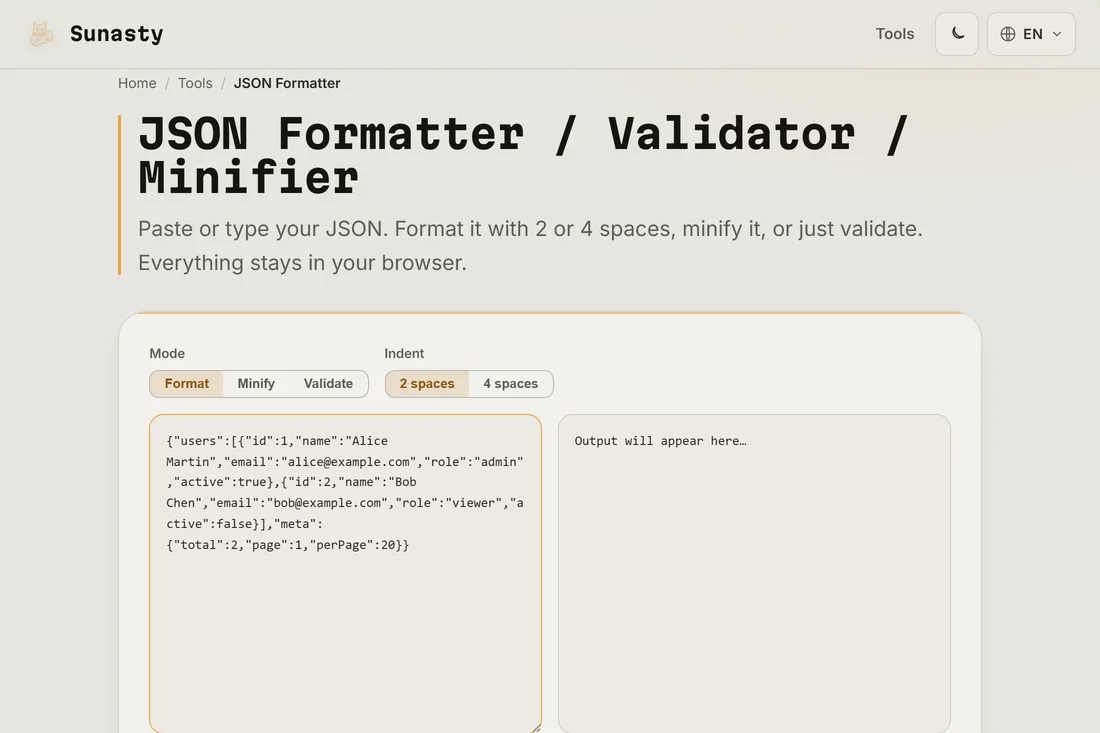
- Choose the mode. Format adds indentation (2 or 4 spaces, your choice); Validate just checks syntax without modifying the JSON; Minify strips all whitespace to produce the smallest possible output. For most use cases, Format is what you want.
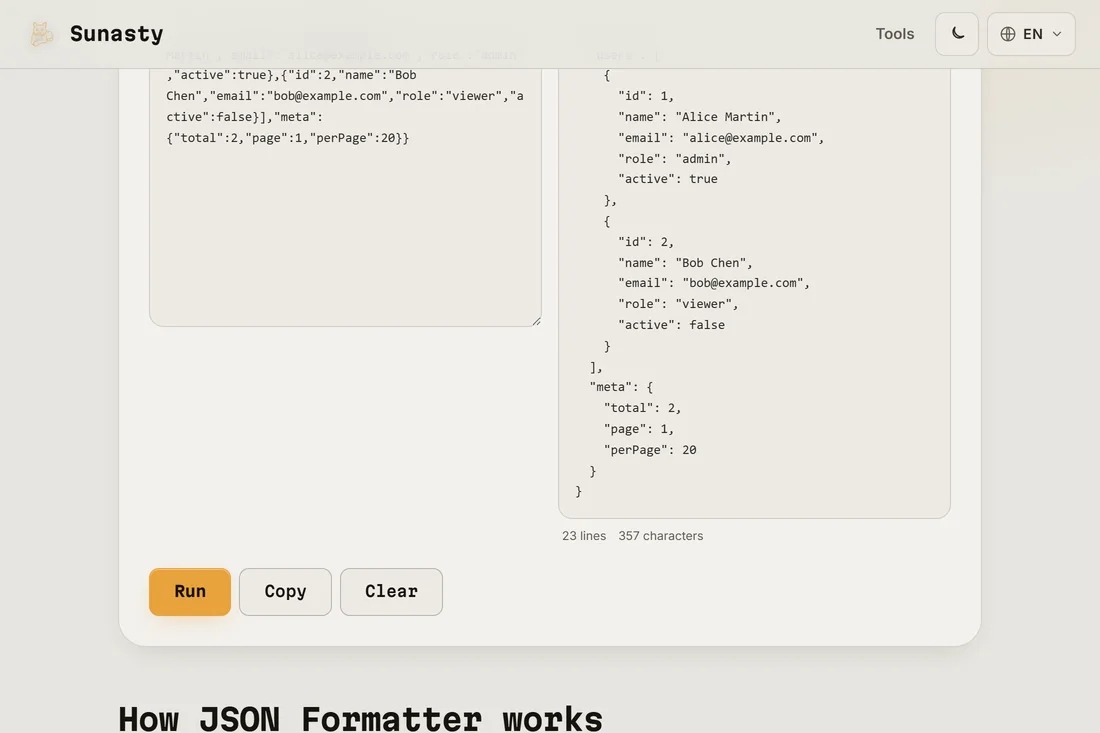
- Click Run. The formatted output appears in the right panel. Copy it with the Copy button and paste it back into your editor or config file. The tool shows line count and character count so you can verify the output size at a glance.
Reading the error messages
When your JSON has a syntax error, the formatter shows the error with a position (line and column) pointing to the exact character that broke the parse. Common culprits: a trailing comma after the last item in an array or object (valid in JavaScript but not in JSON), a missing or extra closing bracket, a key not wrapped in double quotes, or an unescaped special character inside a string. Fix the flagged position and run again.
JSON, YAML and CSV: when to use which
JSON is the standard for API responses and configuration files that need to be consumed by code. YAML is preferred for human-edited configuration (less punctuation, supports comments). CSV is best for tabular data consumed by spreadsheets. The data converter on this site lets you convert between these three formats in one step: paste JSON, click Convert, get YAML or CSV out. Minified JSON is also useful when you need to embed data in a URL query parameter or in an HTTP header with a size limit.
The tools used in this guide
Frequently asked questions
Is my JSON sent to any server?
No. The formatter runs entirely in your browser. Your JSON is parsed with the browser's native JSON.parse and the output is built in memory: nothing travels over the network. This matters when the JSON contains API keys, tokens, internal data or personal information, which is common in API debugging workflows.
What is the maximum size I can paste?
The formatter accepts JSON up to 5 MB. Beyond that, parsing on the main thread would freeze the browser tab with no feedback. For larger JSON files, use a dedicated desktop tool like jq on the command line (jq . file.json), which handles hundreds of megabytes without issue.