How-to
Make a GIF from a video clip
Animated GIFs are the universal shorthand for short looping clips: they play anywhere without a codec, embed in emails, forums and chat apps, and are immediately shareable. This guide covers how to turn a video clip into a GIF that looks good without becoming enormous, and how to trim the source first so the loop is tight.
Step by step
- Before converting, trim the clip to the exact segment you want to loop. GIFs get large fast: every second at 15 frames per second is 15 full-color frames in the file. Open the video trimmer, set the start and end points, and keep the loop under 5 seconds if you want a shareable file size. A tight 2 to 3 second loop is almost always better than a 10-second one.
- Open the video-to-GIF tool and drop the trimmed clip. Set the frame rate to 12 or 15 fps - GIFs play back more smoothly at this range than at the full video frame rate, and the file is much smaller. For the width, 480 pixels is a common sweet spot: readable on desktop, comfortable on mobile, and much lighter than 720p or 1080p. The palette the tool generates adapts to the colors in your clip.
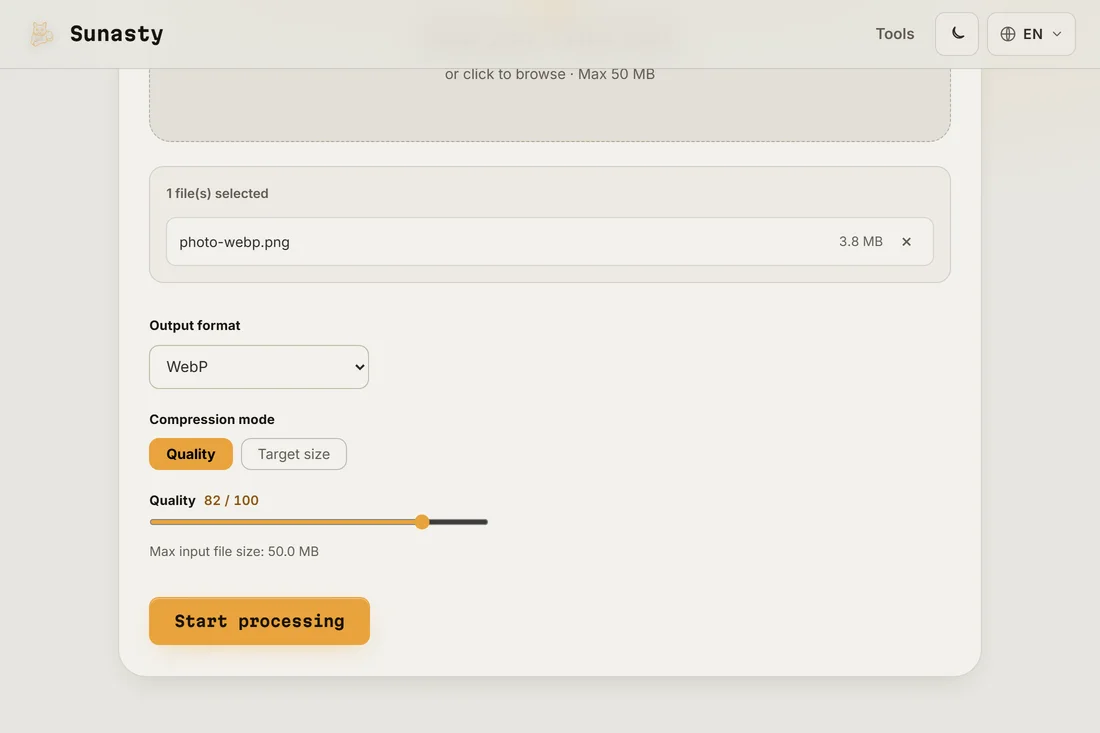
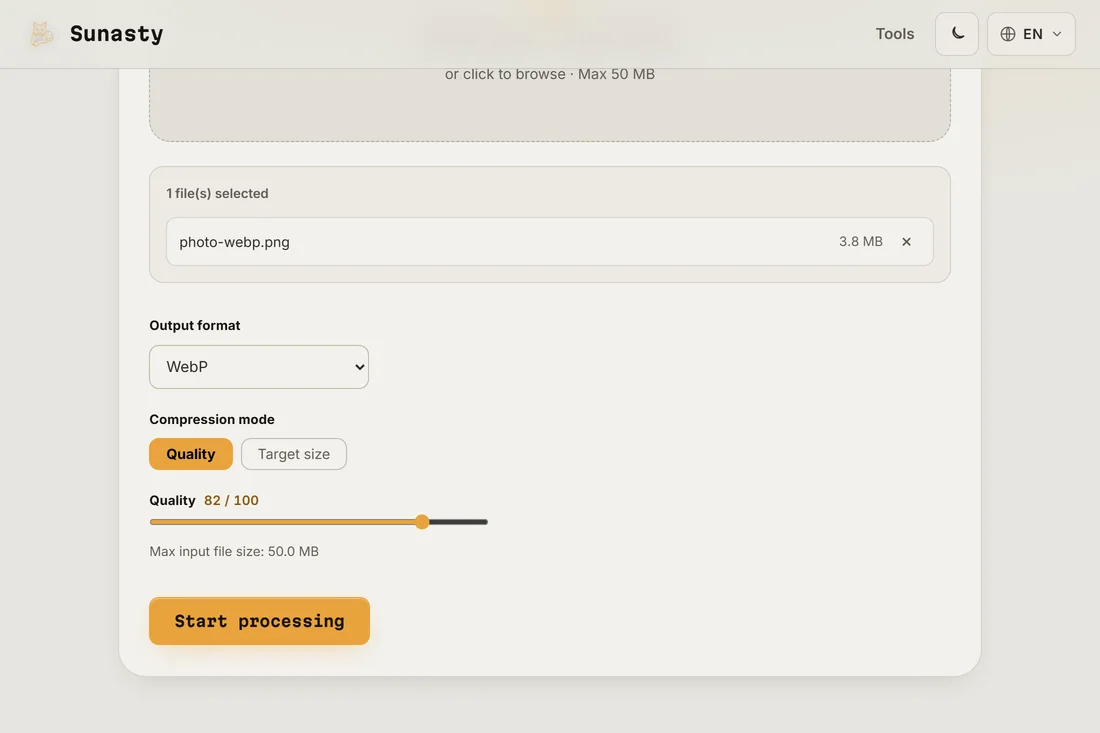
- Export and check the file size. A well-tuned 3-second GIF at 480 pixels wide and 15 fps should come in under 2 MB, which is within the upload limit for most platforms. If it is larger, reduce the width to 360 pixels or the fps to 10. The conversion runs in your browser: your video never leaves your device.
Why GIF files get large and how to keep them small
GIF is a 1987 format limited to 256 colors per frame and no video compression across frames. Each frame is stored almost independently, which is why a 10-second GIF at 1080p can easily reach 50 MB while the same clip as an MP4 might be 2 MB. The three levers that actually control file size are duration (the biggest factor), frame rate and resolution. Color count matters less than most people expect. For most use cases, 480 pixels wide, 12 fps, under 5 seconds is the practical ceiling for a shareable GIF.
When to use GIF vs a video file
GIF plays everywhere without JavaScript, autoplay permission or a video codec: it just works in any browser, email client or forum post. That ubiquity is its main advantage. The downside is file size and the 256-color limit, which shows as banding in gradients and smooth color transitions. For a short reaction clip, a product demo loop or a coding how-to, GIF is still the right choice. For anything longer than 6 seconds, richer in color, or intended for a platform that supports embedded video (most do now), a short MP4 or WebM delivers far better results at a fraction of the size.
The tools used in this guide
- Video to GIF Convert a video clip into an animated GIF directly in your browser. No upload.
- Trim video Cut a video to a start/end time range directly in your browser. Fast stream copy or precise re-encode. No upload.
- GIF to video (MP4) Convert an animated GIF into a small MP4 video directly in your browser. No upload.
Frequently asked questions
Why does my GIF look washed out compared to the video?
GIF is limited to 256 colors per frame. Videos carry millions of colors per frame, so smooth gradients and subtle color transitions get reduced to the nearest color in the palette. The effect is most visible in scenes with sky, skin tones or smooth backgrounds. One way to reduce it: use a scene with higher contrast and flatter colors, or accept the retro palette look as part of the format's character.
Can I make a GIF from a phone video?
Yes. Transfer the video to your desktop or open the tool on your phone's browser, drop the file, and follow the same steps. The conversion runs on the device you are using. Phone videos are usually 1080p or 4K, so resizing down to 480 pixels before converting is especially important to keep the GIF at a shareable size.