How-to
Split a PDF or extract specific pages
A 40-page contract with only two relevant pages. A multi-chapter book PDF where you need chapter three. A scanned form set where every page is a separate document. Splitting and extracting pages is one of the most common PDF operations, and it should not require uploading confidential documents to a third-party server. The splitter here runs in your browser.
Step by step
- Open the PDF splitter and drop your PDF in. The tool shows a preview of all pages so you can identify exactly what you need before committing to a split.
- Choose the split mode. Range mode lets you type page ranges separated by commas (e.g. 1-3, 7, 10-12) and produces one PDF per range. Extract mode pulls out individual pages you click. Split-all mode produces one PDF per page, useful for separating a batch of scanned forms.
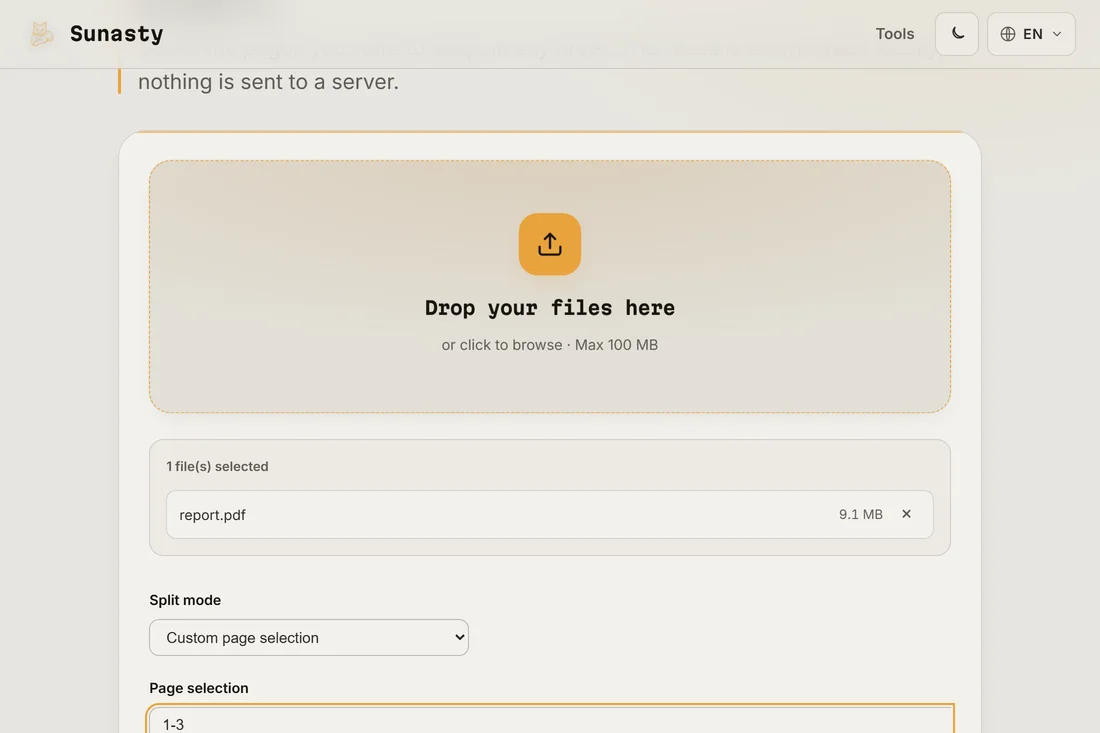
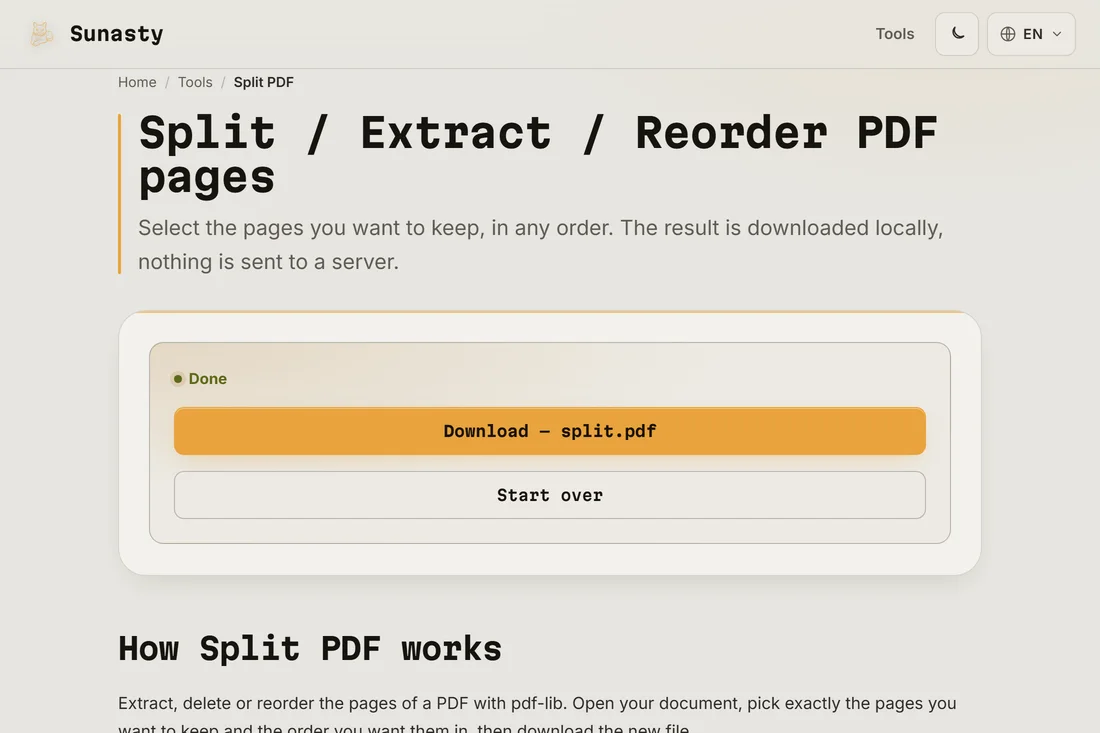
- Click Split and download the results. Multi-range splits produce a ZIP archive containing one file per range. Single extractions download directly as a PDF. The original file on your disk is never modified.
Splitting versus reorganizing
The splitter produces a fixed set of outputs based on the ranges you define. If you want more control, such as removing certain pages while keeping the rest in one file or changing page order, the page organizer is the right tool: it shows all pages as thumbnails you can drag, delete or duplicate before outputting the final document.
Privacy when splitting documents
People split PDFs precisely because they want to share only part of a document: the relevant contract clause, the single invoice page, the page that does not contain personal data. Uploading the whole file to an online service to extract two pages defeats that purpose. The splitter here reads the file entirely in your browser tab: the pages you do not export are never sent anywhere. Only the pages you download leave your machine.
The tools used in this guide
Frequently asked questions
What happens if I type an out-of-range page number?
The tool validates your input and shows a clear error before attempting any split. Pages are numbered starting from 1. If you enter a range that goes beyond the document length, the export stops at the last existing page rather than failing silently.
Can I extract pages from a scanned PDF?
Yes. The splitter works at the PDF structure level, not at the content level: it moves pages as-is regardless of whether they contain real text, scanned images or a mix. Image quality and resolution are preserved exactly because no re-rendering happens during the split.