How-to
How to create a Wi-Fi QR code for your venue or business
Typing a long Wi-Fi password on a phone keypad is fiddly and wastes a few minutes of every guest's first impression. A QR code on a table card or a sign lets anyone connect with a single camera tap. This guide covers the four most common use cases: guest Wi-Fi, contactless menus, digital business cards, and QR codes with your logo in the center.
Step by step
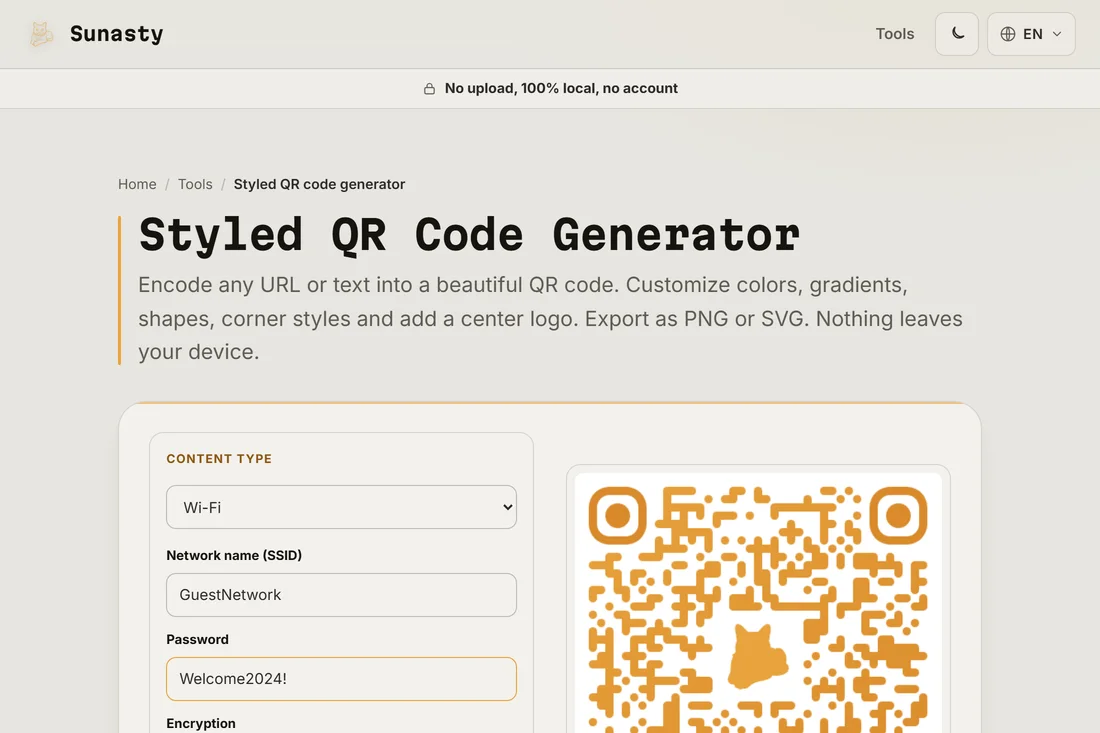
- Open the QR code generator and select the content type that matches your goal: choose Wi-Fi for a network connection, URL for a menu or website link, or vCard for contact details. The tool generates a live preview on the right as you fill in the fields.
- Customize the style if needed: pick colors that match your brand, choose a module shape, and decide whether to keep the default logo in the center or upload your own. For a first test, the defaults work fine and produce a scannable code immediately.
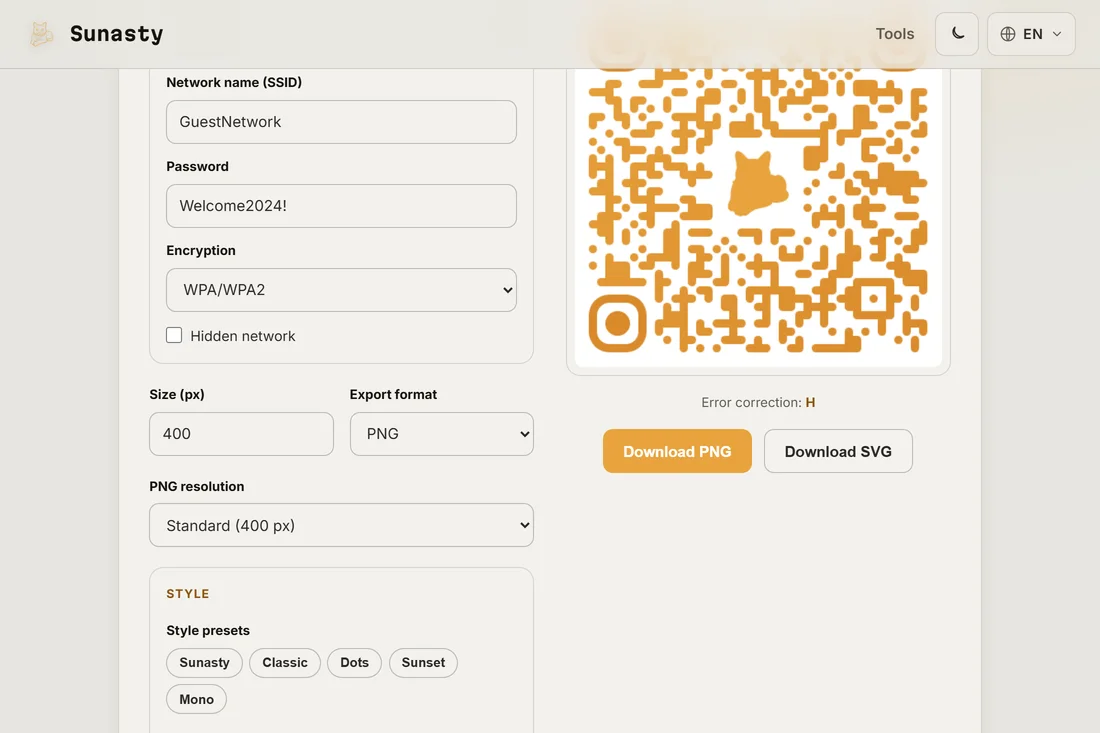
- Download the QR code as a PNG at the resolution you need (400 px for digital screens, 1200 px or higher for print), or as an SVG for lossless scaling at any size. Print it, embed it in a sign, add it to a menu or a business card.
Guest Wi-Fi QR codes for hotels, Airbnbs and restaurants
A Wi-Fi QR code encodes the network name, password, and encryption type in a format any modern smartphone camera can read without installing an app. Select Wi-Fi as the content type, type your network name (SSID) and password, pick WPA2/WPA3 as the encryption type, and the QR code is ready. When a guest scans it, the phone offers to join the network automatically. This removes the most common friction point at check-in and table service: nobody needs to read a tiny card, ask a staff member, or type an eight-character password on a glass keyboard. A laminated card on each table or a framed print at the front desk handles dozens of daily connections with no staff involvement.
Contactless menu QR codes for cafes and bars
A QR code pointing to your menu URL turns a table card into a digital touch point. Select URL as the content type, paste your menu link, and generate the code. The scan opens the menu directly in the guest's browser with no app download. If your menu changes seasonally or weekly, keep the QR code pointing to the same URL and update the menu page instead of printing new codes each time. For establishments that use a PDF menu, a direct link to the PDF also works; the phone's built-in PDF viewer handles the rest. Pair this with your Wi-Fi QR code on the same card and the guest has both connection and menu covered in a single scan each.
Business card QR codes with full vCard contact details
A vCard QR code packs a full digital contact record into a scannable square: first name, last name, phone, email, organization, job title, and website. When someone scans it, their phone offers to save the contact directly to their address book in one tap, with no typing and no risk of a transposition error. Select vCard as the content type and fill in only the fields you want to share; every field is optional. The QR code can sit on the back of a printed card alongside the standard text, or stand alone on a digital slide or email signature. For freelancers and small businesses, this is a faster and more reliable way to exchange contact information than spelling out an email address at a noisy networking event.
Adding your logo to the center of a QR code
The QR code generator includes a logo in the center by default and lets you swap it for your own brand mark. Under the Logo section in the controls, click the button to upload a custom logo or remove the default one. Keep the logo below about 30% of the QR code's total area; the tool automatically raises the error correction level to H (30% redundancy) when a logo is present, which means the code can still be scanned even if the logo covers part of the data. Use a logo with a transparent background for best results: the generator removes the data modules behind it for a clean look. Download as SVG if you need to scale the result without any quality loss for large-format printing.
Where to put QR codes in a physical venue
Placement is as important as the code itself. A QR code that is too small, printed on a reflective surface, or placed in poor light will frustrate rather than help. For table cards and menus, a 4 to 6 cm printed square is large enough for any current smartphone camera. For wall signs and window stickers, 10 to 15 cm gives a comfortable scan distance of 50 cm or more. Avoid glossy lamination under strong spotlights: the glare reflects into the camera and makes the code hard to read. Matte lamination or a printed insert in a clear acrylic stand works better. Always scan the printed version yourself from the expected reading distance before putting it out.
What happens to the QR code data: no upload, no account
The QR code generator on this site runs entirely in your browser. Your Wi-Fi password, menu URL, vCard details, and logo image are never sent to any server: the code is built locally and the download goes directly to your device. There is no account to create, no daily limit, and no file stored anywhere outside your browser. For a Wi-Fi password in particular, keeping that data on your own device matters: once a QR code is generated and downloaded, the password it encodes exists only on your printed card and your device.
The tools used in this guide
Frequently asked questions
Can any smartphone scan a Wi-Fi QR code without an app?
Yes, on both iOS (12 and later) and Android (10 and later): the built-in camera app recognizes Wi-Fi QR codes and offers to join the network directly. Older Android versions may need a QR scanner app, but those are rare in practice. The format used here (WIFI:S:<ssid>;T:<encryption>;P:<password>;;) is the universal standard, so any compliant scanner will work.
How do I change the Wi-Fi code when the password changes?
Generate a new code with the updated password and reprint the cards or update the digital display. There is no way to edit an existing QR code: it is a static image that encodes exactly one value. The practical solution is to keep your Wi-Fi password stable and only change it when necessary. If your router supports a separate guest network, using that network for the QR code means you can rotate the main password without touching the printed cards.