How-to
Add page numbers to a PDF without uploading it
A printed report without page numbers is hard to discuss in a meeting. A PDF submitted to a court or a review committee often requires them. Adding them should take thirty seconds, not a trip to Word and back. The page numbering tool runs in your browser: drop the PDF in, pick the position and format, download the numbered copy.
Step by step
- Open the PDF page numbers tool and drop your PDF in. A thumbnail strip shows all the pages so you can confirm the document loaded correctly before making any changes.
- Choose where the number goes (top or bottom, left, center or right), the starting number if you want to continue a numbering sequence from another document, and the font size. You can also set the text format: plain number, "Page N", "Page N of M", or a custom prefix.
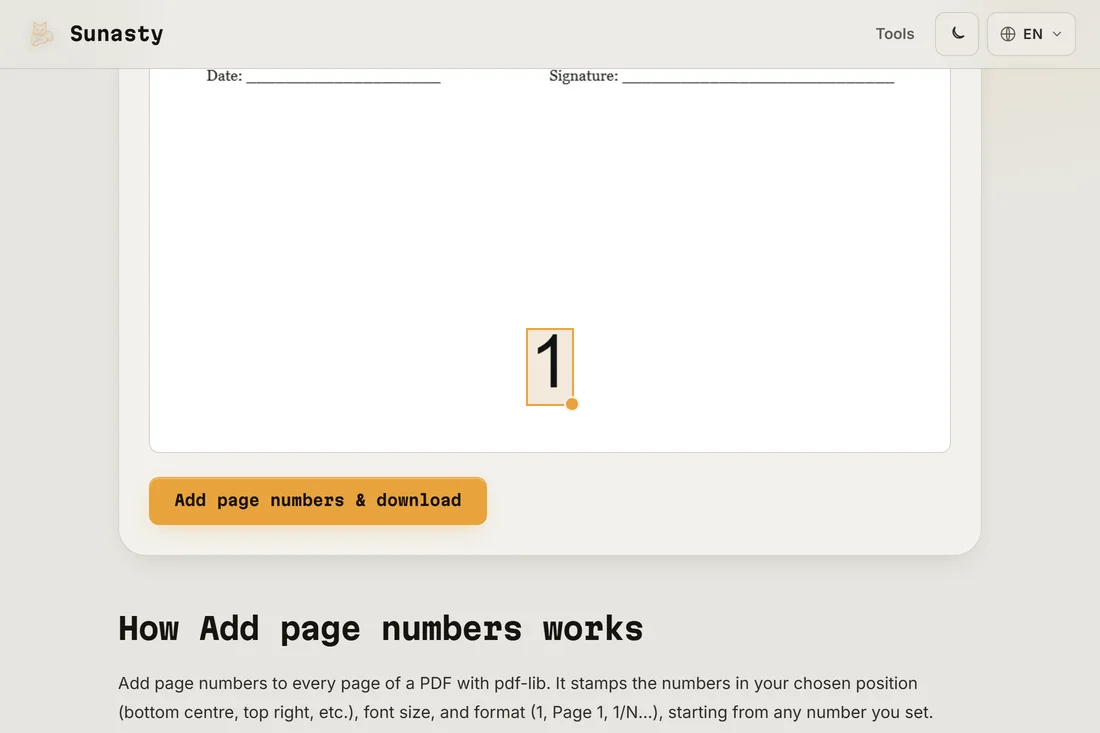
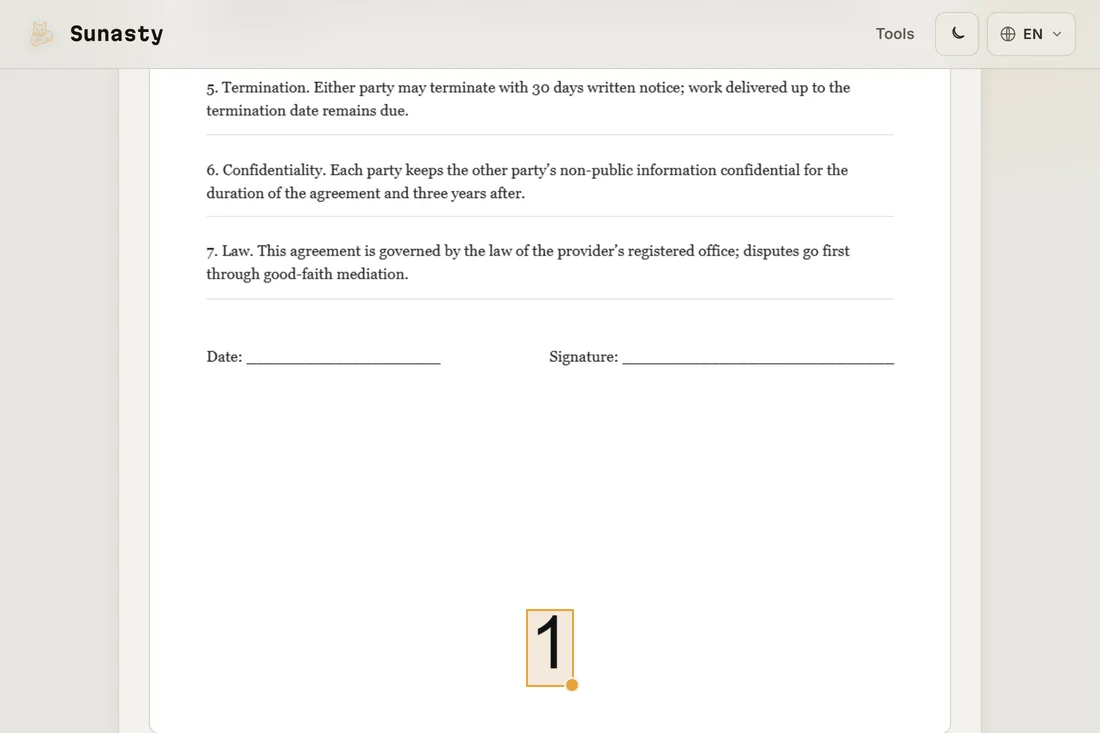
- Click Run and download the result. The original text and images on each page are untouched; the number is added as a new element in the header or footer margin. Your original file stays on your disk unchanged.
Starting from a number other than one
If you split a report into chapters and need to number the pages continuously across files, use the starting number option. Chapter two starting on page 14 gets a starting number of 14: the output will show 14, 15, 16... as if it were one continuous document. Combine this with the merger afterwards to produce the final numbered whole.
When to use headers and footers instead
Page numbers are for navigation. If you need running titles, dates, document IDs or a confidentiality notice repeating on every page, the header-footer tool covers that. It accepts any text per zone and the same position options. The two tools can be used in sequence if you need both a page number in the footer center and a document title in the header left.
The tools used in this guide
- Add page numbers Add page numbers to every page of a PDF (position, font size, format) without uploading.
- Add PDF Header & Footer Add custom header and footer text to every page of a PDF, supports {page}, {total} and {date} tokens. 100% in your browser, no upload.
- Merge PDF files Combine multiple PDF files into one, directly in your browser.
Frequently asked questions
Can I skip the first page from numbering?
Yes. Set the starting page option to 2 to leave the cover page unnumbered. The first physical page will not receive a stamp; numbering starts on the second page with whichever number you set as the starting value.
Will the numbers appear when the PDF is printed?
Yes. The numbers are stamped into the PDF as permanent content, not as viewer annotations. They appear in every PDF reader, in print, and in the thumbnail strip of any reader that shows previews. There is no dependency on a specific viewer for the numbers to show.