How-to
Merge PDF files into one document
Sending a contract with five attachments is annoying for the recipient. A client portfolio made of separate exports looks unfinished. Merging PDFs fixes both: one file, in the right order, ready to send or print. The merger here runs entirely in your browser, so nothing is uploaded and there is no wait.
Step by step
- Open the PDF merger and add your files using the file picker or drag-and-drop. You can add as many as you need; there is no hard limit on count, only on your device's available memory.
- Arrange the files in the order you want them to appear in the final document. Drag the rows to reorder or use the up/down buttons. If a file has multiple pages, all its pages go in together in their original order.
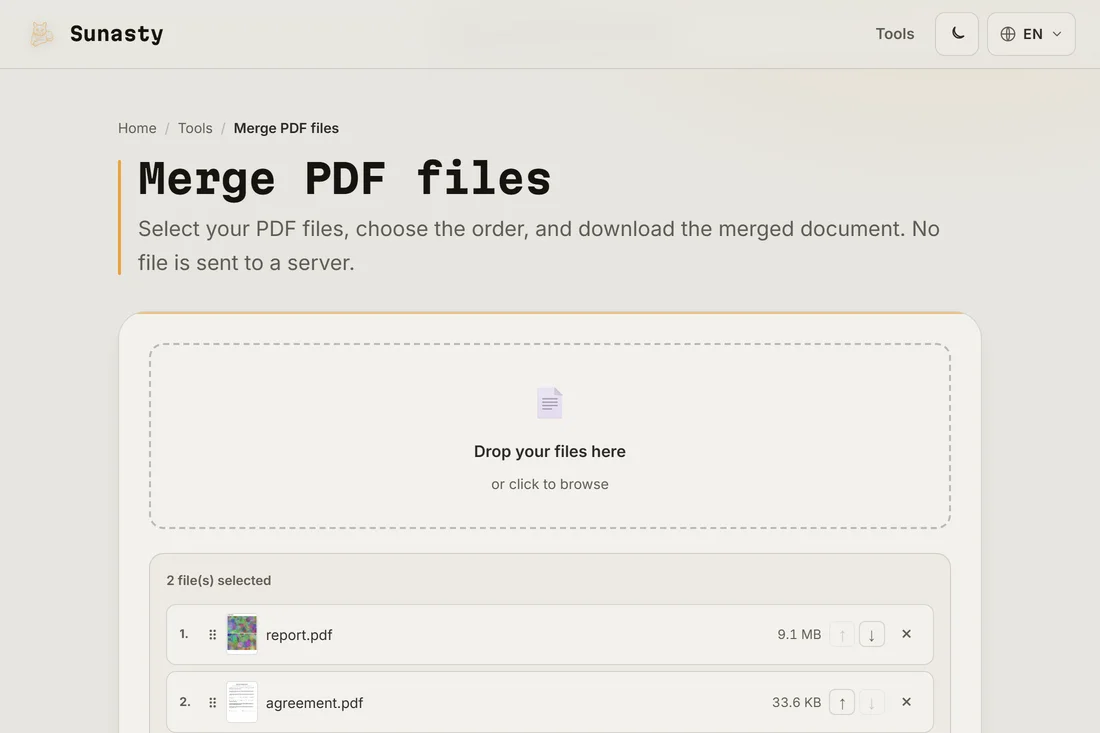
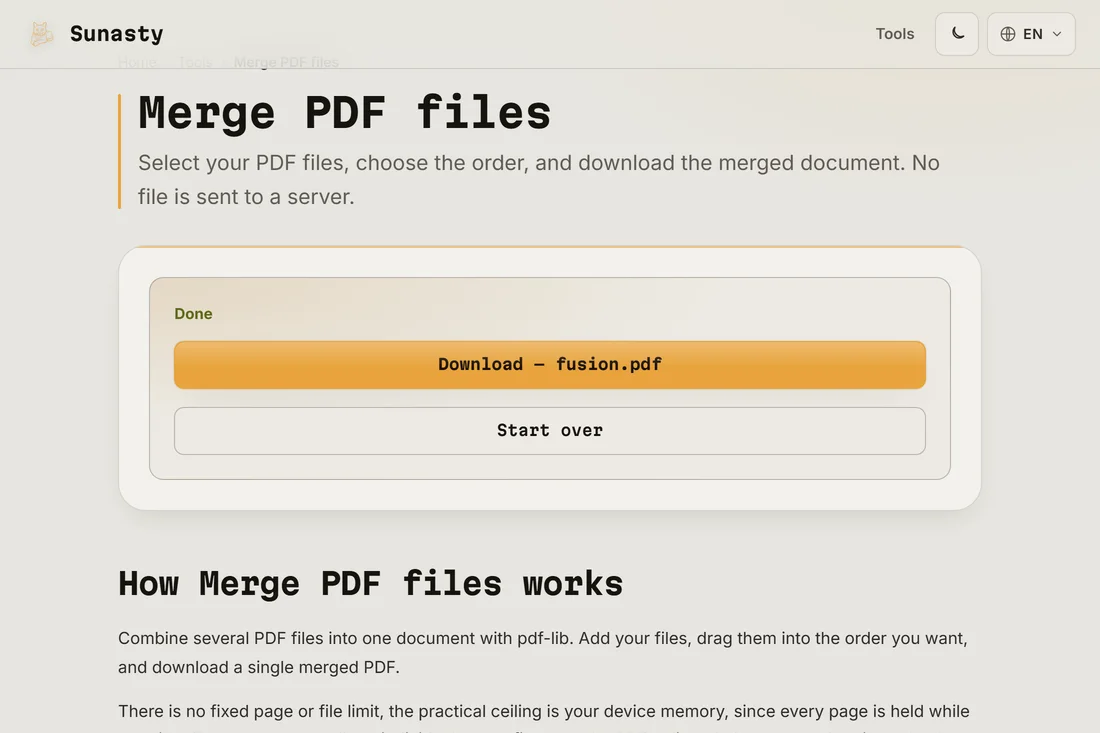
- Click Merge and download the result. The combined PDF preserves the original formatting, fonts and embedded images of each source file. Your original files stay untouched on your disk.
When merging is not what you need
If you need to interleave pages from two documents rather than stack them end-to-end, the page organizer lets you drag individual pages from multiple sources into a custom order. If the merged result is too large to email, run it through the compressor afterwards: the two tools are designed to be used together and both run locally.
Why do it in your browser instead of uploading
Most online merge tools require uploading all your files to a remote server, which takes time proportional to your total file size and means every document briefly exists on infrastructure you do not control. This merger runs the same pdf-lib engine inside your browser tab: your files are read locally, combined in memory, and the result is offered as a download. Nothing is sent anywhere, including the metadata embedded in each PDF.
The tools used in this guide
Frequently asked questions
Can I merge a password-protected PDF?
Not directly. Password-protected PDFs must be unlocked first before they can be merged. Use the PDF unlock tool to remove the password, then merge the unlocked copy. The unlock tool also runs locally and requires you to provide the correct password: it removes the lock, not circumvents it.
Will the merged file preserve bookmarks and hyperlinks?
Hyperlinks within pages are preserved. Document-level bookmarks (the table of contents panel in a reader) from individual files are not carried over to the merged document because the page numbering changes. If the final document needs a navigable structure, add bookmarks with the bookmark editor after merging.