How-to
Convert audio to MP3 in your browser
MP3 is still the format that plays everywhere: car stereos, phones, smart speakers, podcast apps. When you have a WAV recording that is too big to share, an OGG file your device refuses to play, or an M4A your podcast host does not accept, converting to MP3 takes under a minute in your browser. Your file never leaves your device.
Step by step
- Open the audio converter and drop your file in. The converter accepts MP3, WAV, AAC (M4A), OGG and most common audio formats. If your source is inside a video (MP4, MOV, MKV), use the extract-audio tool first to pull the track out, then convert the result here.
- Select MP3 as the output format and choose a bitrate. For podcasts, audiobooks and speech, 128 kbps is fine. For music you intend to keep, 192 or 320 kbps gives better quality. The format selector also shows WAV, AAC and OGG if you need a different target.
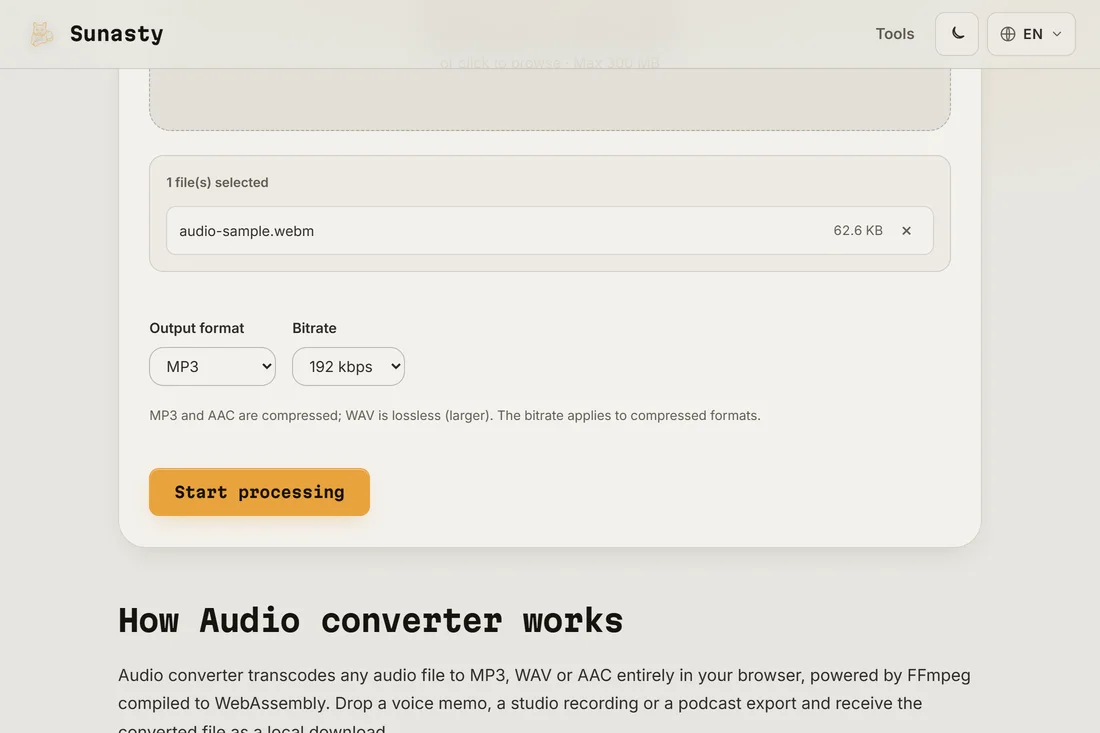
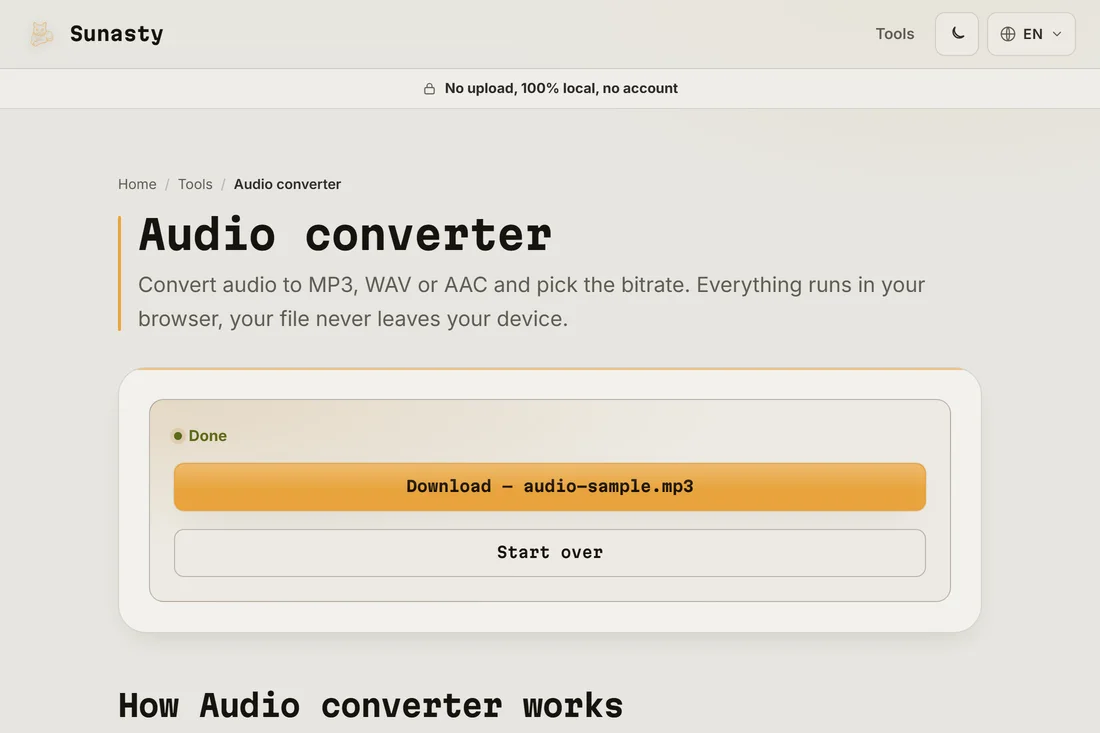
- Click convert and download the MP3. The conversion runs inside FFmpeg compiled to WebAssembly, directly in your browser tab. A progress bar tracks it in real time. The output lands in your downloads folder, ready to share, upload to a podcast host or copy to any device.
Which bitrate should you pick?
Bitrate controls quality versus file size. 128 kbps is the practical floor for music listened to on earbuds; below that, compression artefacts become audible on high-frequency content. 192 kbps is the safe default for any general use. 320 kbps is the ceiling for MP3 and is indistinguishable from the source on most listening setups. The catch: converting from a lossy format (AAC, OGG, even MP3 itself) to MP3 always loses some quality, because you are re-encoding already-compressed audio. Start from the highest-quality source you have.
What if you need to convert from video?
The audio converter accepts audio files directly. If your source is a video (MP4, MOV, WebM, MKV), go to the audio extractor instead: it pulls the soundtrack out and lets you pick the output format in one step, so you do not need to convert twice. Once you have an audio file, the cutter can trim it to the exact segment you want before or after converting.
The tools used in this guide
- Audio converter Convert audio to MP3, WAV or AAC directly in your browser. No upload.
- Extract audio from MP4 Extract the audio track from your MP4 videos as MP3, without server-side conversion.
- Audio cutter Cut a clip out of an MP3, WAV or M4A right in your browser: fade in/out, ringtone preset. No upload.
Frequently asked questions
Why does my converted MP3 sound worse than the original?
Converting between lossy formats (AAC to MP3, OGG to MP3) always involves re-encoding already-compressed audio. Each encoding pass discards some data, so quality degrades slightly every time. The effect is more pronounced at low bitrates. To minimize it, start from the best source you have and use 192 kbps or higher for the output. If you have the original WAV or lossless file, convert from that instead of from the compressed copy.
Is my audio file uploaded during the conversion?
No. The converter runs FFmpeg compiled to WebAssembly inside your browser tab. The first time you use it, the FFmpeg engine downloads and caches (about 30 MB); your audio file is never part of that download and never leaves your device. You can open your browser Network tab during conversion and confirm that no outgoing request carries your file data.