How-to
Record your screen without installing anything
Modern browsers can capture the screen natively, so a quick recording does not need a downloaded app, a watermark or an account. The screen recorder here uses that built-in capture: you choose what to share, the recording happens in the page, and the file stays on your device.
Step by step
- Open the screen recorder and click Start recording. Your browser shows its own picker: share a single tab, an application window or the entire screen.
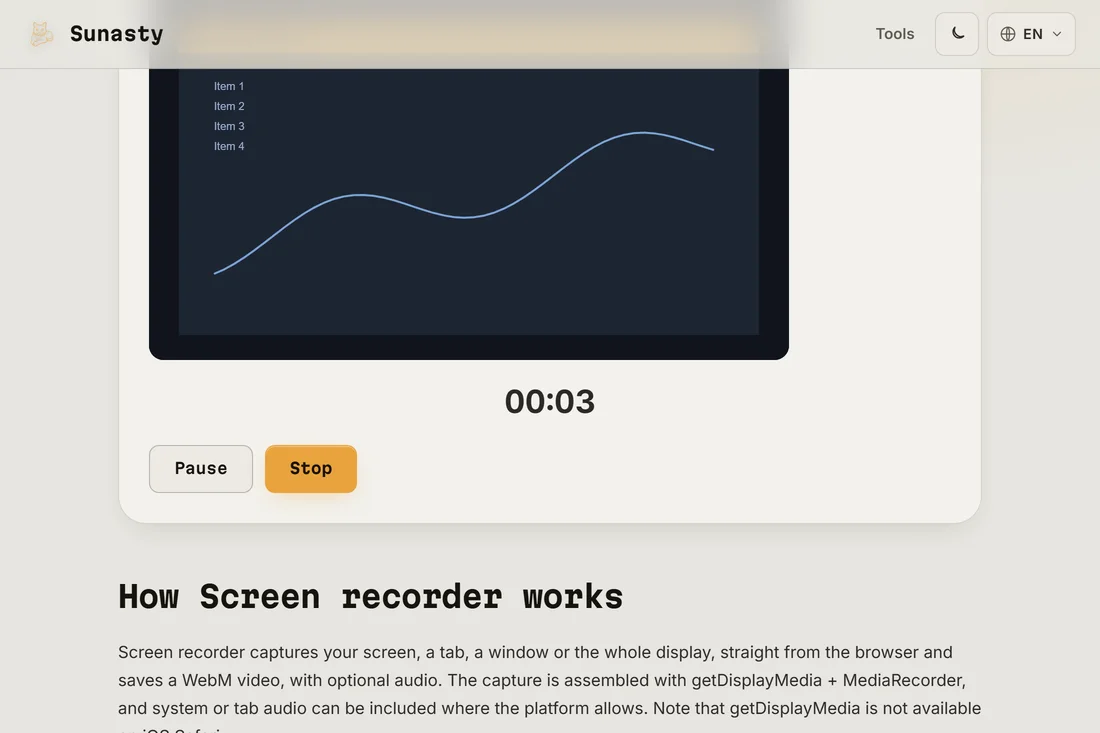
- Record what you need. A timer shows the elapsed time and you can pause and resume freely; stop from the page or from the browser's own sharing bar.
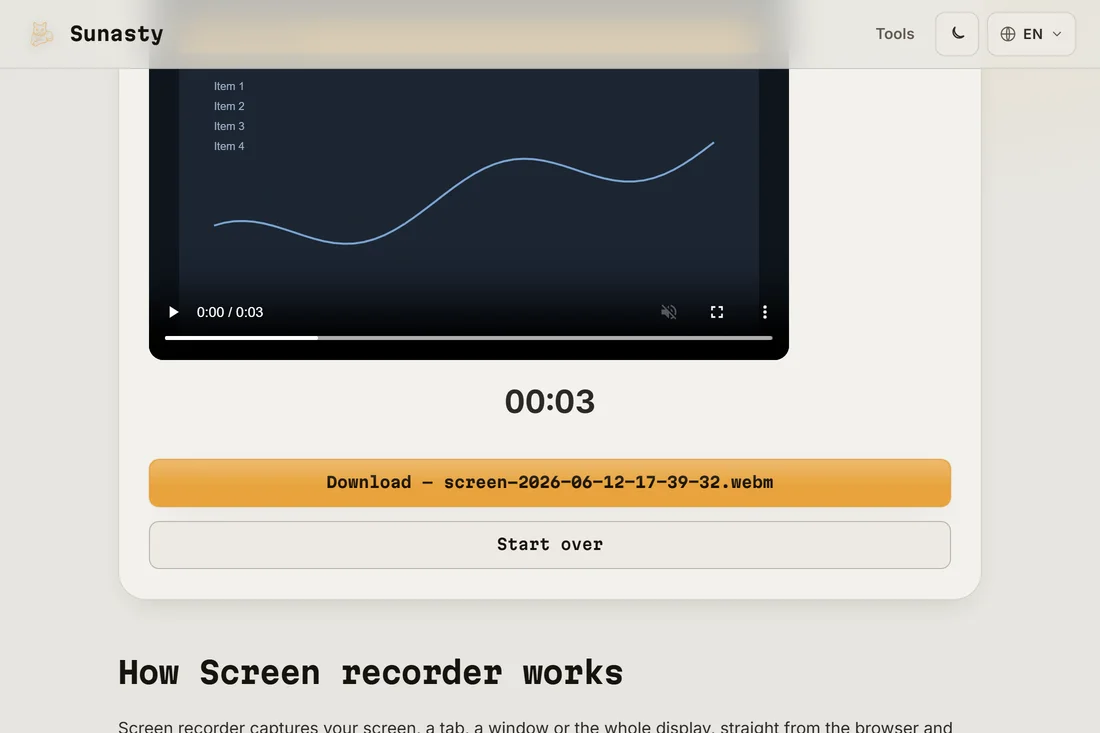
- Preview the result right on the page and download the video file. If you want to cut a slip-up or change the format, the video trimmer and converter run in the same browser.
What the browser recorder can and cannot do
The recorder saves a WebM file, which every modern browser and most players open; if you need an MP4, convert it locally afterwards. Tab and system audio capture depends on the browser and the system: Chromium-based browsers can capture tab audio, while some setups record video only. Recordings are capped at two hours to protect the tab's memory, and screen capture is not available on iOS Safari.
The browser permission model vs. an installed app
An installed recorder receives a broad system permission and runs as a background process. The browser capture API works differently: it is gated per-session and scoped to exactly the source you picked in the browser's own picker. The MediaRecorder API then assembles the stream into a WebM container directly in the tab's memory. Nothing is relayed to a server because there is no server in the architecture; the recording lives in your browser until you click download.
The tools used in this guide
Frequently asked questions
Where is the recording stored while it is running?
In the tab's memory. The MediaRecorder API accumulates encoded video chunks in a JavaScript array; when you stop, those chunks are merged into a Blob and offered to you as a download. The file only touches your disk after you click the download button. Nothing is uploaded at any stage: open the Network panel and the only traffic you will see is the page's own assets loading on the first visit.
How do I get an MP4 instead of a WebM?
Record first, then run the file through the video converter: it converts WebM to MP4 locally in the same browser, no upload involved. For sharing in chat apps, WebM often works as is, so try the original file first.