How-to
Crop a profile picture to square or circle shape
Most social platforms, video call apps and forum avatars display profile pictures as circles. Uploading a landscape or portrait photo and letting the platform crop it usually cuts off your face or leaves too much empty space. This guide shows how to frame the crop yourself and export the result already sized for the platform you need.
Step by step
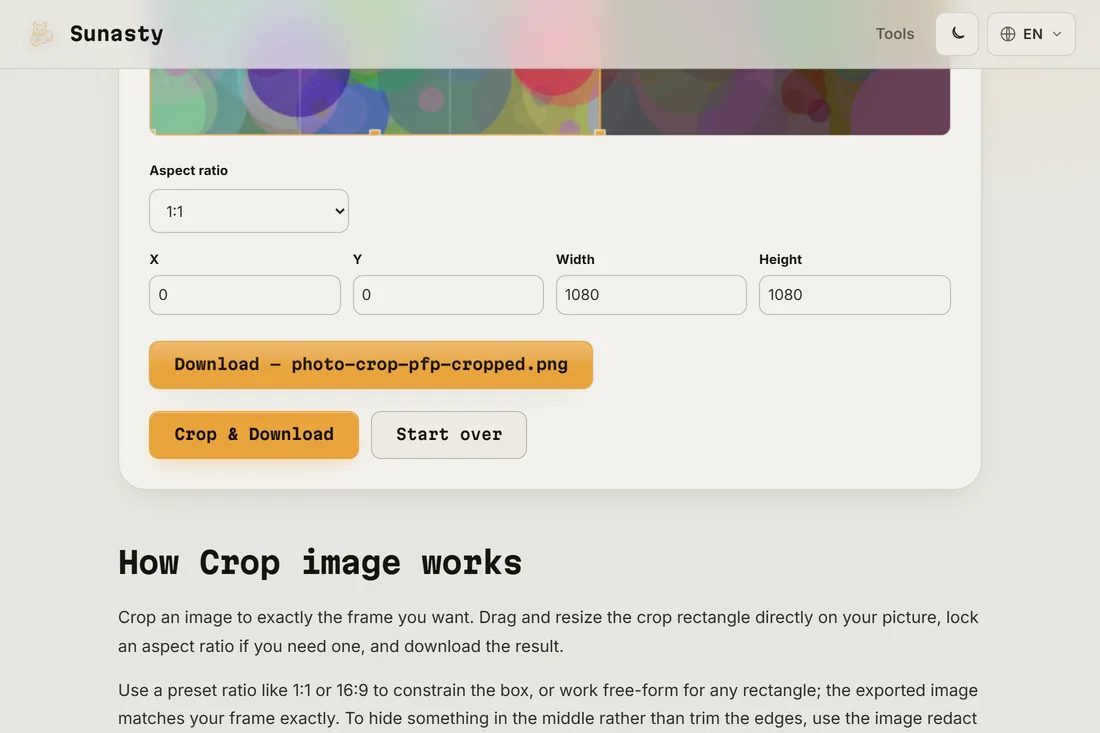
- Open the image cropper and drop your photo. The crop handles appear over the image. Choose a 1:1 ratio to force a square selection, then drag the crop box over your face or subject, making sure to leave some breathing room around the edges - the platform will often scale the result down further, so tight crops can make you look crowded.
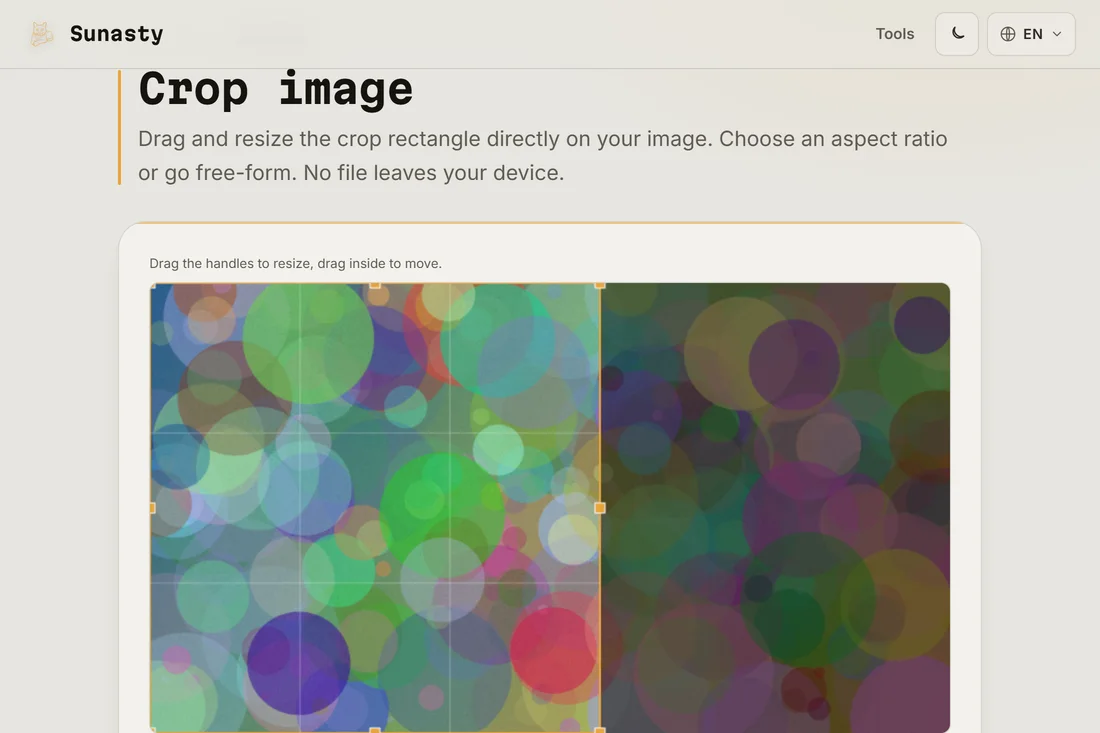
- Adjust the crop box until the framing looks right, then apply the crop. The result is a square image. If the platform specifically shows round avatars, open the circle cropper to export a version with a transparent circle outline: the PNG output has rounded transparency built in rather than a white background.
- Download the result and check it in your file viewer before uploading. Most platforms accept a square or circle PNG directly. If the upload form asks for a minimum pixel count, resize the cropped image to the required size before uploading. Everything runs in your browser: your photo never leaves your device.
Square vs circle: which format platforms want
Platforms that display round avatars (LinkedIn, Twitter, most video call apps) apply the circle mask themselves on a square image you upload. You do not need to send them a round file; a square crop is enough. Platforms that accept a round PNG (Discord, some forum software) may let you keep the transparent corners if you export the circle-cropped version: this gives you more control over how the transparency composites against different backgrounds. When in doubt, a square PNG at 400x400 or 1000x1000 pixels works everywhere.
Getting a flattering crop without distortion
A circle avatar has no corners, which means anything in the corner of your square crop disappears. Frame the crop so the important content sits in the center third of the square. For headshots, eyes and the top of the head should fill roughly two thirds of the height; for logos or product shots, center the key graphic element. Avoid cropping so tight that the subject touches the edges: that 10 percent of margin protects the framing when the platform applies its own compression and scaling.
The tools used in this guide
Frequently asked questions
Why does my circle avatar look blurry after uploading?
The platform downscaled your image when displaying it, or recompressed it on upload. Check the platform's documentation for the recommended upload size: most major platforms recommend at least 400x400 for profile photos and display them at 48 to 200 pixels, so a 1000x1000 source gives plenty of headroom. The cropper and resizer here both run in your browser, so you can prepare the exact dimensions the platform expects.
Can I use the same photo for all my platforms?
Yes, that is the point of preparing it well once. Crop your square version at a generous size (1000x1000 is a safe standard), export the circle variant if you need it, and keep both files. When a new platform asks for a profile photo, you already have the right crops ready and just resize to whatever pixel count the upload form expects.