How-to
Fill out a PDF form online without printing it
Tax forms, grant applications and administrative declarations often come as PDF files with fields you are expected to fill in by typing. Printing, filling by hand and scanning wastes time and produces poor-quality results. This guide shows how to fill in PDF form fields, add a signature and save a completed copy, entirely in your browser.
Step by step
- Open the PDF form filler and drop in your PDF. The tool detects interactive form fields (text boxes, checkboxes, radio buttons, dropdown menus) and lets you click into each one to type or select a value. If the PDF has no interactive fields (it is a scanned image), use the PDF editor instead to add text annotations over the fields manually.
- Fill in each field by clicking on it and typing. Use Tab to move to the next field. Checkboxes and radio buttons are toggled by clicking. When all fields are complete, use the sign tool or the signature field in the form to add your signature. You can draw it with a mouse or touchscreen, type it in a script font, or upload an image of your handwritten signature.
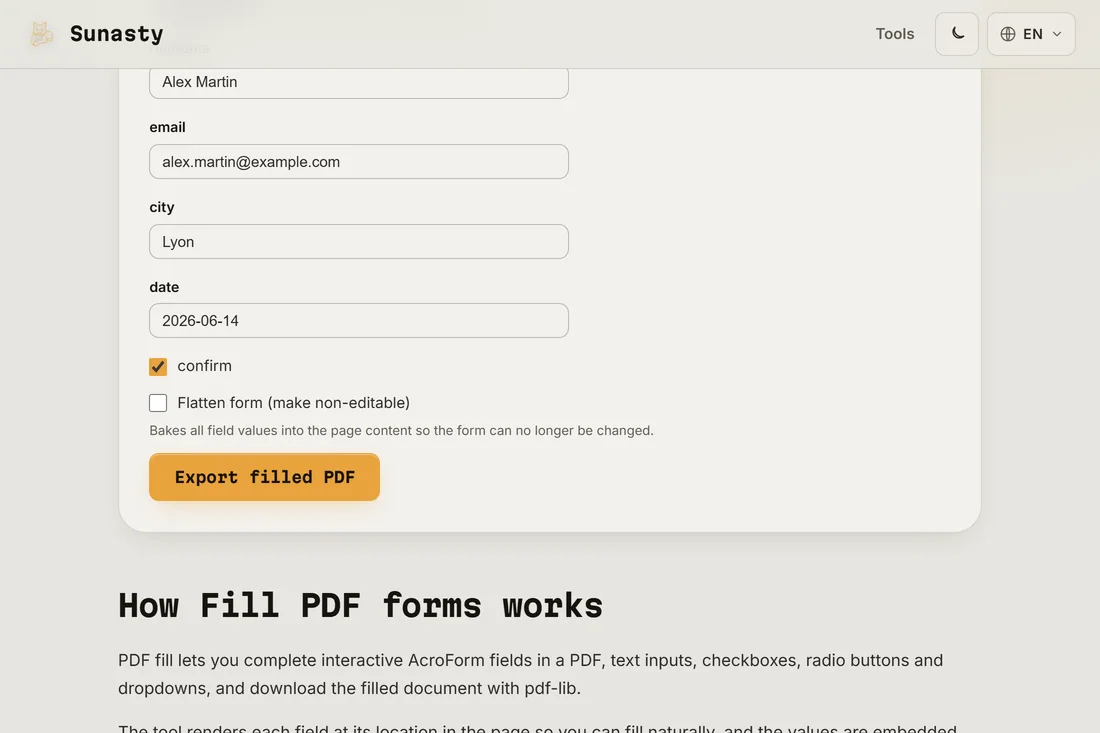
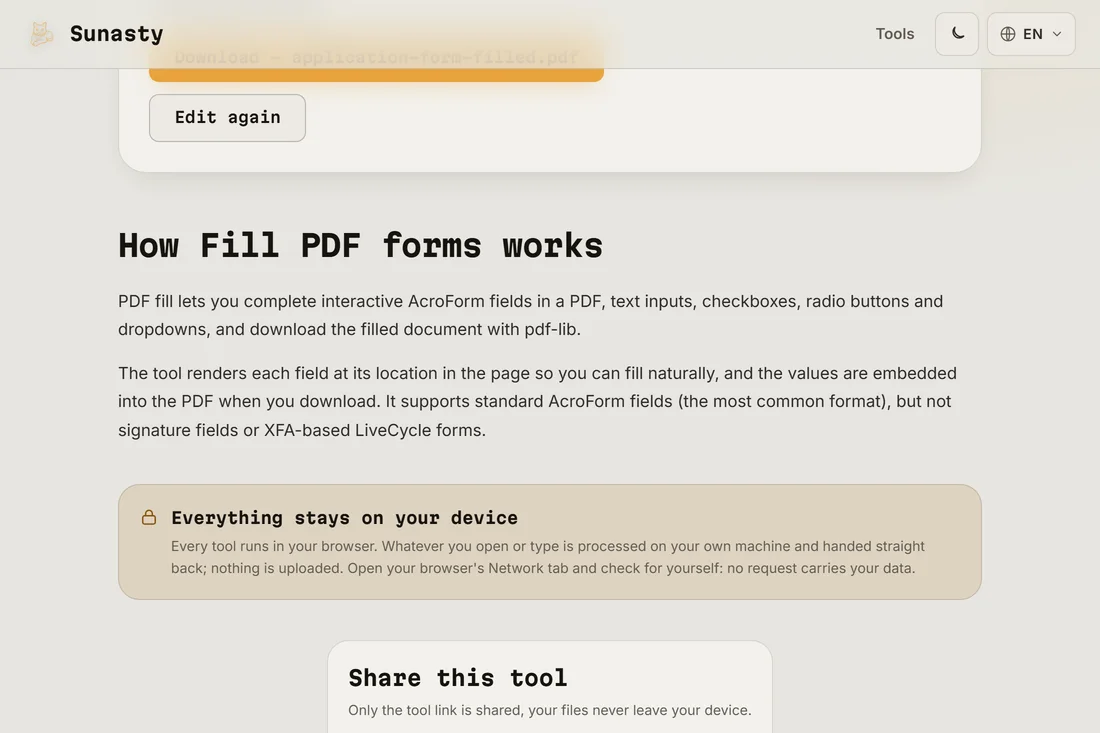
- Download the completed PDF. The form is saved with all fields filled in and the signature embedded. If the form needs to be flattened before submission (some portals reject editable PDFs), run it through the PDF flatten tool, which converts the interactive fields to static content. Your document was processed entirely in your browser: it was never sent to a server.
Interactive PDF forms versus scanned PDFs
There are two kinds of PDF form. An interactive form has fields programmed into it that the PDF viewer can detect: you see a highlighted box when you click in the right place and can type directly. A scanned PDF is just a photograph of a paper form: the PDF viewer sees pixels, not fields. The form filler works on interactive PDFs. For scanned forms, use the PDF editor to draw text boxes over the fields visually and type into them, or print the form, fill it by hand and scan it back. If you are unsure which kind you have, open it in the form filler: if no fields are highlighted when you click, it is a scanned form.
Flattening before submission
An interactive PDF with filled-in fields is technically still editable: anyone who receives it can change the values before printing or forwarding it. Some submission portals, and some recipients, require a flattened PDF where the field values are baked into the page as static content and can no longer be changed. Run the completed form through the PDF flatten tool to produce a flattened copy. It is good practice to keep the interactive (editable) copy for your records and send the flattened version for submission.
The tools used in this guide
- Fill PDF forms Fill interactive form fields (text, checkboxes, radio, dropdown) in a PDF directly in your browser. No upload.
- Sign a PDF Draw your signature and stamp it onto a PDF, directly in your browser. No upload.
- Flatten PDF Make form fields and annotation appearances permanent (non-editable) in your browser. No upload.
Frequently asked questions
What if the PDF does not have fillable fields?
If the PDF has no interactive fields, the form filler will open it but will not highlight any click targets. Use the PDF editor instead: it lets you add text annotations anywhere on the page by clicking and typing. Position the text box over the blank space where a field should be, set the font size to match the form's own text, and the result looks close to a typed form. This approach works for any scanned or non-interactive PDF.
Is the filled-in form legally valid?
For most administrative purposes, a typed PDF is treated the same as a handwritten one, especially if it carries a digital signature. Legal validity depends on the requirements of the receiving authority: some forms require a wet signature (ink on paper) and will not accept a digital fill-in. Check the instructions from the authority that issued the form. For most routine administrative documents, a filled and digitally signed PDF is accepted.