Size limit
Compress a video so it sends well on WhatsApp
WhatsApp limits how big a video you can send, and the exact cap depends on the app version and how you send it, so the honest advice is: aim comfortably under whatever the app accepts for you today. WhatsApp also re-encodes media aggressively on delivery, and a video that is already a sensible size survives that step in much better shape.
Step by step
- Trim first: cutting the dead seconds at the start and end with the video trimmer shrinks the file at zero quality cost, and a shorter clip is also what recipients actually watch.
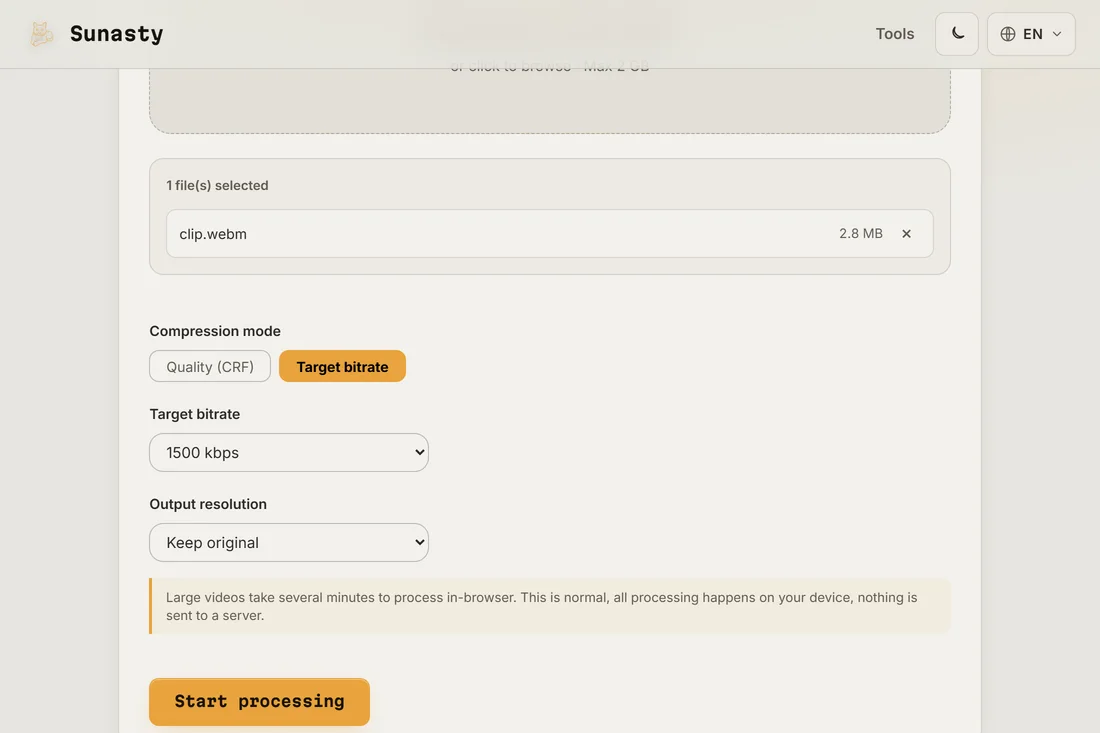
- Open the video compressor and drop your video. Switch to target bitrate mode and pick a modest bitrate, or stay in quality (CRF) mode and lower the quality until the size looks right; lowering the resolution helps a lot too, since most WhatsApp videos are watched on a phone screen.
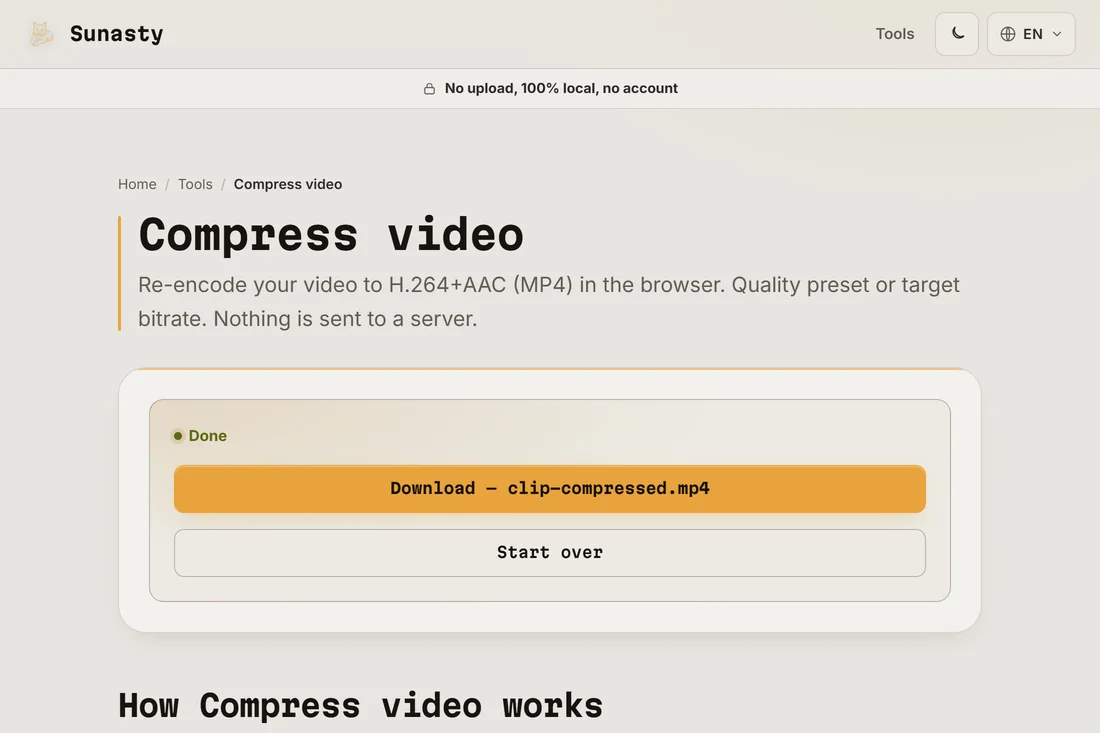
- Download and send it. If quality matters more than convenience, send the compressed file as a document instead of a media message: WhatsApp then skips its own re-encode and delivers your file as is.
Why WhatsApp videos arrive blurry
When you send a video as a regular media message, WhatsApp re-encodes it with settings tuned for data savings, not for looks: fast motion turns into blocks and text becomes mushy. You cannot disable that re-encode for media messages, but you can feed it a clean, reasonably sized video so it has less work to do, or bypass it entirely by sending the file as a document.
What happens on your device during compression
The compressor runs FFmpeg as a WebAssembly binary inside your browser. Your video is read from disk by the browser's File API, passed to the WASM module in memory and written back to you as a download, all without any network round-trip. This matters for a WhatsApp video in particular: these are often personal clips of family or travel, exactly the kind of content that should not transit through a third-party server as a side effect of making them smaller.
The tools used in this guide
- Compress video Reduce video file size via in-browser H.264 re-encode. No upload, no server.
- Trim video Cut a video to a start/end time range directly in your browser. Fast stream copy or precise re-encode. No upload.
- Video converter Convert video between MP4, WebM, MKV and MOV (H.264/H.265/VP9) in your browser. No upload.
Frequently asked questions
Which settings should I start with for WhatsApp?
Most WhatsApp videos are watched on a phone, so resolution is the cheapest thing to give away: 720p usually looks identical in a chat. Start there, pick a moderate bitrate or quality, and only go lower if the app still refuses the file.
Why does WhatsApp offer to trim my video?
When a video is larger than what the app accepts, WhatsApp proposes cutting it shorter, because duration is the only lever it exposes. Compressing locally first lets you keep the full length and choose where the quality goes instead.