How-to
Rotate a sideways video to the correct orientation
A video filmed on a phone held sideways plays sideways everywhere except the device that recorded it, because smartphones embed a rotation flag that most apps read but most editing tools ignore. This guide shows how to bake the correct orientation into the video file itself so it plays upright on every device, player and platform.
Step by step
- Open the video rotator and drop your video file. The tool shows a preview of the current orientation. Choose 90 degrees clockwise, 90 degrees counter-clockwise, or 180 degrees depending on which way the video is tilted. If the video plays correctly on your phone but sideways when you share it, the rotation flag was not being honored by the receiving app - rotating the file fixes this permanently.
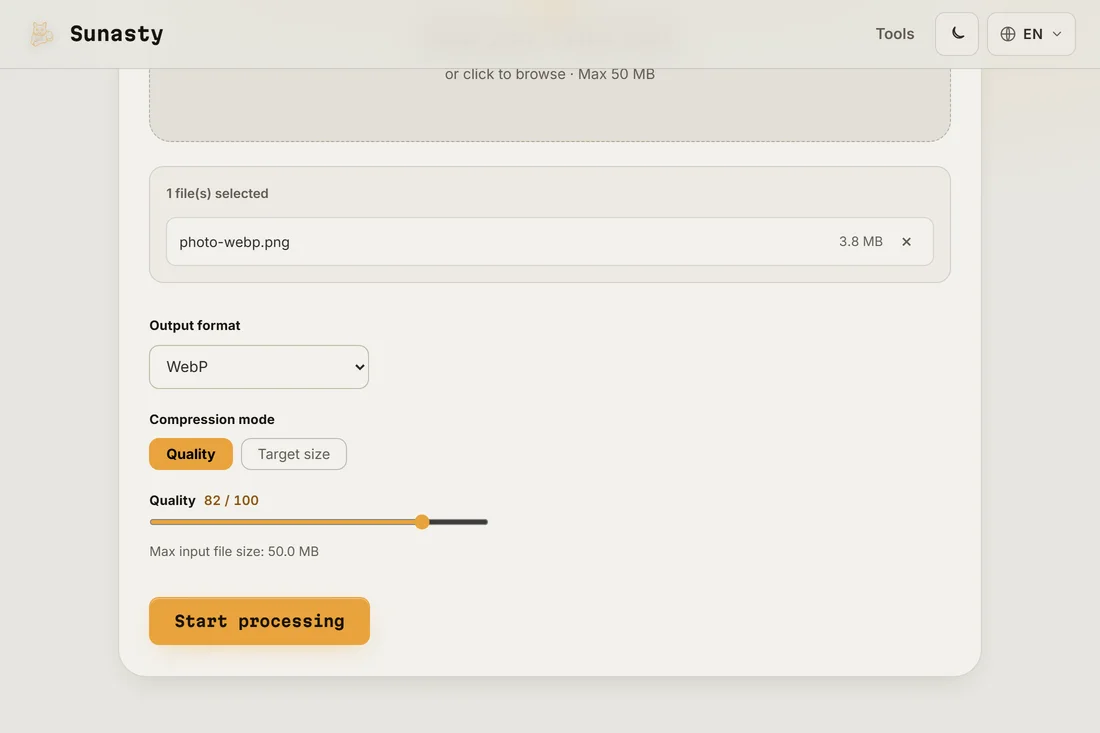
- Apply the rotation. The tool uses FFmpeg to re-encode the video with the correct frame orientation written into the file, not just a metadata flag. This means the output plays correctly in every media player, web browser and platform without needing any app to interpret the rotation hint.
- Download the corrected video and verify it plays correctly before deleting the original. The rotation is baked in: you can share the output directly via email, social media or messaging apps and it will display upright on any device. The conversion runs in your browser: your video never leaves your device.
Why videos record sideways in the first place
Phones record in the physical orientation of the camera sensor, which is typically landscape. When you hold the phone upright (portrait), the sensor still outputs landscape frames but writes a rotation flag in the video metadata telling players to rotate 90 degrees on playback. Apps that read this flag - the Photos app, most video players - show the video correctly. Apps that ignore it - many web platforms, some editing tools and older players - show the raw sensor output, which is sideways. Baking the rotation into the frames, which is what the rotator here does, eliminates the dependency on any app reading the flag.
Rotation versus re-encoding quality
Rotating video in software re-encodes the frames, which introduces some quality loss if the codec is lossy (H.264, H.265, VP9 all are). The loss is minimal at the default quality settings and usually not visible, but it is not zero. If you need to preserve the highest possible quality - for a master file or professional delivery - note that some tools offer a lossless rotate for certain formats, but this requires compatible hardware decoding support on playback. For everyday sharing and web upload, the re-encoded output from this tool is indistinguishable from the original.
The tools used in this guide
- Rotate video Rotate or flip a video (90°/180°/270°, horizontal/vertical) directly in your browser. No upload.
- Trim video Cut a video to a start/end time range directly in your browser. Fast stream copy or precise re-encode. No upload.
- Compress video Reduce video file size via in-browser H.264 re-encode. No upload, no server.
Frequently asked questions
Will the rotated video still play on my phone after conversion?
Yes. The output is a standard MP4 or WebM with the frames physically in the correct orientation. Because the rotation is in the frames rather than a metadata flag, any player on any device will show it correctly, including your phone. The file size may differ slightly from the original due to re-encoding.
My video is upside down, not sideways. Can I fix that too?
Yes: choose the 180-degree rotation option. This flips both the horizontal and vertical axes, correcting an upside-down video. The same process applies: the rotation is baked into the frames, so the output plays correctly everywhere without needing the player to flip it on display.