How-to
Open iPhone HEIC photos on a Windows PC
iPhones save photos in HEIC format by default because it produces smaller files than JPEG at the same visual quality. The problem: Windows does not open HEIC files without a paid codec extension, and many apps, websites and printing services only accept JPEG. Converting the file is the straightforward fix, and it takes under a minute in your browser without installing anything.
Step by step
- Transfer the HEIC file from your iPhone to your Windows PC. The fastest method for a single photo is to share it to yourself via email, AirDrop to a Mac and then copy across, or use a USB cable with the iPhone set to transfer originals (not the compatibility copies). Open the HEIC converter and drop the file - the tool reads the HEIC format entirely in your browser.
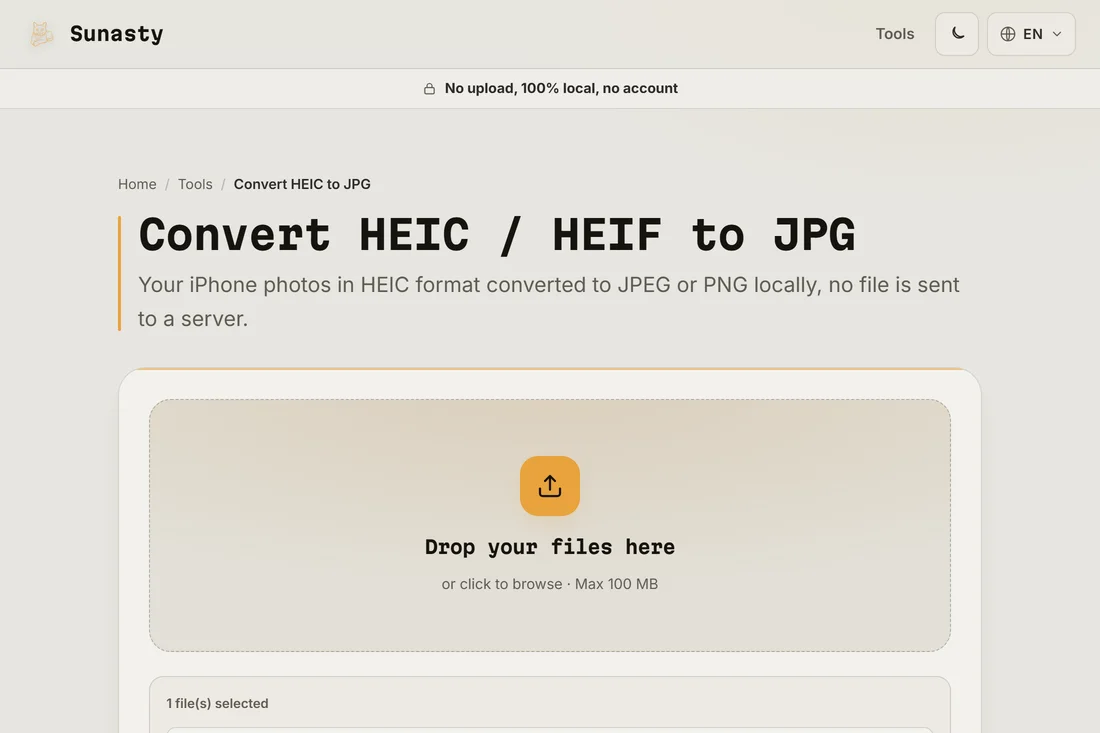
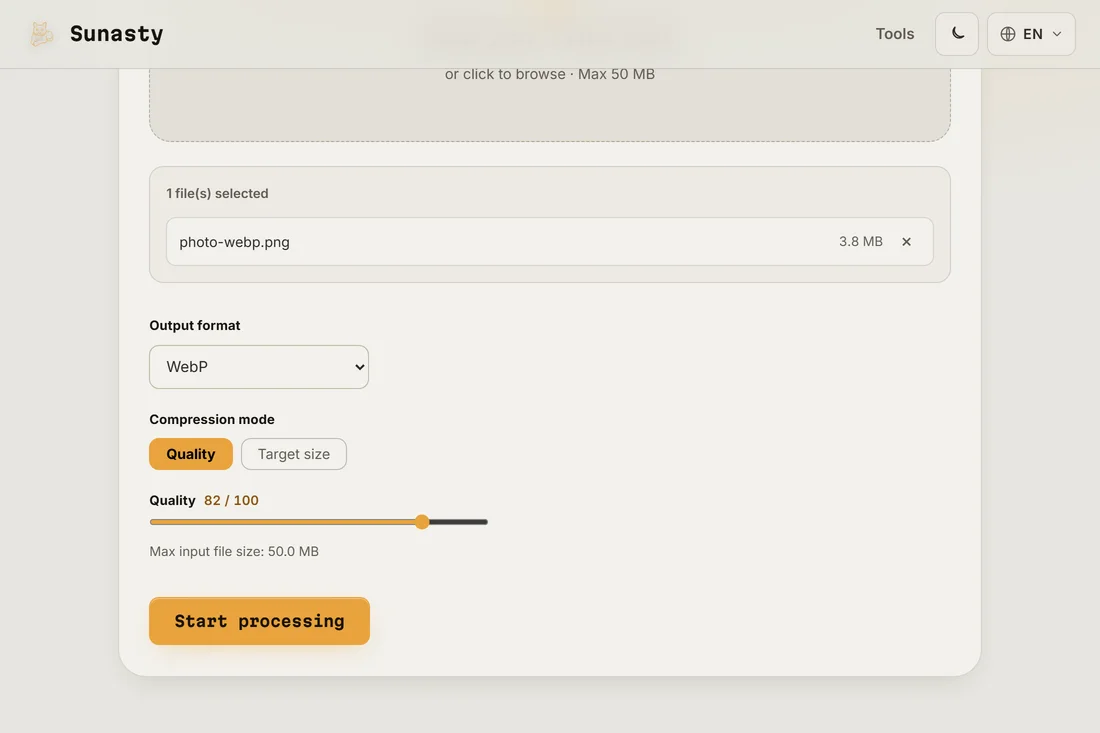
- Choose JPEG as the output format and set the quality. For photos you want to share, print or edit, 90 percent quality gives a JPEG indistinguishable from the HEIC original at a reasonable file size. For photos that will be further compressed by a platform, 85 percent is a sensible starting point. The converter processes the file on your device: nothing is sent to a server.
- Download the JPEG and open it normally in Windows Photos, Paint, Photoshop or any other application. The metadata from the original - capture date, camera info, GPS if present - is preserved in the JPEG EXIF block. If you do not want the GPS coordinates in the file, use the EXIF reader to strip them before sharing.
Why iPhones use HEIC and when to keep it
HEIC (High Efficiency Image Container) is based on the HEVC video codec. Apple adopted it in iOS 11 to halve photo storage usage without visible quality loss. The format is excellent for on-device storage, iCloud and sharing between Apple devices. The problem arises when you move photos out of the Apple ecosystem: Windows, most Android apps, many web services and older software do not support HEIC without add-ons. Converting to JPEG solves compatibility entirely at a modest file-size cost.
How to prevent the problem when transferring photos
If you regularly transfer iPhone photos to a Windows PC, you can tell your iPhone to automatically send JPEG-compatible versions. Go to Settings, then Photos, and under Transfer to Mac or PC choose Automatic: the phone will send JPEG files when it detects it is connected to a non-Apple computer. This does not change how photos are stored on the phone - they stay in HEIC for efficiency - it only changes what gets copied out. For a one-off transfer or a file already on your PC, the converter in your browser remains the fastest option.
The tools used in this guide
Frequently asked questions
Will I lose quality converting from HEIC to JPEG?
At 90 percent JPEG quality, the visual difference from the HEIC original is not detectable in normal viewing or printing. JPEG is a mature format and at high quality settings it preserves all the detail that matters for photos. The only thing that changes is that HEIC would have been slightly smaller than the JPEG for the same visual quality. The conversion is one-way: keep your HEIC originals if storage is not a concern.
Is there a way to open HEIC files directly on Windows without converting?
Yes: Microsoft offers the HEVC Video Extensions codec in the Windows Store (it costs a small amount). Once installed, Windows Photos and most other apps can open HEIC files natively. Whether that is better than converting depends on your workflow: if you process many iPhone photos regularly, the paid codec is convenient; for occasional one-off files, converting in the browser is faster than purchasing and installing software.