How-to
How to remove metadata from a Word document before sharing it
Every Word document you create carries invisible data: your name, your organisation, a full revision history and sometimes comments you thought you had deleted. When you email a contract or share a report, that information travels with the file. This guide shows how to strip it out in seconds, without sending the document to any server.
Step by step
- Open the Office metadata remover and drop your .docx file in. The tool reads the document immediately and shows you a table of every property it found: author, last modified by, company, creation and revision dates.
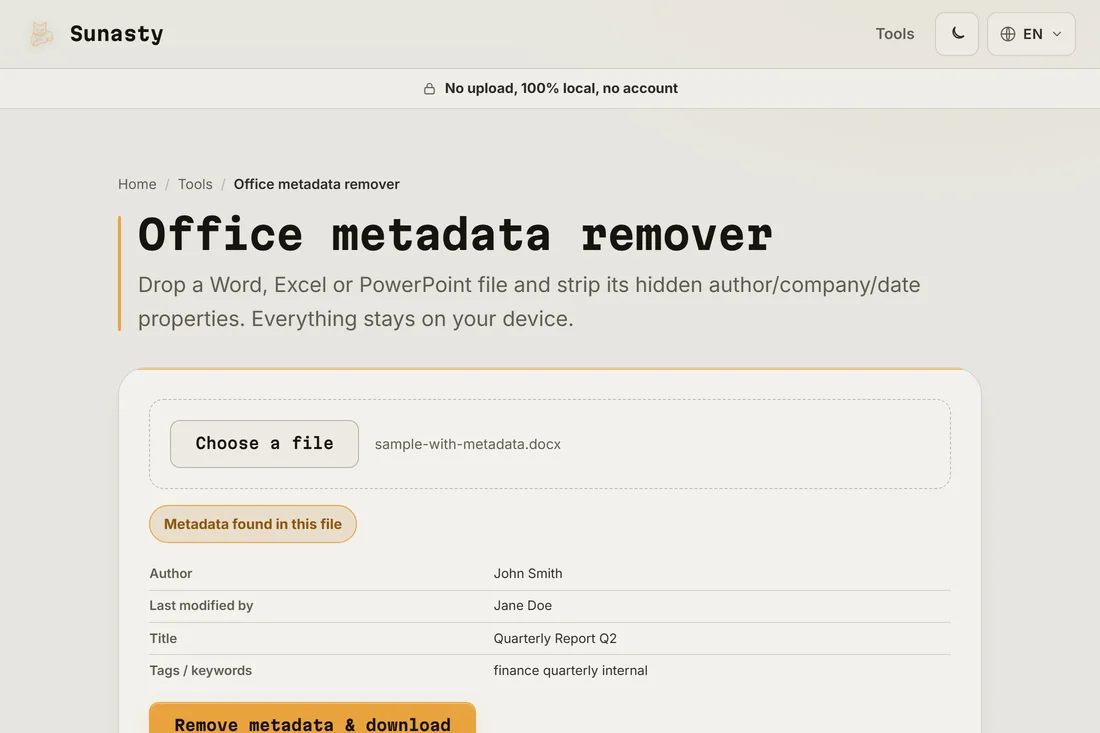
- Review the metadata table. Typical fields are the author name used when the document was created, the last person to save it, the organisation stored in Office settings and revision timestamps. Comments and tracked changes listed here are embedded in the document body, not in the property fields, but the clean operation removes them along with the property data.
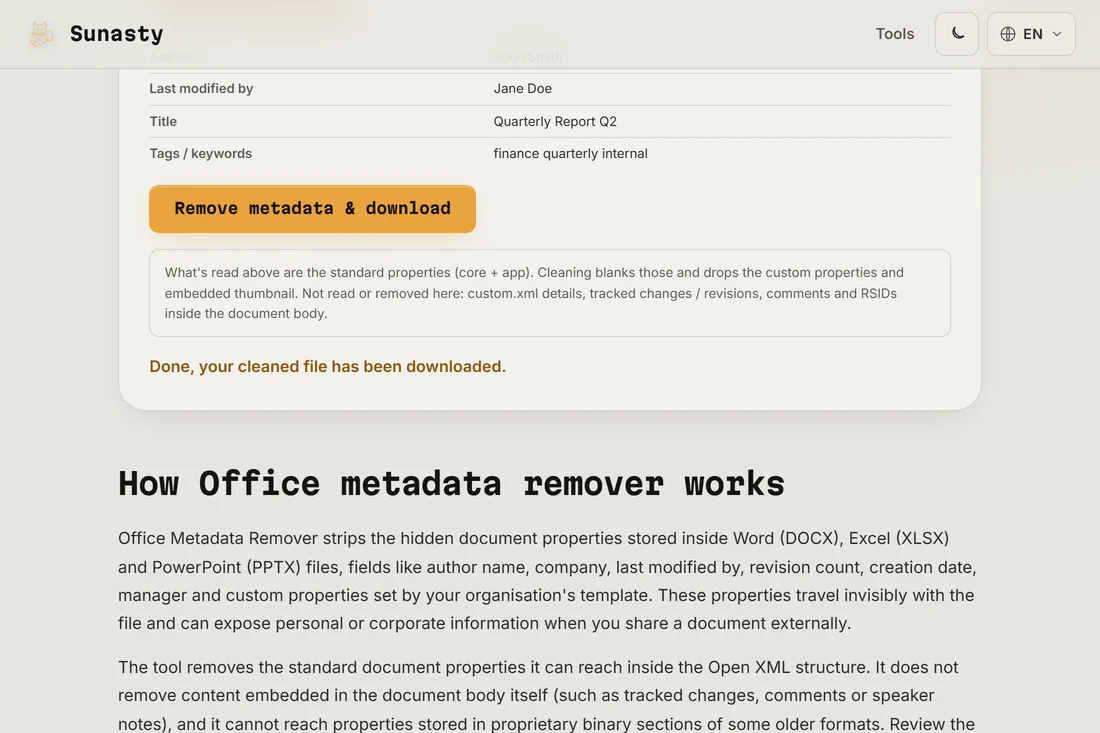
- Click the clean and download button. The tool removes all property fields, strips tracked changes and revision history, drops the thumbnail and outputs a fresh .docx. The file name gains a -clean suffix so you can tell the versions apart. Your original file is never modified.
What metadata a Word document carries by default
Microsoft Office stores document properties in two XML files inside the .docx archive: core.xml (title, author, last-modified-by, created and modified timestamps, revision count) and app.xml (application name and version, company, total editing time). On top of that, the document body can contain tracked changes with usernames and timestamps, comments attributed to named authors, and a thumbnail image of the first page. None of this is visible in the finished document, so it is easy to forget it is there until someone opens the file in a different application and notices.
Why it matters before sharing externally
The name stored in the author field may belong to a colleague, a contractor or a previous owner of the laptop. The company field can reveal an internal department or client relationship. Revision history and tracked changes can expose negotiation positions in a contract, internal feedback in a report, or an earlier version of a quote that was meant to be confidential. Removing this data before sending takes seconds and removes a class of accidental disclosure that privacy policies cannot fix after the fact.
The tools used in this guide
- Office metadata remover Remove the hidden document properties (author, company, dates…) from Word, Excel and PowerPoint files. 100% in your browser, no upload.
- Read EXIF metadata View and strip EXIF metadata from your photos without sending them to a server.
- Remove PDF annotations Strip comments, highlights, links and form fields from a PDF without uploading. Privacy-safe.
Frequently asked questions
Does the clean operation change the visible content of the document?
No. The text, images, tables, headers, footers and formatting in the document body are untouched. Only the hidden property fields (author, company, revision timestamps and tracked changes) are removed. The output opens and prints identically to the input.
Does my document get uploaded during this process?
No. The tool reads the file locally in your browser using the fflate library to unpack the .docx ZIP archive, modifies the XML property files in memory, repacks the archive and hands you the result as a download. No file data leaves your device at any point. You can confirm this by watching the Network tab in your browser's developer tools while the operation runs.