How-to
Extract text from a scanned PDF
A scanned PDF is essentially a photograph of a page: the text looks right but cannot be selected, searched or copied because it is stored as pixels, not characters. Optical character recognition (OCR) converts those pixels back into actual text you can paste into a document, search with Ctrl+F or index for later. This guide uses an on-device OCR engine, so your scan never leaves your computer.
Step by step
- Open the OCR tool and drop in your scanned PDF or image file. The tool accepts PDF, PNG, JPEG, WebP and several other image formats. For a multi-page scan, the PDF format is the most convenient single input.
- Select the language of the text in the document. The default is English. Choosing the correct language helps the OCR engine pick the right character shapes and improves accuracy on accented letters and locale-specific punctuation.
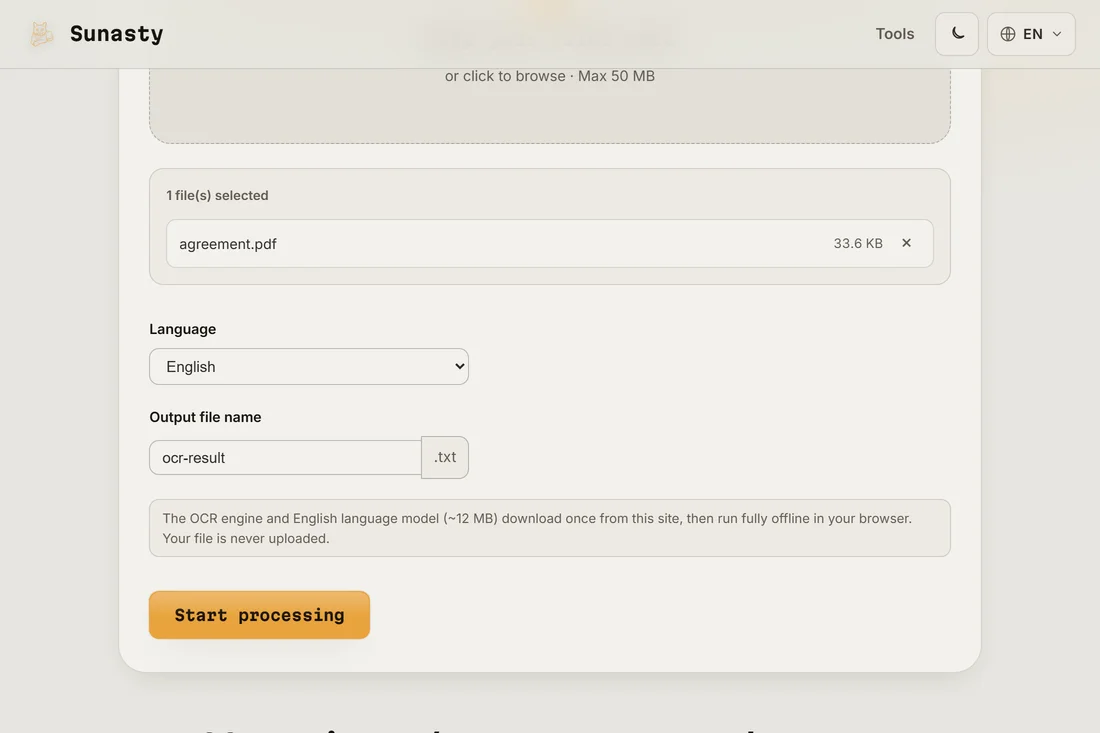
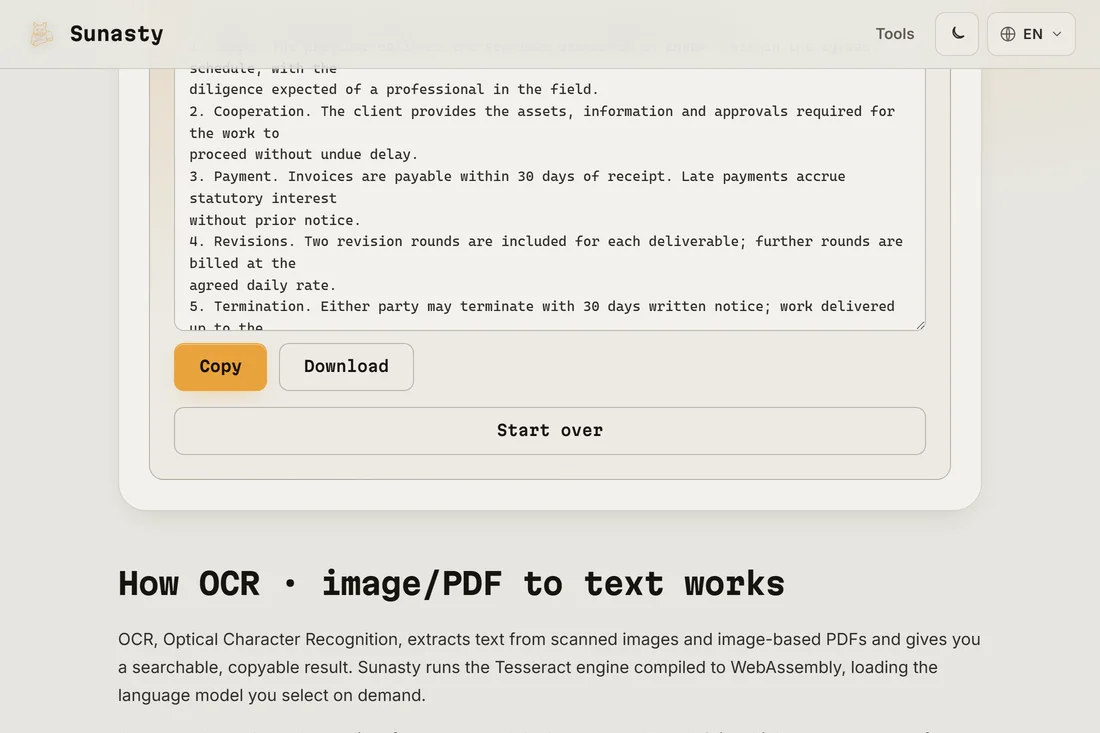
- Click Run and wait for the OCR to complete. The engine (Tesseract, compiled to WebAssembly) runs entirely in your browser. Processing a single A4 page takes a few seconds on a modern device. The result is a plain text file you can download and copy from.
How OCR quality depends on scan quality
OCR accuracy is dominated by input quality. A clean 300 DPI scan of a printed document (laser printer or photocopier output) will yield near-perfect results. A blurry phone photo taken at an angle in poor lighting will produce much worse output, with misread characters, merged words and missing lines. If your results are poor, try improving the source scan: take the photo straight on, in good light, and keep the page flat. The PDF deskew tool can straighten a slightly rotated scan before you run OCR on it.
What to do with the extracted text
The output is a plain text file with the recognized characters in reading order. You can paste it into a word processor, search it, translate it or use it as a starting point for an edited document. For a searchable PDF (the original page image with an invisible text layer overlaid), you would normally use dedicated desktop software such as Adobe Acrobat or OCRmyPDF: the on-device tool here outputs plain text only, which is what most use cases actually need.
The tools used in this guide
Frequently asked questions
Is my scan uploaded to a remote server?
No. Tesseract is compiled to WebAssembly and runs directly inside your browser tab. The language model (around 4 MB for the fast English model) downloads from this site once, then stays cached for offline use. Your file is read from your local disk and processed in memory: it is never sent to any server. This matters especially for scanned contracts, medical documents or personal correspondence.
Why is the OCR output imperfect on my document?
OCR errors come from scan quality (low resolution, blur, skew, shadows) or from unusual fonts and layouts. Try the deskew tool first if the page is not perfectly straight. For handwritten text, Tesseract's accuracy drops significantly: it is trained on printed characters, not handwriting. For mixed documents (printed text plus a handwritten signature), the printed parts will typically come out correctly and the handwritten parts will be garbled or omitted.