How-to
Convert an MP4 to WebM for use on a website
MP4 with H.264 is the universal safe choice for video, but WebM with VP9 is what modern browsers prefer for embedded web video: the file is smaller at the same quality, and no codec license is required. If you are putting a video on a web page, a WebM version alongside the MP4 gives the browser the lighter option to pick first.
Step by step
- Open the video converter and drop your MP4 file. Under container, choose WebM; under codec, choose VP9. VP9 delivers the best size-to-quality ratio for WebM and is supported by every current browser. If the source video is already small or very short, H.264 in an MP4 container may be fine as is.
- Leave the quality setting at the default CRF 28 for a balanced result, or lower it to 24 if the video has a lot of motion or fine detail you want to keep. You do not need to touch the resolution unless the source is larger than the display size on your page: a 4K video embedded at 1280 pixels can safely be downscaled here.
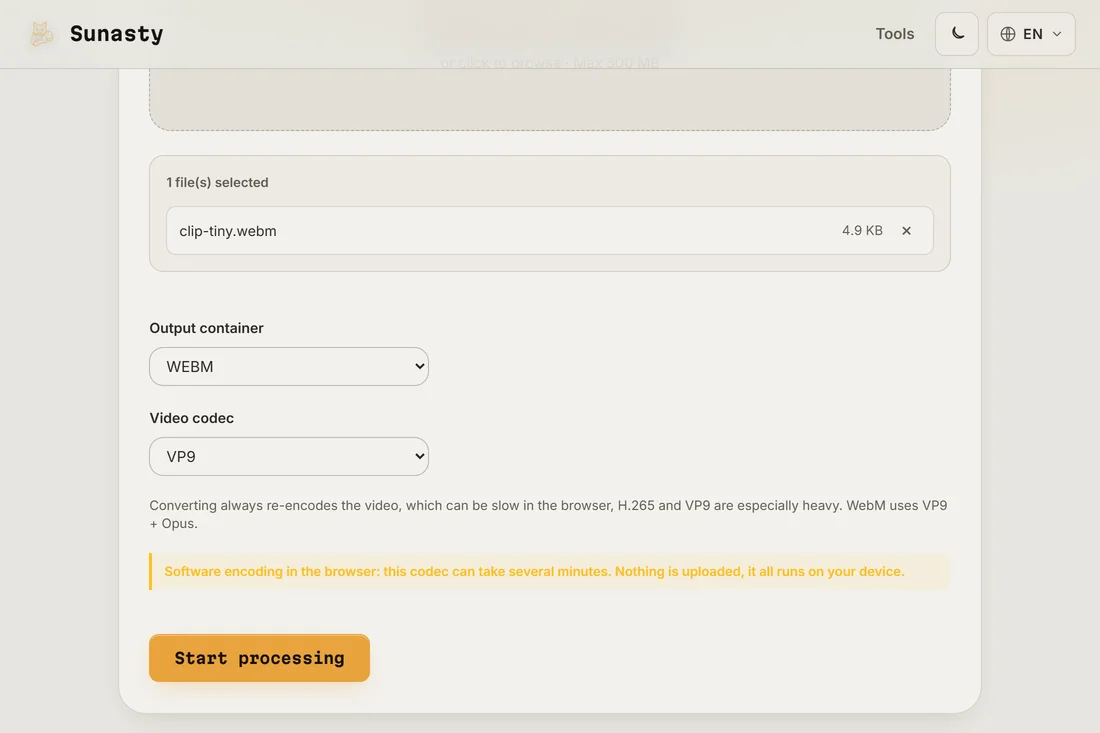
- Download the WebM file and check the filesize against the original MP4. A good VP9 WebM is typically 20 to 40 percent smaller than the H.264 equivalent at the same visual quality. On your web page, use both formats in a video element so every browser gets its preferred option. The converter runs entirely in your browser: your video never leaves your device.
When to use WebM and when to stick with MP4
WebM is a web-first format: it is the right choice for video embedded on a page, for background video loops and for video elements in web applications. MP4 with H.264 is the right choice when the video needs to play everywhere without exception: older Android devices, some TV apps, email clients and downloaded-file sharing. For the web, offer both formats in the video element and let the browser decide; for everything else, keep the MP4.
Why convert locally rather than uploading
Converting a video on an online service means uploading potentially hundreds of megabytes, waiting in a queue, and downloading the result. The converter here runs FFmpeg compiled to WebAssembly inside your browser: the conversion happens on your device at similar speed with no upload, no size limit beyond your available memory, and no risk of your video being processed on a server you do not control.
The tools used in this guide
- Video converter Convert video between MP4, WebM, MKV and MOV (H.264/H.265/VP9) in your browser. No upload.
- Compress video Reduce video file size via in-browser H.264 re-encode. No upload, no server.
- Trim video Cut a video to a start/end time range directly in your browser. Fast stream copy or precise re-encode. No upload.
Frequently asked questions
Do I need both MP4 and WebM on my web page?
Technically no: every major browser supports MP4 today, so a single MP4 will play everywhere. The case for WebM is performance: a VP9 WebM is noticeably lighter, which matters for page load time, especially on mobile. A video element that lists WebM first and MP4 as fallback gives each browser the best option for it without any JavaScript required.
Is VP9 better than H.264?
For web delivery, yes: VP9 is a more efficient codec and produces smaller files at the same perceptible quality. The tradeoff is encoding time: VP9 takes longer to encode than H.264, which is why FFmpeg may take a minute or two on a long clip. Decoding VP9 is fast on any device made in the past five years, so playback performance is not a concern.