How-to
Make a ringtone from any song in your browser
A ringtone is just a short audio clip, usually 20 to 30 seconds, with a smooth fade-in so it does not blast at full volume from the first frame. You can cut any MP3, M4A or WAV to the exact section you want and export it ready to transfer to your phone, entirely in your browser.
Step by step
- Open the audio cutter and drop your song in. The cutter accepts MP3, WAV, AAC, OGG and most audio formats. If you have the song inside a video file, extract the audio first with the audio extractor, then bring the result here.
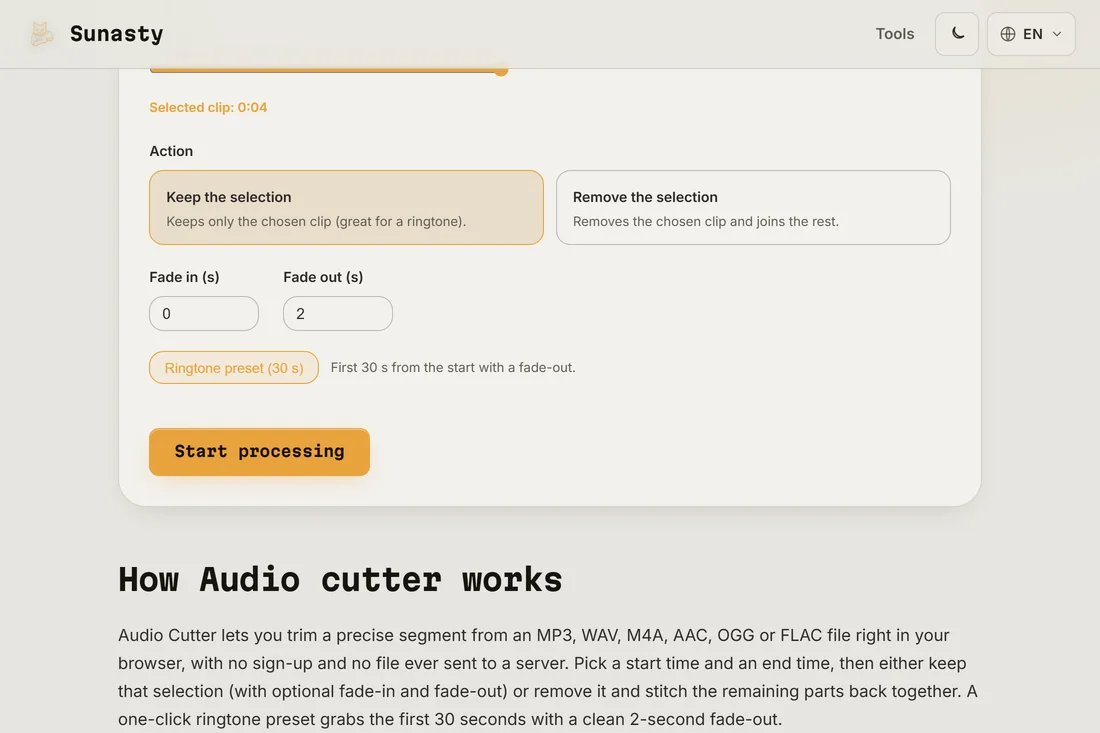
- Click the ringtone preset button below the timeline. It sets a 30-second segment starting at the beginning, with a 1-second fade-in and a 2-second fade-out. Drag the selection handles on the waveform to move the segment to the chorus or the part you actually want, or type the exact start and end times in the fields above the timeline.
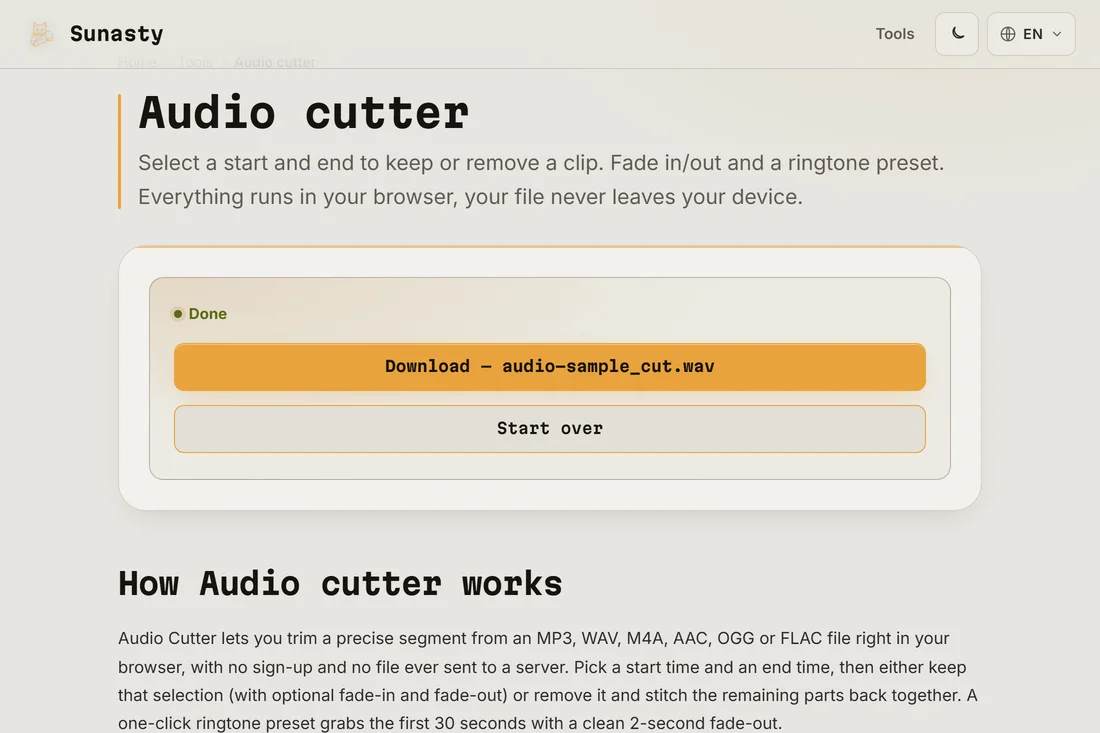
- Click cut and download the result. The output is an MP3 file at the same quality as your source. Transfer it to your phone via cable, cloud storage or email and set it as your ringtone in your phone's sound settings.
What makes a good ringtone
The best ringtone moment is usually the most recognizable hook or chorus, not the intro. Aim for 20 to 30 seconds: shorter clips can feel abrupt if the call goes to voicemail; longer ones waste space and no one hears past the first few seconds anyway. A fade-in of 0.5 to 1 second prevents the jarring cold start; a fade-out of 1 to 2 seconds softens the loop end. Keep the overall volume reasonable so it does not startle in a quiet room. The ringtone preset applies sensible defaults you can adjust from there.
How to set the file on your phone
On Android: copy the MP3 to your phone's Ringtones folder (or Music folder if no Ringtones folder exists), then go to Settings, Sound, Phone ringtone and pick it from the list. On iPhone: Apple limits ringtones to AAC files with the extension .m4r (not .m4a) and a maximum of 40 seconds. Export from the cutter as AAC, rename the file extension from .m4a to .m4r, then sync it to your iPhone via Finder (macOS) or iTunes (Windows). If that is too many steps, several free apps accept standard audio files and handle the conversion internally.
The tools used in this guide
- Audio cutter Cut a clip out of an MP3, WAV or M4A right in your browser: fade in/out, ringtone preset. No upload.
- Audio converter Convert audio to MP3, WAV or AAC directly in your browser. No upload.
- Extract audio from MP4 Extract the audio track from your MP4 videos as MP3, without server-side conversion.
Frequently asked questions
Why does my iPhone not accept the MP3 file as a ringtone?
iPhone ringtones must be in AAC format with the file extension .m4r and must be no longer than 40 seconds. Export the cutter output as AAC (M4A), rename the .m4a extension to .m4r, and then sync it to your iPhone via Finder on macOS or iTunes on Windows. The file goes into the Tones section. Once synced, find it under Settings, Sounds, Ringtone.
Is my song uploaded when I use the cutter?
No. The audio cutter runs FFmpeg inside your browser tab as a WebAssembly module. Your file is read from your device into browser memory and processed there; it is never sent to any server. The first run downloads the FFmpeg engine itself (about 30 MB, cached afterwards). After that the tool works fully offline.