Size limit
Compress a video to fit Discord’s upload limit
Discord caps uploads for free accounts, and the cap has changed several times over the years, so the honest advice is: aim comfortably under whatever the app shows you today. A gameplay clip fresh out of a recorder blows past it easily; two minutes of local compression fix it.
Step by step
- Trim first if you can: cutting dead seconds with the video trimmer is the single most effective way to shrink a file, with zero quality cost on what remains.
- Open the video compressor and drop your clip. Choose the quality (CRF) mode and lower it until the size fits, or switch to target bitrate mode if you prefer to reason in numbers; lower the resolution too if needed (1080p is plenty for a chat embed).
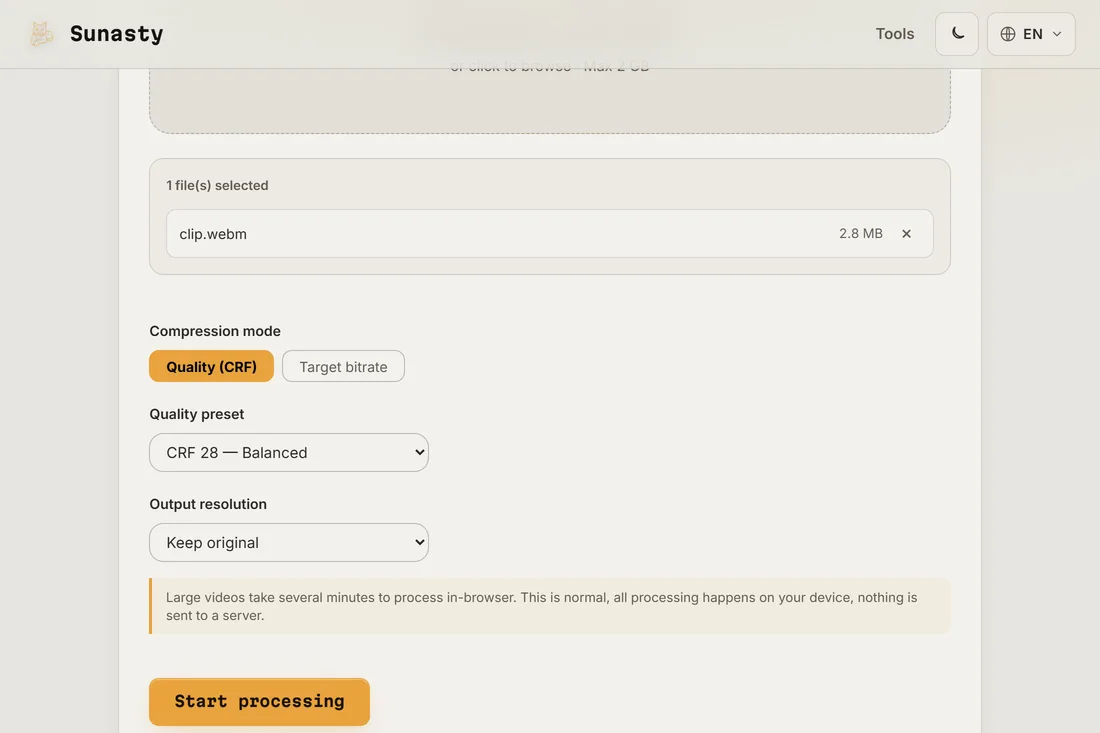
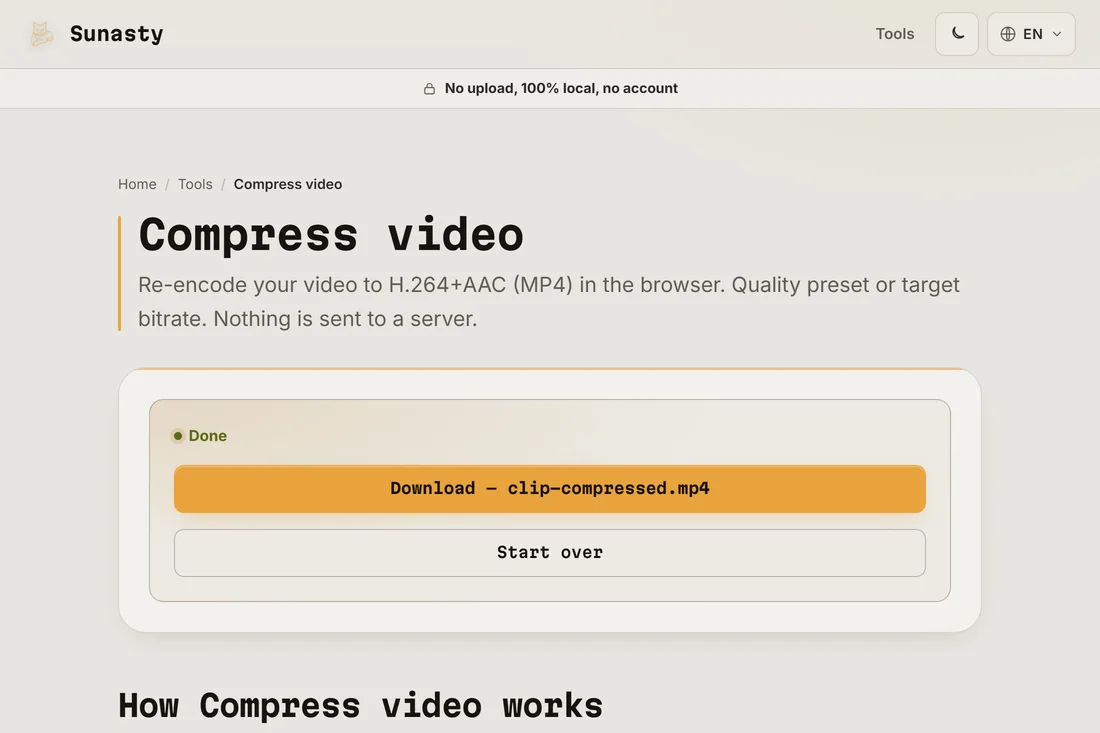
- Download and post. If it is still too big, drop to 720p before sacrificing more bitrate: for screen content, resolution costs less visually than compression artifacts.
What actually shrinks a video
File size is essentially bitrate times duration. Resolution and frame rate set how much bitrate you need for things to look clean, and the codec sets how efficiently those bits are spent. So the levers, in order: shorter duration (trim), lower resolution, lower bitrate, better codec. Audio is usually a rounding error next to the video track.
FFmpeg in the browser: how the compressor actually works
The compressor ships FFmpeg as a WebAssembly binary that runs inside a Web Worker in your tab. When you start a job, the browser unpacks the WASM module and your clip is fed to it through shared memory, never leaving the machine. H.264 encoding is CPU-bound, so the speed you get is your hardware’s, not a shared server’s; a gaming laptop with a fast processor will finish the same job noticeably quicker than a budget one. There is also no queue, no size tier and no account: the resource cost lands on your device, not ours.
The tools used in this guide
- Compress video Reduce video file size via in-browser H.264 re-encode. No upload, no server.
- Trim video Cut a video to a start/end time range directly in your browser. Fast stream copy or precise re-encode. No upload.
- Video converter Convert video between MP4, WebM, MKV and MOV (H.264/H.265/VP9) in your browser. No upload.
Frequently asked questions
How long does browser-side compression take?
It depends on your machine and the clip length: expect roughly real time, or faster, on a recent laptop for a 1080p clip. You skip the upload and the download entirely, which for a large clip is often where most of the waiting is on server-based sites.
Which settings should I start with?
For a game or screen clip going to Discord: keep 60 fps only if the motion really needs it, try 1080p first, and lower the quality until the size fits with a margin. If it looks blocky, prefer dropping to 720p over starving the bitrate further.