How-to
Convert a PDF to JPG images without uploading it
Extracting images from a PDF is useful for presentations, thumbnails, social media posts, or sharing individual pages without sending the whole document. A PDF page rendered to a JPG is also the cleaner alternative to a screenshot when you need a specific resolution. The converter runs in your browser and keeps your file on your device.
Step by step
- Open the PDF to image tool and drop your PDF in. A page thumbnail strip loads so you can see what you are working with. For a long document, you can limit conversion to specific pages using the range field rather than waiting for all of them.
- Choose the output format and resolution. JPEG at 150 DPI is a good default for most uses: screen display, embedding in a presentation, posting online. Choose PNG if you need a lossless copy or if the page contains text you want to stay crisp at high zoom. Raise the DPI to 300 for print-quality output.
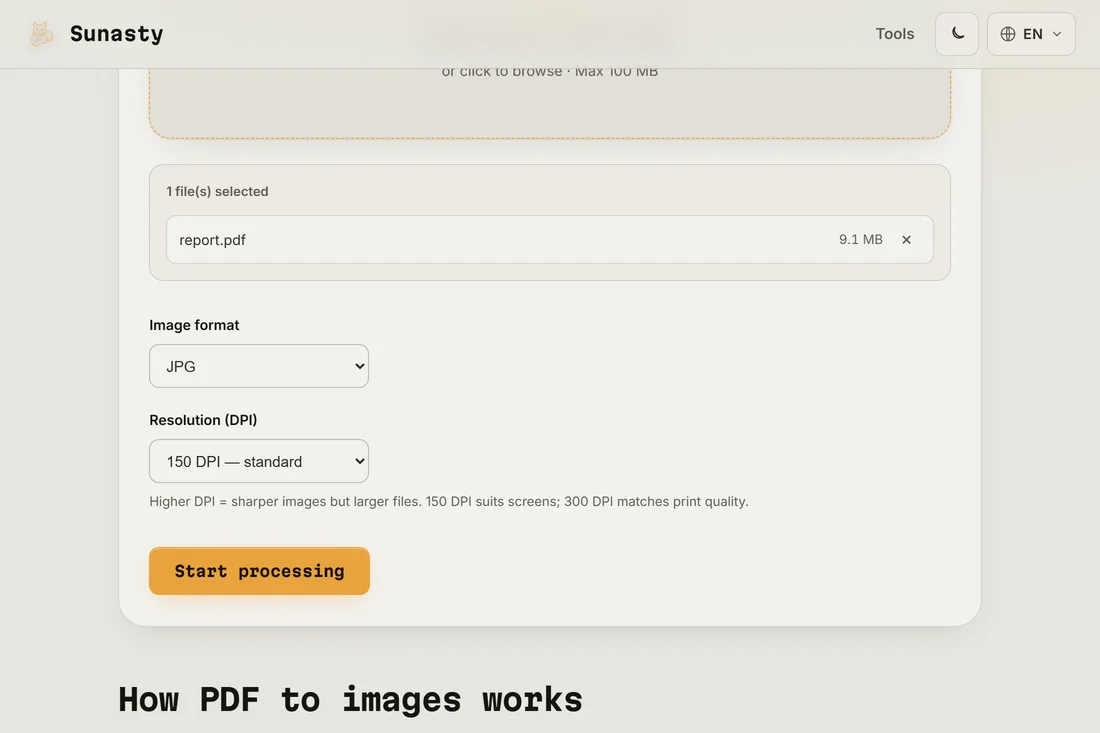
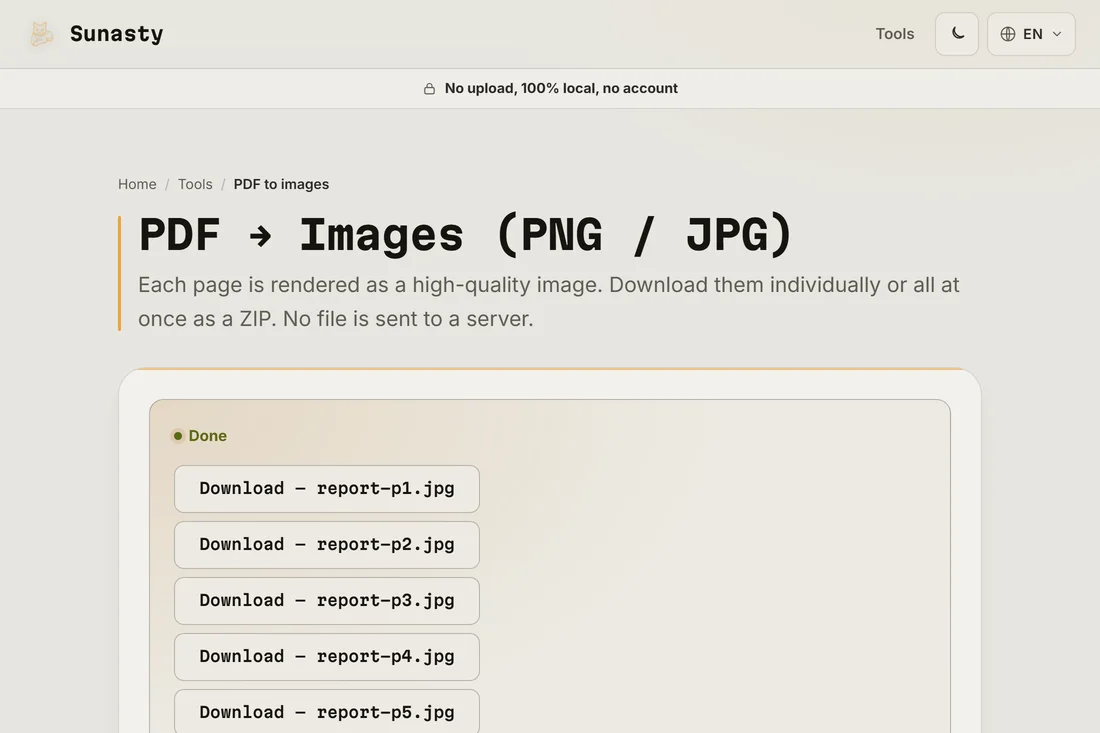
- Click Convert and download the results. Single-page conversions download as an image file directly. Multi-page conversions produce a ZIP archive with one file per page, named sequentially so they sort correctly in any file manager.
JPG vs PNG for PDF pages
JPG is smaller and faster to load, which makes it the right choice for sharing, posting online or embedding in a document where file size matters. PNG is lossless: text stays perfectly sharp at any zoom level and there are no compression artifacts around high-contrast edges. Choose PNG when the page contains diagrams, schematics or fine text you may need to zoom into, and JPG when file size or upload limits are the constraint.
Why convert locally instead of uploading
Many people convert PDFs to images precisely because they want to share a visual without sharing the underlying document structure. Uploading the source PDF to an online converter to do this sends the full document, including its text layer, metadata and any embedded attachments, to a server you do not control. The converter here renders each page using PDF.js, entirely in your browser tab: the PDF data never leaves your device.
The tools used in this guide
Frequently asked questions
Will the converted images contain selectable text?
No. Converting to an image rasterizes the page: the output is a pixel grid, not a document. Text is baked into the pixels and is not selectable or copyable. If you need the text content, use the PDF to text tool instead; if you need to extract embedded image files from within a PDF, use the PDF image extractor.
What resolution should I choose for a presentation or social media?
For a slide in a presentation tool (Keynote, PowerPoint, Google Slides), 150 DPI gives a clean result that loads quickly. For social media, the platform will re-encode the image anyway, so 150 DPI is fine; 96 DPI is often enough if file size is a concern. For print, use 300 DPI. Going higher than 300 DPI rarely improves visible quality but makes the files much larger.