How-to
How to blur part of an image without leaking it
A name in a chat, a face in a photo, an address on an invoice: before a screenshot goes to a forum or a client, the sensitive zone has to go. The catch is that not every blur actually removes information, and the image should not transit through a server on the way.
Step by step
- Open the image redaction tool and drop your image in. The preview appears immediately; everything happens in the tab.
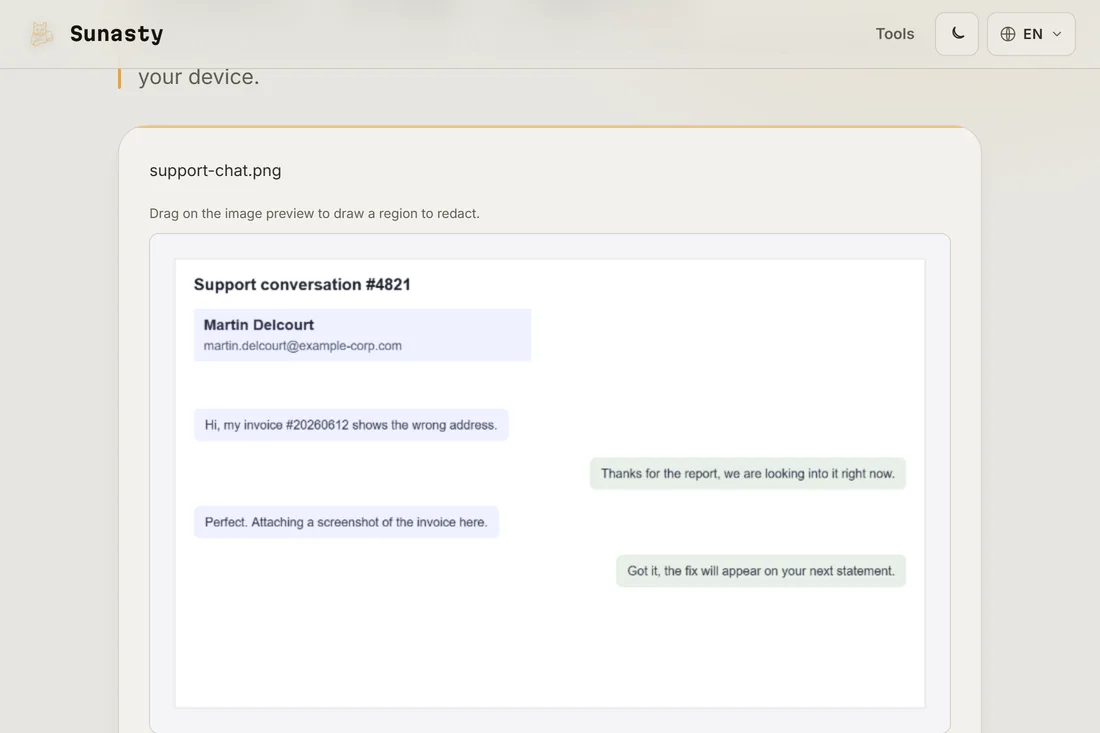
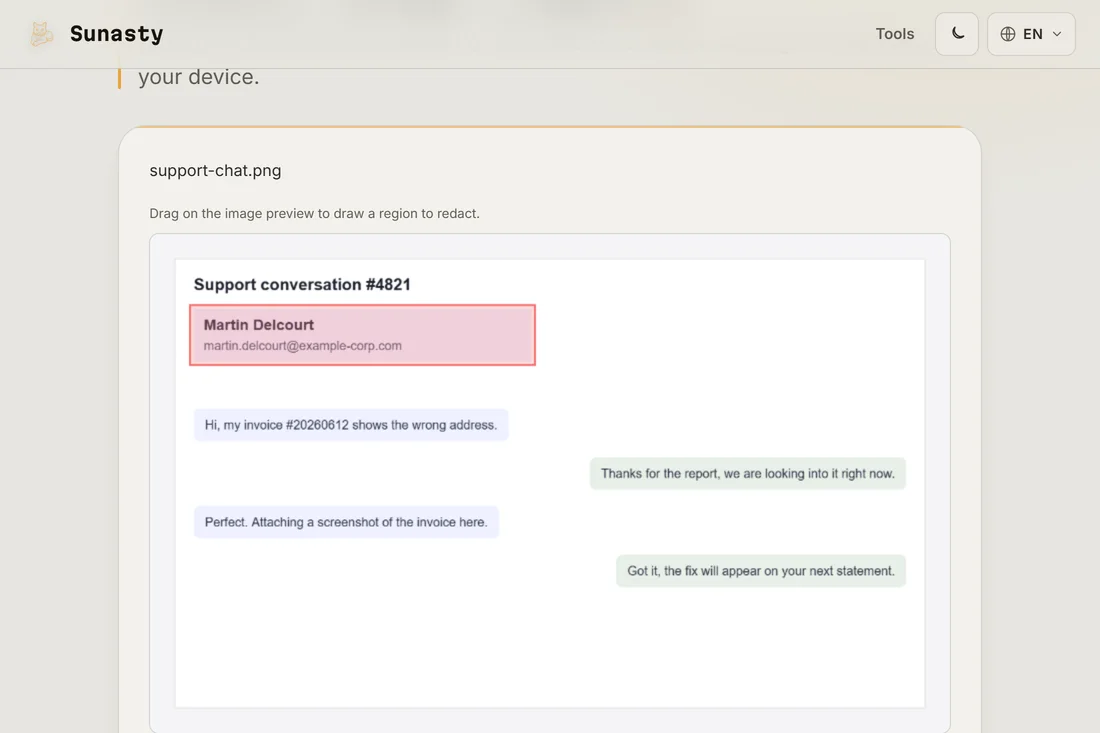
- Draw a rectangle over each zone to hide, directly on the preview. You can stack several: a chat block, a username and a face in one pass.
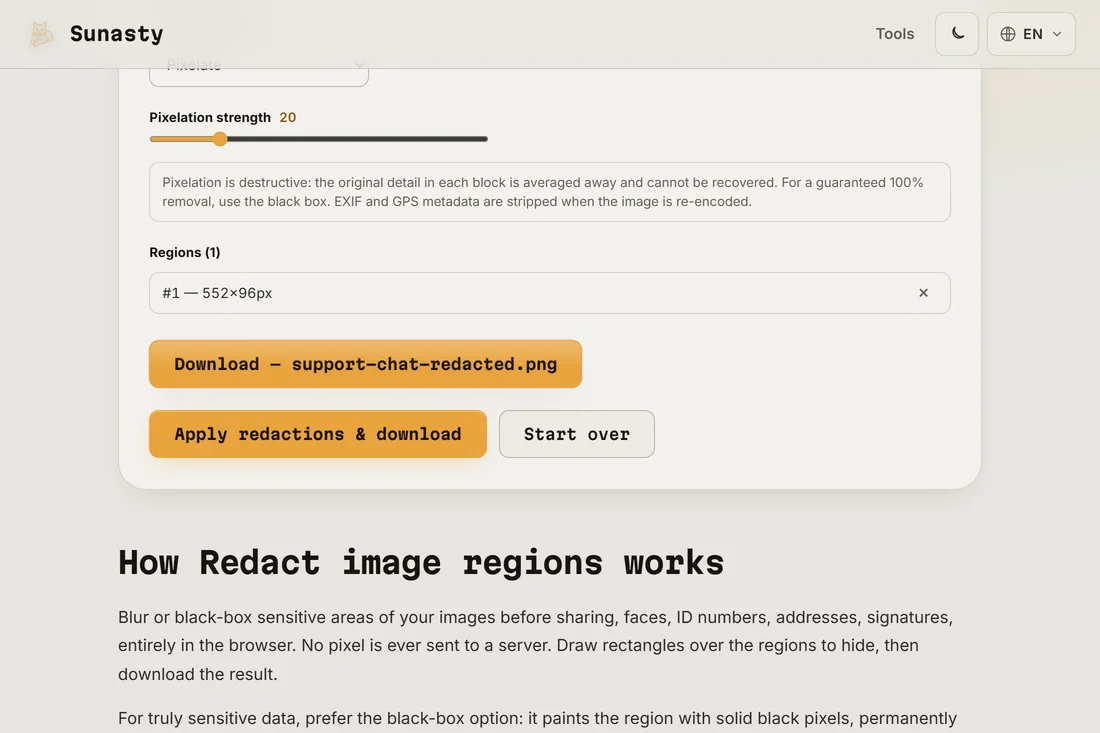
- Choose pixelation (each block is replaced by its average colour, the original detail is gone for good) or the black box for guaranteed removal, then apply and download. EXIF metadata, including GPS, is stripped on the way out.
Why a light blur is not enough
Gaussian blurs and swirl effects look opaque but preserve a lot of the underlying signal: researchers have repeatedly reconstructed text and faces from them, and a swirl is even mathematically reversible. If the information matters, use destructive mosaic pixelation with large cells, or better, a solid black box. That is why this tool’s pixelation computes a true per-cell average instead of a cosmetic filter.
Do not forget what is around the pixels
The visible zone is only half the job. Crop the image if the sensitive part is near the edge anyway, and check the metadata: a photo can carry GPS coordinates, a device serial number and a timestamp in its EXIF block. The redaction tool strips EXIF automatically; you can verify with the EXIF reader before and after.
The tools used in this guide
Frequently asked questions
Can pixelation be reversed?
Not the destructive kind. Each mosaic cell is replaced by the average colour of its pixels: the original detail is mathematically gone from the file, there is nothing left to reconstruct. For absolute certainty on text (where context can sometimes help guessing), the black box removes 100% of the information.
How can I be sure the original image is not sent somewhere?
The tool draws directly onto an HTML Canvas element: your image is decoded by the browser, manipulated in memory and never handed to a network request. Open the Network panel in DevTools while you apply a zone and you will see it stay empty. This is not a policy, it is the architecture: there is no server call to make.