How-to
Mute a video or replace its soundtrack
Sometimes the audio in a clip works against you: a noisy room behind an otherwise good shot, a copyrighted song that will get the upload taken down, or a voice you simply want gone. Two small jobs cover almost every case. You either silence the existing track, or you drop a new one in its place. Both run entirely in your browser, so the video never leaves your machine.
Step by step
- Decide which job you need. If you only want the sound gone, open the video muter. If you want different audio instead, open the add-audio tool. Both accept MP4, MOV, MKV, WebM and AVI, and neither uploads anything.
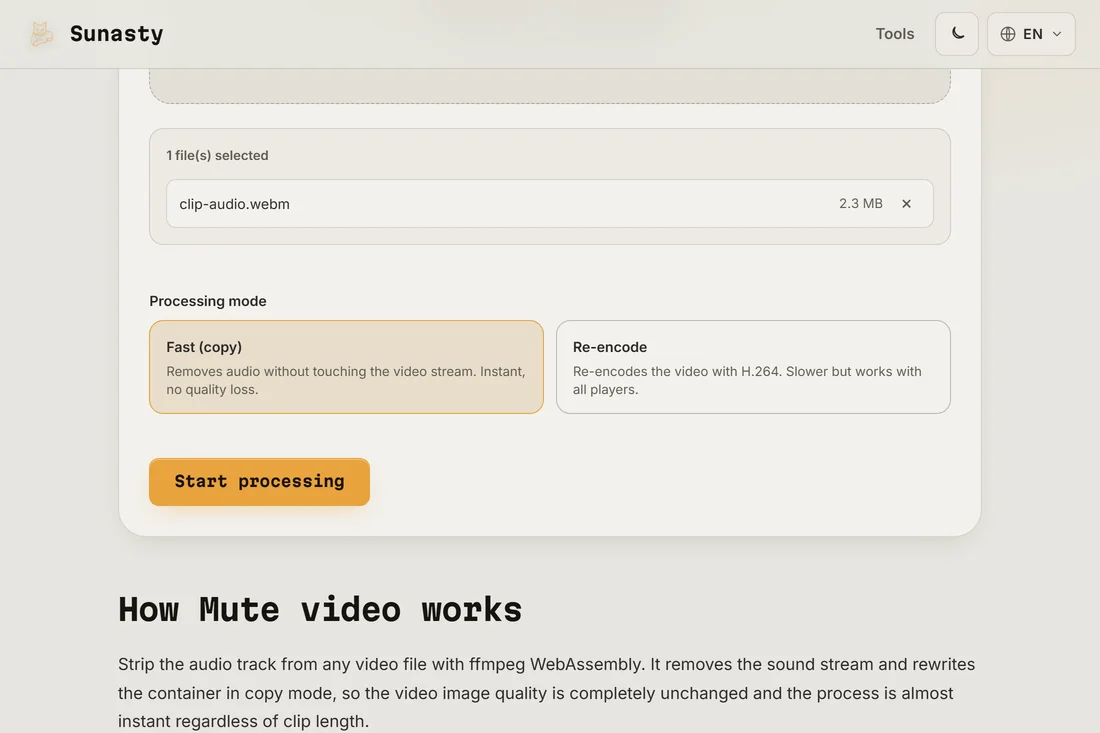
- To mute: drop your video into the muter and pick a mode. Fast (copy) removes the audio track without touching the picture, so it is instant and lossless. Re-encode rebuilds the video with H.264 for players that refuse a copied stream. Start it and download the silent clip.
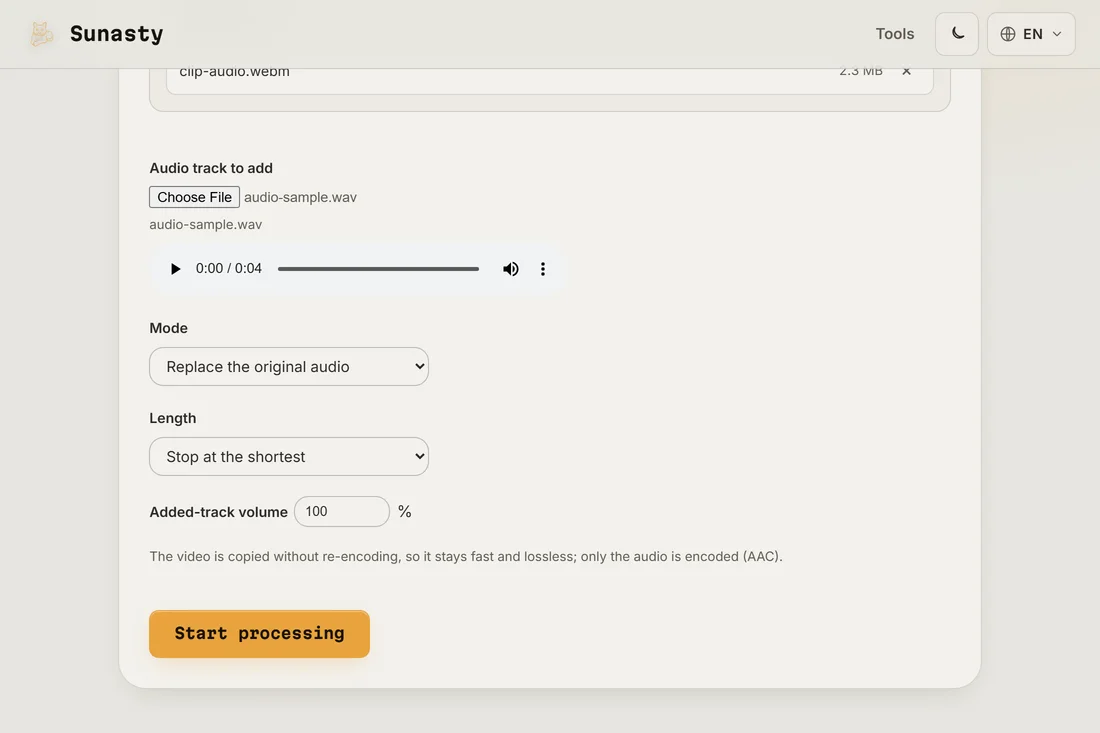
- To replace: drop your video into the add-audio tool, then choose the new audio file. Pick Replace to drop the original sound entirely, or Mix to lay the new track over what is already there. Set whether to stop at the shortest input or loop the audio to fit, then download the result.
Copy mode versus re-encoding
When you mute a clip, copy mode is almost always the right call: it removes the audio track and leaves every video frame byte-for-byte as it was, which is why it finishes in a second or two with no quality loss. Re-encoding only earns its keep when a player or platform rejects the copied stream, or when the source uses a codec you want changed anyway. The same logic applies to replacing audio: the add-audio tool copies the video stream untouched and only encodes the new sound to AAC, so a swap stays fast and the picture quality never drops.
Replace, mix, and fitting the length
Replace mode discards the original audio and uses your file alone, which is what you want for background music or a voiceover recorded separately. Mix mode keeps both, useful when you want music under existing dialogue; the added-track volume control lets you tuck the music below the voices. Length matters when the two clips differ: stop at the shortest trims to whichever ends first, while looping repeats a short track until it covers the whole video. If the audio is in a format you would rather standardise first, run it through the audio converter before you bring it in.
Stream copy vs. re-encode: what FFmpeg does here
Replacing or removing a video's audio track involves two distinct FFmpeg operations. Muting uses stream copy mode (-c:v copy -an): FFmpeg reads the video container, discards the audio stream, and writes the video stream byte-for-byte into a new container without re-encoding any frame. This preserves the original video quality exactly and completes quickly regardless of resolution. Replacing audio adds a second input (-c:v copy -c:a aac or similar): FFmpeg multiplexes the existing video stream with the new audio stream, encoding only the audio. Re-encoding the video itself would take much longer and introduce generation loss, so stream copy is preferred whenever the container supports it. The tool runs this FFmpeg pipeline via WebAssembly in the browser; no video file is transmitted to any server.
The tools used in this guide
Frequently asked questions
Does muting or swapping audio re-compress my video?
Not in the default path. Muting in copy mode and adding audio both leave the video stream exactly as it arrived; only the audio is removed or encoded. You can force a full re-encode in the muter if a player needs it, but you do not have to, and the picture stays untouched otherwise.
Is my video uploaded anywhere during this?
No. Both tools run FFmpeg compiled to WebAssembly inside the browser tab. Your video is read through the browser File API, processed in memory, and written straight back to a download. The only network request is a one-time fetch of the FFmpeg engine on first use, which the browser then caches. You can confirm it by filtering the Network panel to Fetch/XHR while a job runs: no request carries your file.