Article
The browser PDF toolkit: clean up, lay out, and structure
Most PDF chores fall into three buckets: making a document readable, arranging its pages on the surface, and editing the data attached to it. This site offers about eleven small tools that cover those buckets, and every one of them works on the file inside your browser tab. The PDF is opened, changed, and saved without leaving your device, so the same tool serves a payslip and a confidential contract equally well.
Clean up and correct a scan
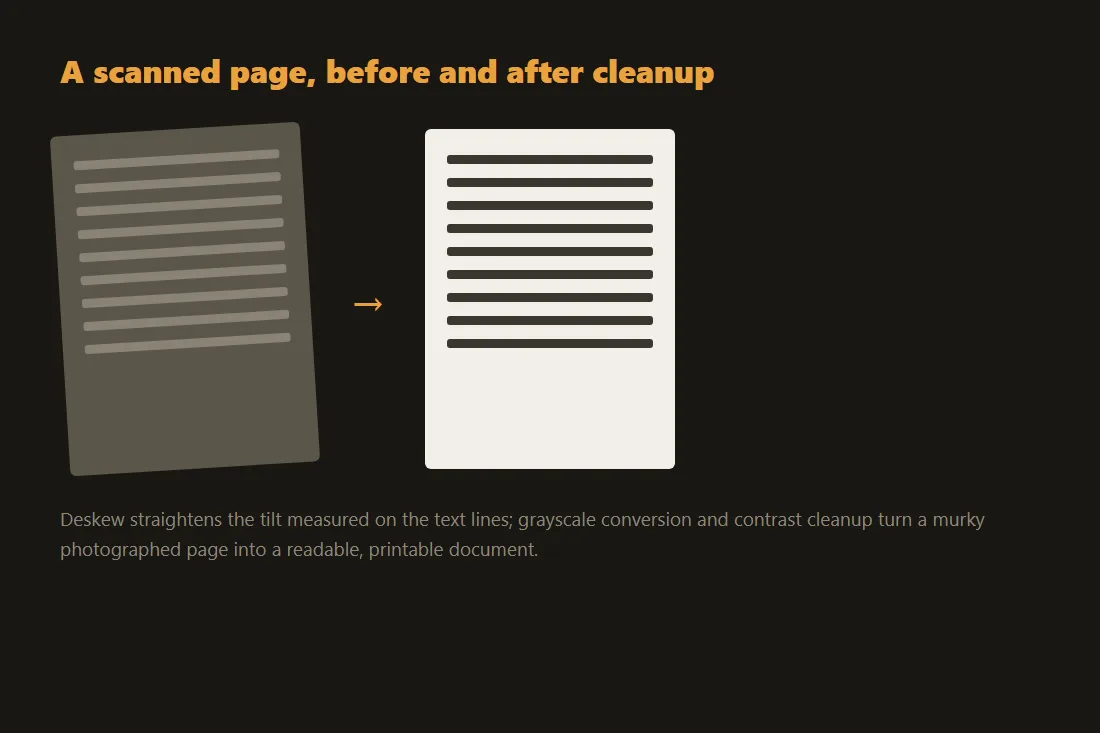
A page that came off a scanner or a phone camera often needs a few corrections before it is worth keeping. The rotate tool turns pages that came in sideways or upside down, in 90-degree steps, and replaces the old scanned-PDF rotation guide. The deskew tool straightens text that sits at a slight angle, which matters when you plan to run text recognition afterwards. The grayscale tool drops the color channels, which shrinks the file and removes the faint tint that flatbed scanners add to white paper. The repair tool is honest about its limits: it rebuilds the parts of a damaged PDF that pdf-lib can parse and re-save, so it recovers many files that other readers reject, but it cannot reconstruct content that was never written to the file. Use it as a first attempt on a document that will not open, not as a guarantee.
Lay out the pages
Once a document is readable, you may need to change how the pages sit on the sheet. The crop tool trims margins or cuts a page down to the region you care about. The resize tool changes the page dimensions, for example from US Letter to A4, so a document prints correctly in another country. The n-up tool places several pages side by side on one sheet, which is handy for handouts or for saving paper. The alternate-mix tool interleaves two files page by page, and the common reason to reach for it is a duplex scan done on a single-sided scanner: you scan the fronts into one file, flip the stack and scan the backs into a second file, then mix them so the pages fall back into their original order. None of these tools rasterizes your text, so a born-digital PDF keeps its selectable text after the layout change.
Metadata and structure
The last bucket is the data wrapped around the pages. The metadata tool reads and rewrites the title, author, subject, and keyword fields, and lets you clear them before you share a document, which is a small but real privacy step. The bookmarks tool builds the clickable outline that a PDF reader shows in its side panel, so a long report becomes navigable. The HTML-to-PDF tool goes the other way and turns pasted markup into a PDF, with a clear caveat: it renders the result as an image of the page, so the output is not selectable text. When you actually need the words out of a PDF, two different paths exist. If the file was created digitally, the pdf-to-text tool reads its embedded text directly and exactly. If the file is a scan, there is no text to read, so you need optical character recognition, which guesses the letters from the picture and can make mistakes. Knowing which case you are in saves a lot of confusion.
PDF internal structure and XREF tables
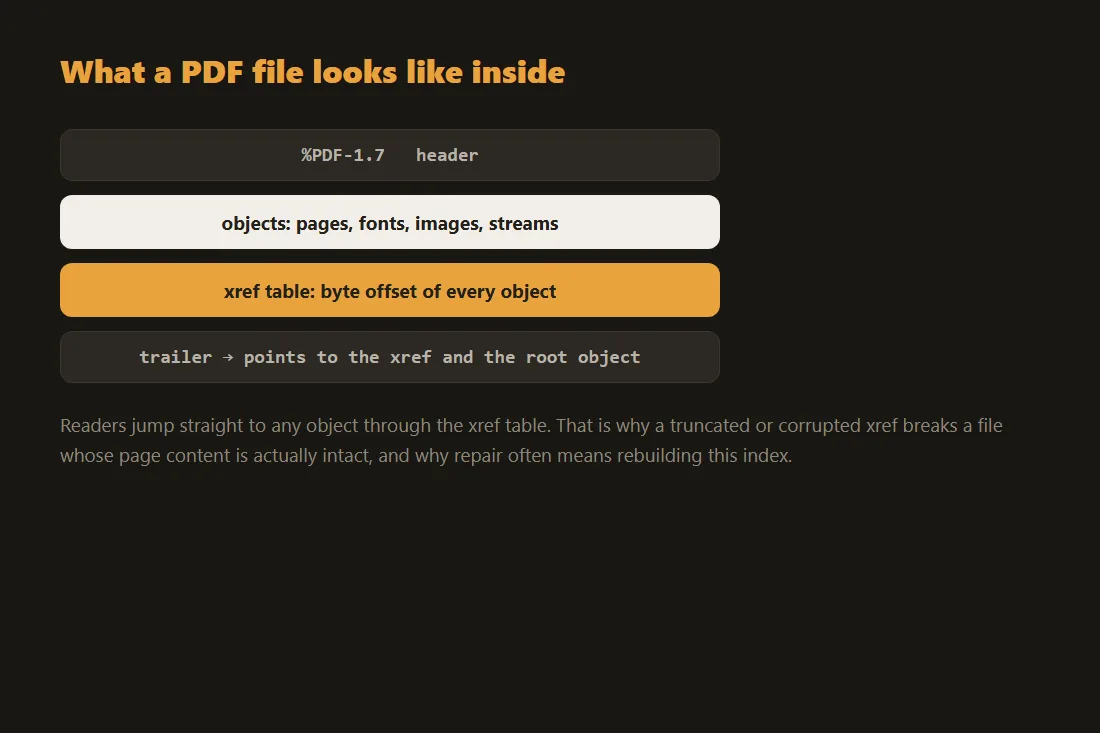
A PDF file is not a linear document; it is a database of discrete objects (dictionaries, arrays, streams, and numeric values) connected by a Cross-Reference (XREF) table at the end of the file. The XREF table maps each object ID to its exact byte offset. Some desktop editors save changes as an incremental update: a new XREF section appended to the file that overrides only the modified objects, leaving the original bytes in place underneath. Browser-based tools built on pdf-lib work differently: they parse the whole document into an in-memory object graph, apply the requested change (for instance rewriting a page's Rotate entry from 0 to 90), then reserialize the entire file from scratch as a single fresh PDF. That full rewrite means the whole document has to fit in memory while the tool runs, which is why each tool enforces a maximum input size; it never uploads any of it to a server.
Stream compression and how PDF repair works
Page content in a PDF (text drawing commands, vector paths, raster images) lives inside Stream objects, which are almost always compressed with FlateDecode (zlib). When a PDF is corrupted, the damage is typically either a malformed XREF table or a truncated compressed stream. A repair tool bypasses the damaged XREF table entirely and performs a linear scan of the raw byte stream, searching for the obj and endobj markers that bound individual objects. It extracts those objects, attempts to decompress their associated streams, and builds a new, well-formed XREF table from scratch. If the corruption falls inside a Flate-compressed stream itself, the data in that specific object is not recoverable; the document structure can be restored but affected pages may be blank or missing images.
Tools in this article
- Deskew scanned pagesStraighten skewed scanned PDFs or images entirely in your browser, no upload.
- PDF to GrayscaleConvert a colour PDF to grayscale entirely in your browser, no upload.
- Repair PDFRebuild a damaged or bloated PDF into a clean, well-formed copy, entirely in your browser, no upload.
- Rotate PDF pagesRotate selected pages of a PDF (90, 180 or 270°) without uploading.
- Crop PDF pagesVisually crop any PDF page, select a region and apply to all pages or just one, without uploading.
- Resize PDF pagesScale every page to A4, Letter, Legal, A3 or A5, or by percentage, without uploading.
- PDF N-up (pages per sheet)Place 2, 4, 6, 8, 9 or 16 PDF pages on each sheet to save paper. 100% in your browser, no upload.
- Alternate & Mix two PDFsInterleave pages from two PDFs (A1, B1, A2, B2…) for double-sided scanning. No upload.
- PDF metadata remover / editorRemove or edit a PDF's hidden metadata (author, title, software…) in your browser. No upload.
- Add PDF bookmarksAdd a clickable bookmark outline (table of contents) to any PDF, define titles, page numbers and nesting. 100% in your browser, no upload.
- HTML to PDFConvert pasted HTML to a PDF in your browser (best-effort, rasterised). No upload.
Frequently asked questions
Do these PDF tools upload my file to a server?
No. Each of these tools opens, edits, and saves the PDF inside your browser tab using JavaScript and WebAssembly. The file is read from your disk into the page and the result is written straight back to a download, so nothing is sent across the network. You can confirm this by opening your browser network panel while you use a tool, or by disconnecting from the internet after the page has loaded and watching the tool still work.
Can the repair tool fix any broken PDF?
Not any file. The repair tool reparses the document and writes a fresh, well-formed copy, which fixes broken cross-reference tables and many structural faults that stop a PDF from opening. It cannot invent data that is genuinely missing or undo strong encryption. Treat it as a quick first attempt: if it recovers your file, you are done, and if it does not, you have lost nothing and can look for the original.