Article
Why you can't copy text from some PDFs
Try to select a line in one PDF and the words highlight normally, ready to copy. Try the same gesture in another PDF and nothing happens, or the cursor grabs the whole page like a photograph, because that is exactly what it is. Two files that look identical on screen can be built completely differently underneath. Here is how to tell which kind you have, and what to do about the one that resists copying.
Two different kinds of PDF page
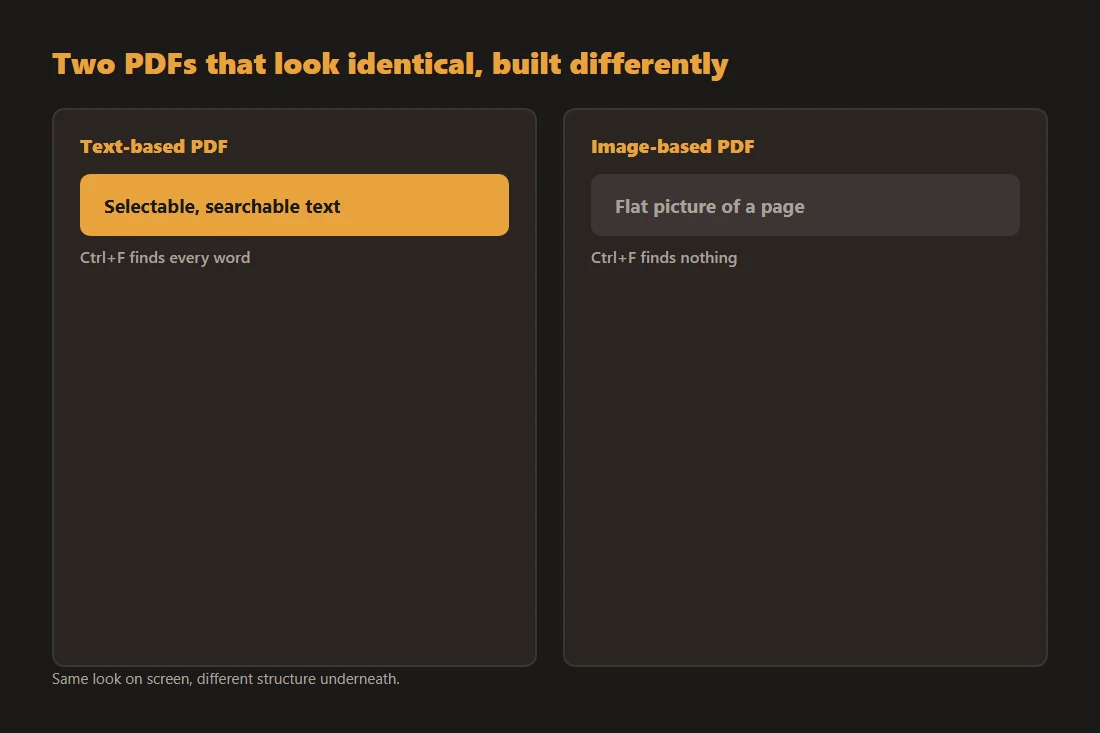
A PDF can store a page in two very different ways. In a text-based PDF, every letter is a character object with a Unicode value, a font and a position, the same way a webpage stores text: a viewer can select it, search it, and a screen reader can read it aloud. In an image-based PDF, the page is one flat picture, often produced by a scanner, a fax, or a "print to PDF" step applied to a photo of a document. The letters look the same to your eyes, but to the file format there is no character underneath, only pixels.
A quick way to tell which one you have
Press Ctrl+F or Cmd+F and search for a word you can clearly see on the page. If the search finds it and highlights it, the page has a real text layer. If the search finds nothing anywhere in the document, the page is an image, no matter how sharp or how much like a typed document it looks. Dragging the mouse to select a line gives the same answer: a highlight versus a plain rectangle selection.
Reconstructing the text with OCR
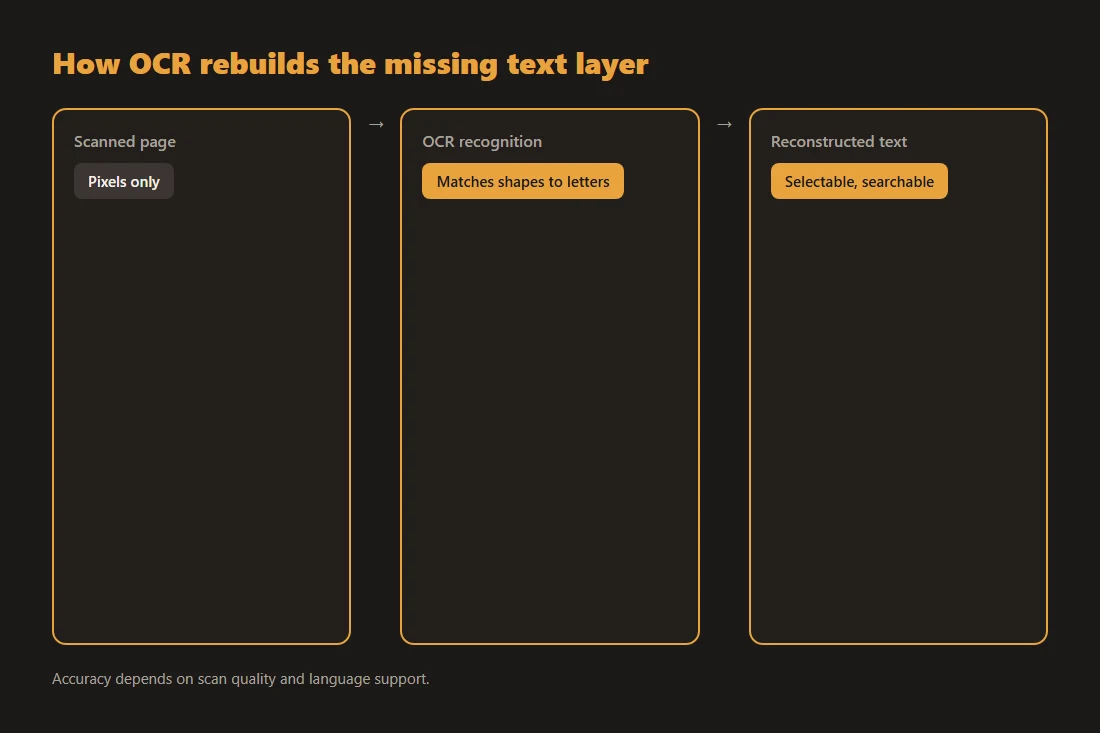
Optical Character Recognition (OCR) reads the pixels of an image-based page and matches the shapes against a trained model of letters for a given language, then rebuilds a text layer with the recognized characters positioned where they appeared. A tool like ocr does this entirely in the browser: nothing is uploaded, and the output is a plain text file you can search, copy or edit. Accuracy depends on the source: a clean, straight, high-resolution scan in a well-supported language recognizes reliably, while a skewed, blurry, low-contrast or handwritten page produces more mistakes, sometimes a wrong character or a misread word.
When the file already has text but extraction looks wrong
If your PDF does have a real text layer but a tool like pdf-to-text produces text in a strange order, with columns merged or spacing collapsed, that is a different, unrelated issue: the text objects exist but their reading order on the page was not stored the way a script naturally expects. That is a layout quirk to clean up after extraction, not a sign that the text is missing, and it does not need OCR to fix.
Tools in this article
- OCR · image/PDF to textExtract text from scanned images or PDFs entirely in your browser, runs offline, no upload.
- PDF to textExtract text content from a PDF and download it as a .txt file, without uploading.
- PDF OCR · make it searchableTurn a scanned PDF into a searchable, selectable PDF entirely in your browser, no upload.
Frequently asked questions
My PDF looks like a normal typed document but I still can't select any text. Why?
It is most likely a scanned or photographed page saved as a PDF, or a document flattened to an image on purpose. Visually it can be indistinguishable from a text-based PDF; the difference only shows up when you try to search or select it. Running it through OCR rebuilds a real, selectable text layer from the pixels.
Does OCR work equally well in every language?
No. Accuracy depends on whether a trained model exists for that language and script, and on the quality of the scan. Well-supported languages on a clean, straight scan recognize reliably; handwriting, low-resolution images, or languages with less training data produce more errors. OCR output is always a best-effort transcription, worth a quick proofread before you rely on it.