Article
Improve OCR accuracy: fix the image before you recognize the text
OCR is only as good as the image you feed it. A crooked, low-contrast, noisy scan produces garbled text no matter how good the engine is. Here is what actually moves the needle, in the order to do it, all running locally in your browser.
Why OCR struggles with real scans
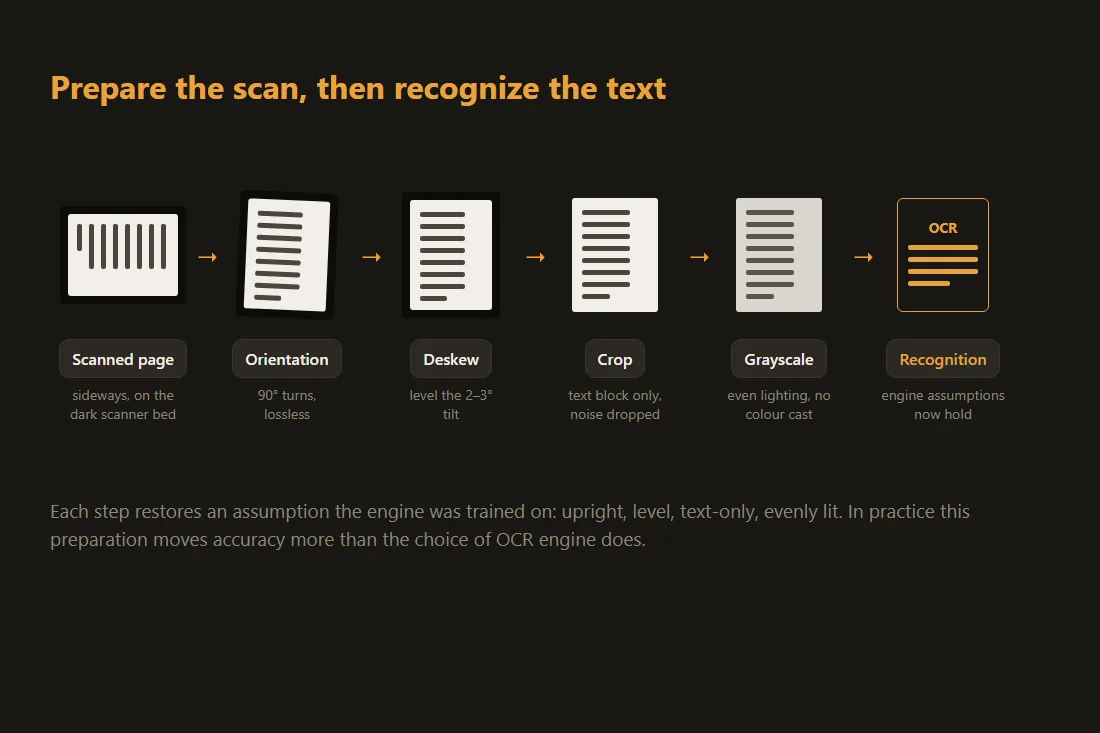
An OCR engine like Tesseract was trained on clean, horizontal, high-contrast text. It segments a page into lines, lines into words, and words into character shapes, then matches each shape against its trained model. Real-world scans break those assumptions: the page is tilted a few degrees, the lighting is uneven, the resolution is low, and the edge of the scanner bed or the facing page adds dark noise. Each of those issues makes the line-and-character segmentation step guess wrong, and a wrong segmentation cascades into wrong characters. The fix is rarely a different engine: it is preparing the image so the engine's assumptions hold. In practice, preprocessing moves accuracy more than the choice of OCR engine does.
Start with resolution: aim for 300 DPI
Tesseract works best at around 300 DPI for normal body text. Below roughly 200 DPI the strokes of each glyph blur into their neighbours and accuracy drops sharply. If you control the scan, set the scanner to 300 DPI before anything else, since it is the single highest-impact choice. If you only have a low-resolution image, upscaling it does not invent detail that was never captured, but a moderate upscale can still help the engine separate touching characters by giving segmentation more pixels to work with. Very small print benefits from 400 to 600 DPI; beyond that you only grow the file with no accuracy gain. When the source is a PDF, rasterize each page to an image at the target DPI first, then run OCR on that image.
Get the orientation right
If the page is rotated 90, 180, or 270 degrees, the engine is reading sideways or upside down and returns nonsense. Tesseract has an orientation-and-script-detection (OSD) pass that can guess the rotation, but it is unreliable on sparse text, forms, or pages dominated by images. Rotating the page upright yourself removes the guesswork. This step is lossless and instant: rotating by a multiple of 90 degrees only remaps existing pixels to new positions, with no quality cost and no resampling. Do it before deskewing, because deskew assumes the text is already roughly horizontal.
Deskew: straighten the small tilt
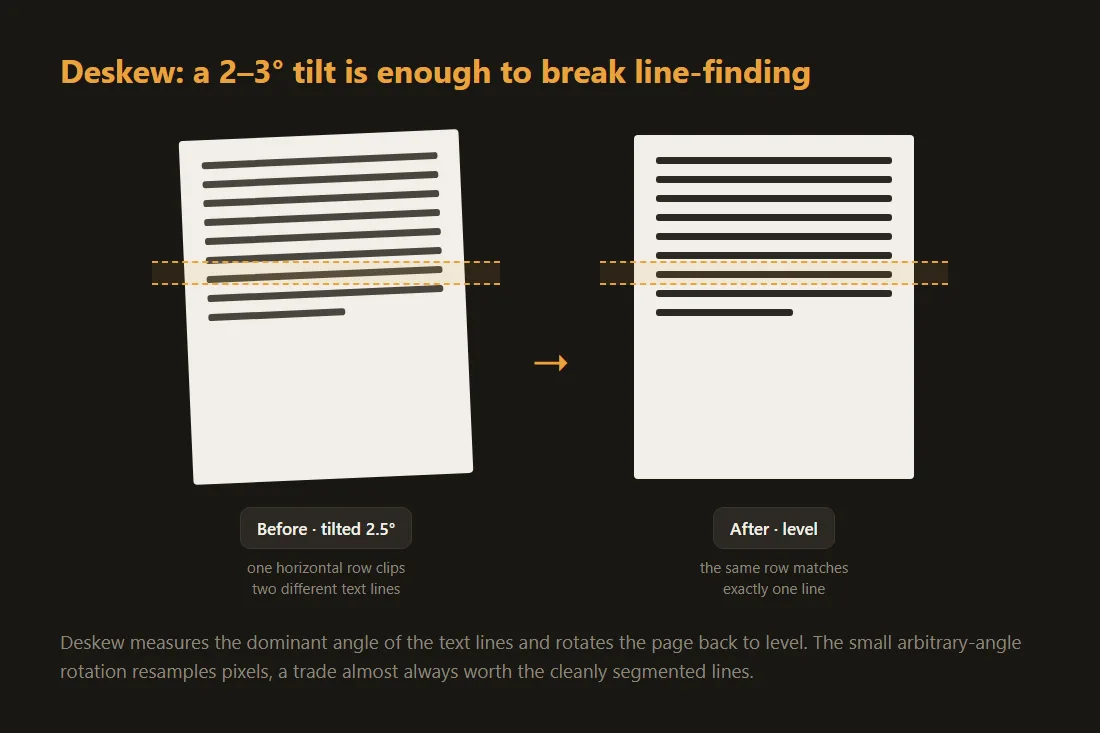
Even a 2 to 3 degree tilt, the kind you get from feeding a page slightly crooked, hurts OCR: the horizontal line-finding step splits one line of text across two, or merges two lines into one. Deskew measures the dominant angle of the text lines (commonly with a projection-profile or Hough-transform analysis) and rotates the page back to level. Unlike a 90-degree turn, deskew is a small arbitrary-angle rotation, so it resamples pixels and adds a tiny amount of blur. That trade is almost always worth it, because level lines segment cleanly and the accuracy gain far outweighs the slight softening. Deskew after fixing orientation and before cropping.
Crop to the text and drop the noise
Anything that is not the text you want is noise the engine can misread: the dark border of the scanner bed, part of the facing page, a stapled corner, a finger, or a punch hole. Cropping down to just the text block removes those false targets, which both improves accuracy and speeds up recognition because the engine has less area to analyze. For a multi-column document, cropping (or running OCR one column at a time) also prevents the engine from reading straight across the gutter and interleaving two columns into one garbled line. Crop after deskewing, so the content sits square in the frame.
Contrast, grayscale and how binarization really works
OCR ultimately runs on a binary image: every pixel is decided to be ink or paper. Tesseract does this internally using Otsu's method, which picks a single global threshold from the image histogram. That works well when the page has even lighting and good contrast, and fails when a shadow or a coloured background makes one corner darker than the threshold expects. The reliable wins are to convert to grayscale, so a colour cast cannot confuse the threshold, and to even out the lighting so the whole page sits on one side of it. Pushing contrast moderately helps faint text. What usually backfires is hard manual binarization: if you threshold to pure black and white yourself with the wrong cutoff, you erase faint strokes that the engine's own pass would have kept. Let the engine binarize, and give it an even, grayscale image to start from. Sunasty offers grayscale for PDFs; for fine contrast tuning a desktop editor is still better, but even lighting at scan time matters more than any slider.
Pick the right language and verify the output
Tesseract loads a separate trained data file per language and script. Running an English model over French or Greek text produces avoidable errors, especially on accented or non-Latin characters, so select the language that matches the document. Finally, treat OCR output as a draft, not a final answer: the engine has no way to know that a name is spelled correctly or that a 0 is not an O. Proofread numbers, proper nouns, and anything legally or financially important. For tables and multi-column layouts, expect to fix the structure by hand, because OCR returns a stream of recognized text, not a reconstructed layout.
Tools in this article
- OCR · image/PDF to textExtract text from scanned images or PDFs entirely in your browser, runs offline, no upload.
- Deskew scanned pagesStraighten skewed scanned PDFs or images entirely in your browser, no upload.
- Rotate & flip imagesRotate images 90/180/270° or flip them horizontally and vertically, without uploading.
- Crop imageCrop your images with an interactive preview, drag and resize the crop area. No upload.
- PDF to GrayscaleConvert a colour PDF to grayscale entirely in your browser, no upload.
- Resize imagesResize your images (JPEG, PNG, WebP, AVIF) without uploading them.
- PDF to imagesConvert each PDF page to PNG or JPG directly in your browser.
Frequently asked questions
Does upscaling a blurry scan improve OCR?
Not much on its own. Upscaling cannot recover detail the scan never captured, so a blurry 100 DPI image stays blurry. A moderate upscale can help the engine separate touching characters by giving segmentation more pixels, but rescanning at 300 DPI is far more effective than any amount of upscaling.
Should I convert the image to pure black and white myself first?
Usually no. Tesseract binarizes internally with Otsu's method, and a manual hard threshold with the wrong cutoff erases faint strokes the engine would have kept. Convert to grayscale and even out the lighting instead, then let the engine choose its own threshold.
My text is sideways. Will OCR rotate it automatically?
Sometimes. Tesseract has an orientation-detection pass, but it is unreliable on forms, sparse text, or image-heavy pages. Rotating the page upright yourself by 90, 180, or 270 degrees is lossless and removes the guesswork, so it is the safer choice.
Does any of this upload my document?
No. Rotating, deskewing, cropping, converting to grayscale, and the OCR itself all run in your browser. The OCR uses a WebAssembly build of Tesseract, and the trained language data is downloaded once and cached. Your file never leaves the device.