How-to
How to extract the embedded images from a PDF
There are two different things people mean by extracting images from a PDF, and they need different tools. This guide covers pulling out the original image files that were placed inside the document: the photos a designer dropped into a brochure, the logo in a report, the scans inside a contract. That is not the same as turning each page into a picture. If you want a snapshot of how a whole page looks, including its text and layout, use the PDF to JPG tool instead. The extractor here reads the raster objects stored in the PDF and gives you back the source images themselves, at their original resolution, all in your browser.
Step by step
- Open the PDF image extractor and drop your file in. The tool reads the document locally and lists how many embedded images it found. Nothing is sent anywhere: parsing happens in the browser tab on your own device.
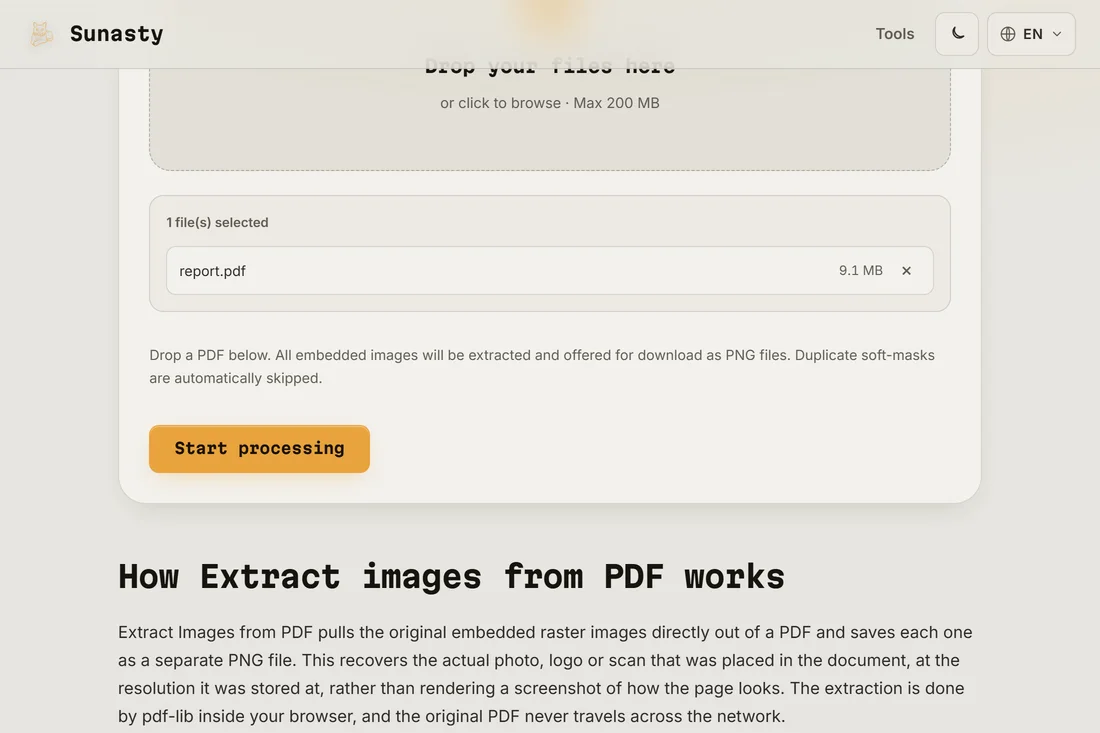
- Let it scan the embedded image objects. It walks every page, collects each raster it finds, and removes duplicate soft-mask copies so you do not end up with two versions of the same picture. There are no page or format settings to pick: the goal is to return the originals exactly as they were stored, not to re-encode them.
- Download the results. A single image comes back as one file; several images are offered as individual downloads, named and sorted so they stay in order. Each file keeps the format it had inside the PDF, typically JPEG for photos and PNG for graphics with transparency.
Embedded images vs pages turned into pictures
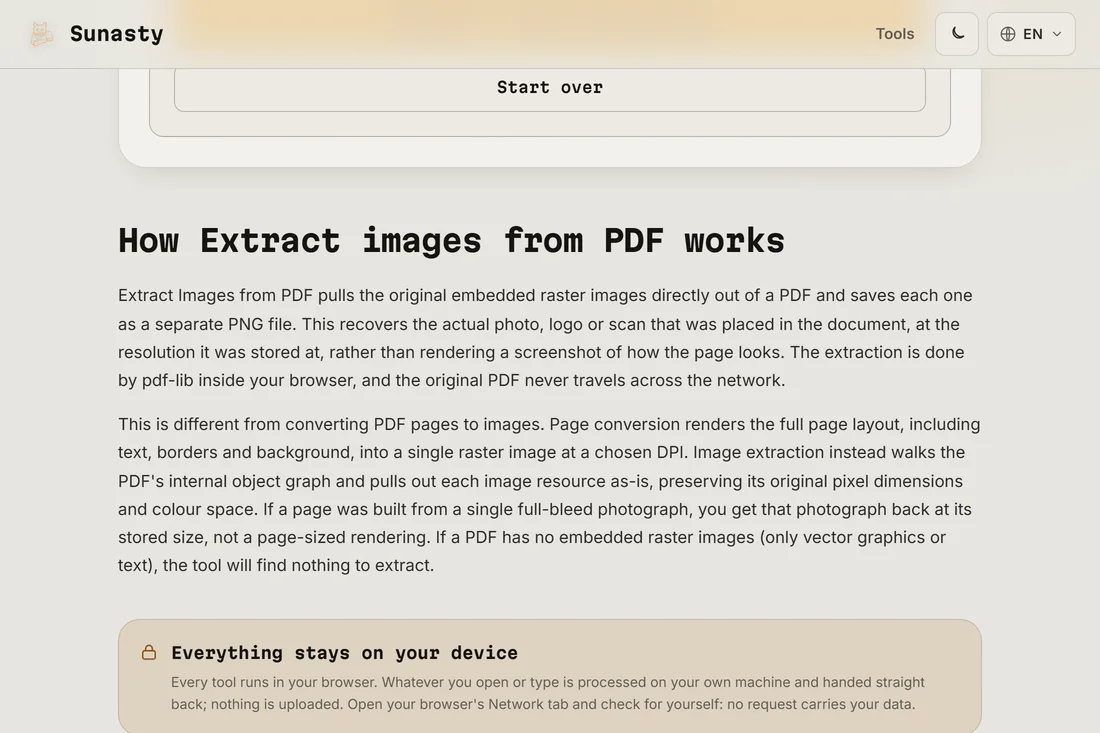
This is the distinction that decides which tool you want. An embedded image is a photo or graphic the author placed inside the PDF; this extractor returns that file as it was stored, at its real pixel size, with nothing painted around it. Rendering a page to a picture is the opposite: PDF to JPG draws everything on the page (text, vector shapes, backgrounds and the embedded images together) into one flat raster at a resolution you choose. Use the extractor when you want the source assets back, for example to reuse a product photo. Use PDF to JPG when you want a faithful snapshot of the page as a reader sees it.
Why doing this locally matters
The images buried in a PDF are often the most sensitive part of it: scanned ID photos, signed pages, internal screenshots, private artwork. Sending the document to an online extractor hands all of that to a server you do not control, along with the text layer and any metadata. The extractor here opens the PDF with PDF.js inside your browser and pulls the image objects out on your machine, so the file and everything in it stay on your device.
How PDF image extraction works
Extracting images from a PDF differs from converting a page to a raster screenshot. Inside a PDF file, images are stored as separate /XObject stream dictionaries containing raw binary data (typically DCTDecode/JPEG, Flate, JPX, or CCITT encoding) alongside metadata for dimensions and color space. A proper extraction tool parses these streams directly, pulling each image out without re-encoding it. Because the raw bytes are read rather than re-rendered, the extracted file keeps the exact resolution, color profile, and quality present when the image was first embedded. No recompression step means no additional quality loss, regardless of how many times the PDF itself was resaved.
The tools used in this guide
Frequently asked questions
Will I get the original images or screenshots of the pages?
The original images. This tool returns the embedded image files as they were stored in the PDF, at their native resolution and in their original format. If you instead want a picture of each full page, including the text and layout, that is a different job: use the PDF to JPG tool, which rasterizes the whole page at a resolution you choose.
Why did it find fewer images than I expected?
A PDF only contains embedded images where the author actually placed raster files. Vector graphics, charts drawn with PDF drawing commands, and text are not images, so they are not extracted. The tool also drops duplicate soft-mask copies that some exports create, which can lower the count. If a page is itself a scan, it usually holds one full-page image, which is what you will get back.