How-to
Convert a Word document to PDF, offline and private
You need to send a .docx as a fixed PDF, but you would rather not hand the file to a conversion website that uploads it to a server you do not control. The converter here runs the whole job inside your browser tab. It reads the document text and lays it out as real, selectable PDF text, so the result can be searched and copied. Nothing is uploaded, and it works even with the network off.
Step by step
- Open the Word to PDF tool and add your .docx using the file picker or drag and drop. The file is read locally in your browser; it is never sent anywhere. Only the modern .docx format is supported, not the old binary .doc.
- Pick the page size (A4 or Letter) and the margin in millimetres, and set a name for the output file if you want one. These settings control how the extracted text is paginated, since the converter rebuilds the layout rather than mirroring Word pixel for pixel.
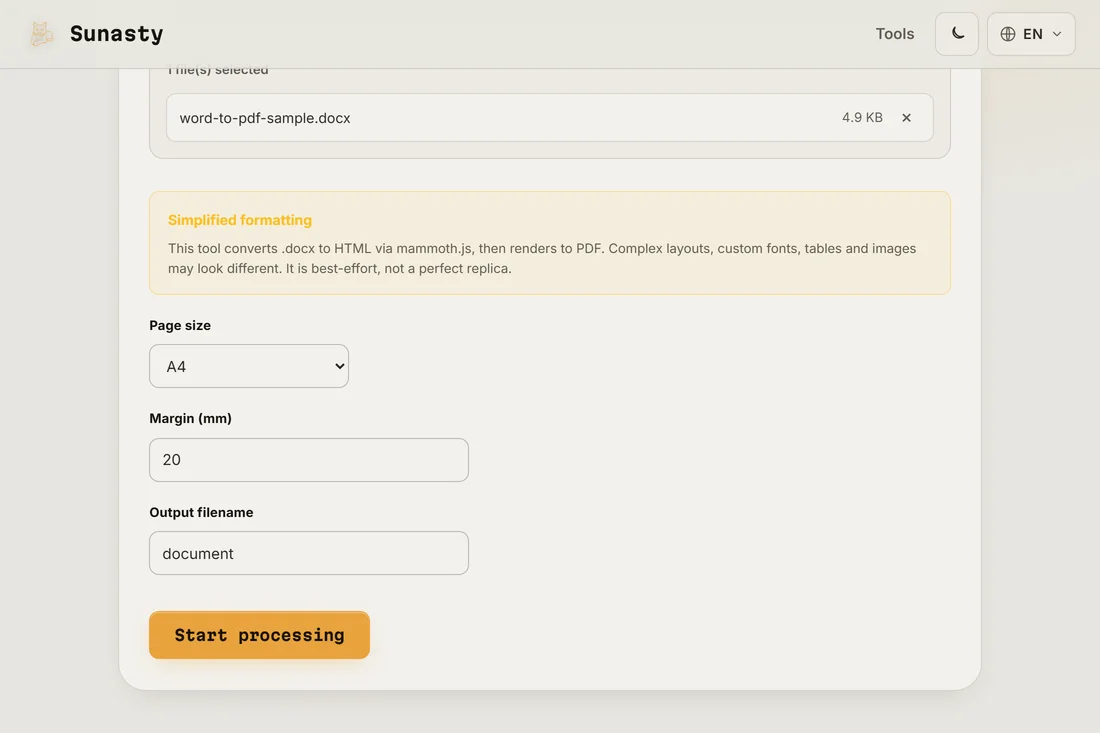
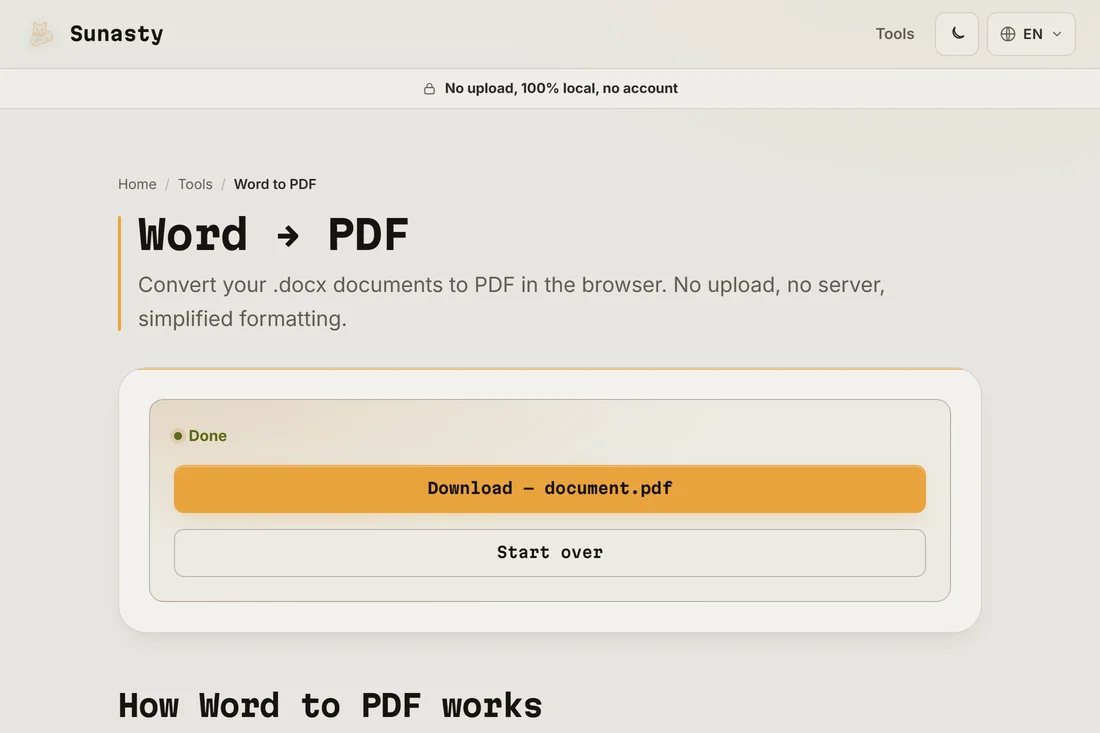
- Click convert and download the PDF. Headings, paragraphs, lists and quotes keep their relative sizes, and the text stays selectable so a reader can search or copy it. Your original .docx stays untouched on your disk.
What the conversion keeps and what it drops
Be honest about the trade-off so the result does not surprise you. The tool extracts the document text and rebuilds a clean layout: headings, paragraphs, bullet and numbered lists, and block quotes all carry over with sensible sizing. What it does not reproduce is the visual styling. Embedded images are dropped, complex tables are flattened into plain text rows, and CSS-like formatting such as colours, custom fonts, columns and exact spacing is ignored. Characters outside the standard Latin set are mapped to the closest match. If pixel-perfect fidelity matters more than privacy, a desktop Word export is the better fit; if you mostly need the text frozen into a searchable PDF without uploading anything, this is exactly the job it does.
Why convert in your browser instead of uploading
Most online Word to PDF services upload your file to a remote server, convert it there, and send the PDF back. That means a document you may consider private (a contract, a CV, an internal report) briefly lives on infrastructure you do not control. This converter runs the mammoth and pdf-lib engines inside your browser tab instead: the .docx is parsed in memory and the PDF is built locally, then offered as a download. Nothing is transmitted, which is also why it keeps working when you are offline. If the finished PDF needs to join other files, the PDF merge tool combines them locally too, and the compressor can shrink the result for email, all without an upload.
The tools used in this guide
- Word to PDFConvert .docx files to PDF in your browser. Best-effort, complex layouts may differ.
- Merge PDF filesCombine multiple PDF files into one, directly in your browser.
- Compress PDFReduce PDF file size by losslessly optimizing its internal structure, without uploading.
- Images to PDFCombine one or more images (JPG, PNG, WebP) into a single PDF, right in your browser.
Frequently asked questions
Will the PDF look exactly like my Word document?
Not pixel for pixel. The tool keeps your text and its structure (headings, paragraphs, lists, quotes) but rebuilds the layout with standard fonts, so colours, custom fonts, images, columns and complex tables are simplified or dropped. For a text-focused document the result is faithful and fully selectable; for a heavily designed brochure, a desktop export from Word will match the original more closely.
Is the text in the PDF selectable, or is it just a picture?
It is real, selectable text. The converter does not take a screenshot of the document; it reads the words and draws them as actual PDF text with pdf-lib. That means you can search the PDF, copy passages out of it, and let screen readers read it aloud. The trade-off for that searchable text is that the visual styling is simplified, as described above.