Article
Sizing a video for TikTok and Reels: aspect ratio, cropping, and quality
Short-form vertical video has settled on a single dominant format: 9:16, with 1080x1920 as the standard resolution. Getting a landscape or square clip into that shape without cropping incorrectly, adding unwanted bars, or losing more quality than necessary takes a few deliberate steps. This article covers the geometry, the trade-offs between cropping and scaling, the safe zones that matter in practice, and why you should avoid processing a video more times than needed.
Vertical video and the 9:16 ratio: why 1080x1920 is the target
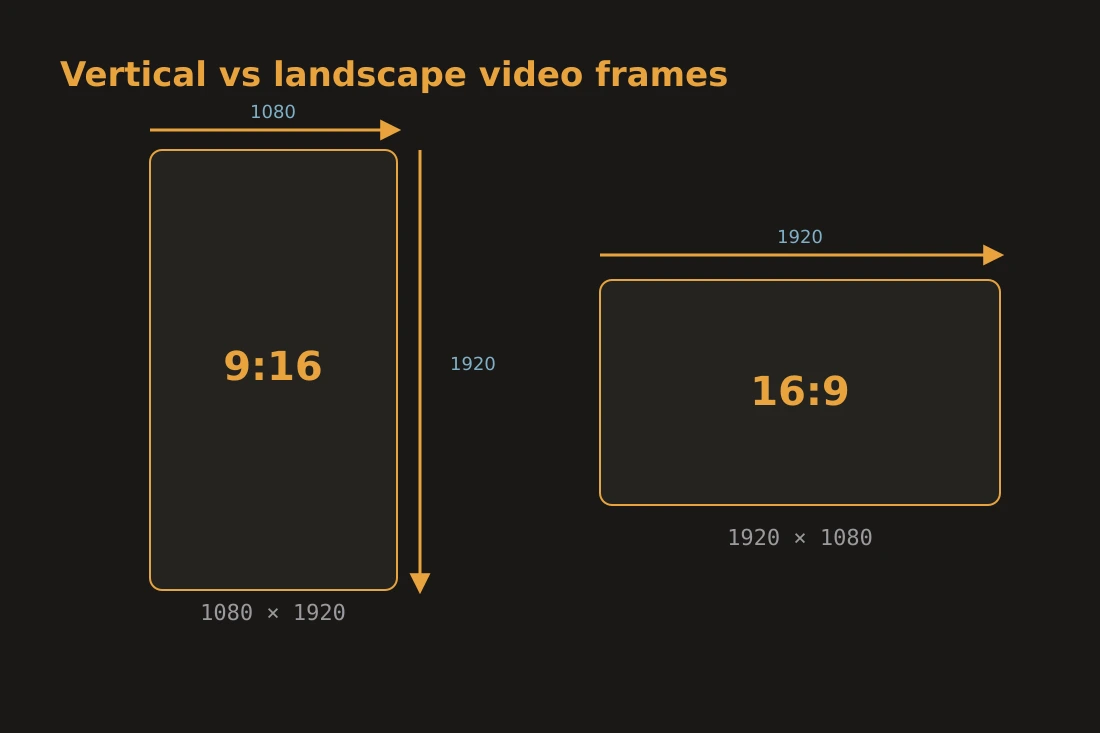
TikTok, Instagram Reels, and YouTube Shorts all display video in a 9:16 portrait frame. The number 9:16 describes the ratio of width to height: for every 9 units wide, the frame is 16 units tall. At standard HD density this works out to 1080 pixels wide and 1920 pixels tall, which is why 1080x1920 is the reference resolution for all three platforms. If you upload a 16:9 landscape video (1920x1080, the usual output of a camera or screen recording), the platform will either pillarbox it with black bars on the sides, or zoom in and crop. Neither result is ideal, which is why preparing the file locally before upload gives you control over exactly what stays in the frame. Some platforms also accept 4:5 (1080x1350) for certain placements, but the full-screen vertical experience expects 9:16. If you are unsure, 1080x1920 is the safe default.
Crop vs scale vs letterbox: cutting to fill vs fitting with bars
Three methods can turn a 16:9 clip into a 9:16 frame, and they produce very different results. Cropping removes pixels from the edges so the remaining content fills the target shape exactly. Nothing is distorted and there are no bars. The cost is that you lose part of the image. On a 1920x1080 source, keeping the full 1080-pixel height means the usable width is only 607 of the original 1920 pixels. The rest gets cut. You choose which part of the frame to keep by repositioning the crop window. Scaling stretches or shrinks the entire image to fit one dimension, then adds bars to fill the other. If you scale a 16:9 clip to fit the 1080-pixel width of a 9:16 frame, the video becomes 1080x607 and you get black bars top and bottom that fill 1920 minus 607 pixels. This is letterboxing. The full image is preserved but the bars can look unfinished on a feed. A third option, sometimes called fill-and-crop, scales the clip until it fills the height, then crops the sides. This is equivalent to cropping with a zoom. It avoids bars and keeps the full height but the clip is slightly magnified.
Safe zones: where the app overlays cover the frame
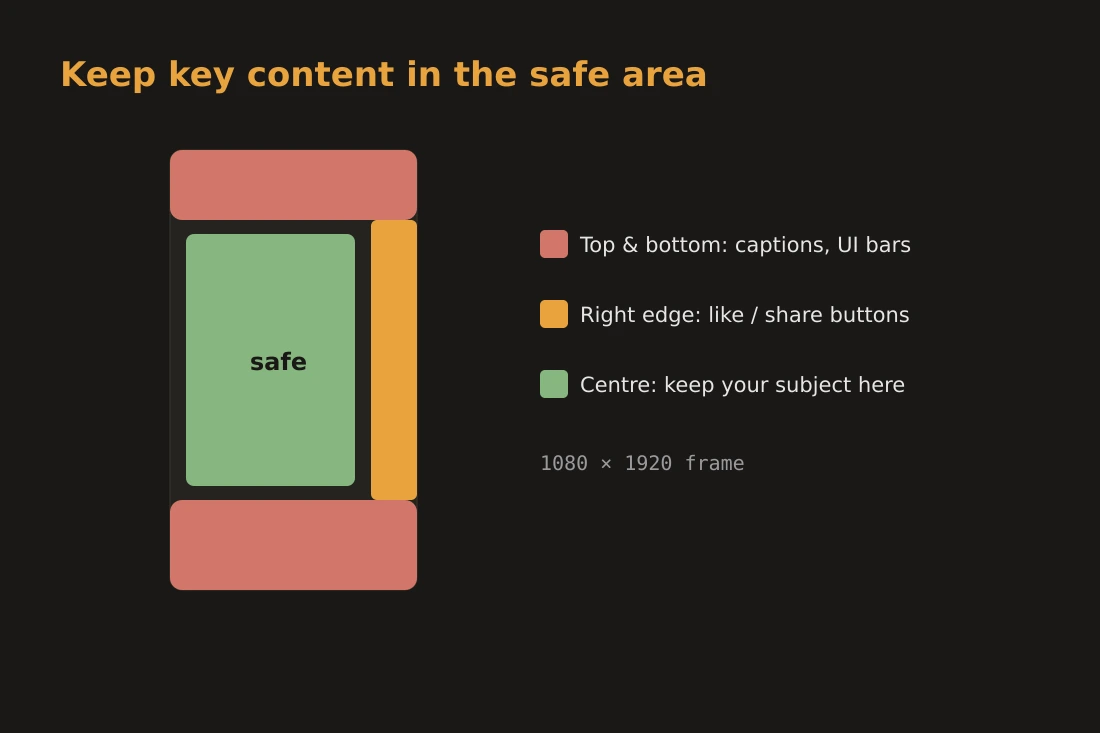
Both TikTok and Instagram Reels place interface elements over the video frame. Buttons, captions, account names, and engagement icons occupy the bottom quarter and the right edge of the screen. Content that matters visually, such as a person's face, text, a product, or a key action, should be kept away from those areas. The general guidance from both platforms is to treat roughly the bottom 25-30% and the top 10% of the frame as unsafe for important content. This leaves a central band, approximately from 10% to 70% of the frame height, where the image is fully visible to the viewer. For a 1080x1920 frame this means keeping key content between roughly y=192 and y=1344 pixels, leaving clear margins on all sides. Centering important subjects in the middle of the frame is the most conservative approach. If you are reframing a landscape clip, repositioning the crop window to center on the subject rather than on the geometric center of the original image is often necessary.
Quality: re-encoding and platform recompression
Every time a video is encoded with a lossy codec such as H.264 or H.265, detail is discarded. This is called generation loss. If you start with a compressed source, crop it, and re-encode the result, you are applying a second round of quantization on top of the first. The result is slightly softer or more artefact-prone than the original. Cropping alone does not add blur. The quality loss comes from the re-encoding step that follows. Using a higher quality setting or a higher bitrate in the export reduces the loss but increases file size. An additional factor is that every platform recompresses the video after upload. TikTok and Instagram both transcode to their own streaming variants at a fixed bitrate. This means the file you upload is never what viewers watch directly. Over-processing the source before upload stacks lossy passes and produces a worse final result than uploading a moderately compressed file and letting the platform handle the final encoding. The practical advice is to crop and export once, at a reasonable quality setting, and avoid re-encoding the file multiple times before upload.
Doing it locally with the video-crop tool
The video-crop tool on this site runs entirely in the browser via WebAssembly. The FFmpeg library is compiled to WebAssembly and executed locally, so the video file never leaves your device. There is no upload step, no server involved, and no account required. You load the clip, set a 9:16 crop ratio, position the crop window over the subject, and export. The tool produces a standard MP4 output sized to your crop dimensions. If you want the output at exactly 1080x1920, set the crop width to 1080 pixels on a 1920-pixel-tall source, or scale the output after cropping. Because the processing happens on your CPU via WebAssembly, a longer clip or a higher-resolution source will take more time. The tool is suited for clips of a few minutes; very long files may be slow depending on your hardware. This local approach is relevant for anyone processing video that contains identifiable people or private content. The file does not travel to any server at any point.
Tools in this article
- Crop videoCrop a video to a rectangle or an aspect ratio (1:1, 16:9, 9:16…) in your browser. No upload.
- Compress videoReduce video file size via in-browser H.264 re-encode. No upload, no server.
- Trim videoCut a video to a start/end time range directly in your browser. Fast stream copy or precise re-encode. No upload.
- Resize videoResize a video to a resolution preset (1080p/720p/480p), a percentage, or an exact custom size, in your browser. No upload.
Frequently asked questions
What resolution should I export for TikTok and Reels?
The standard target is 1080x1920 pixels at a 9:16 aspect ratio. Both TikTok and Instagram Reels display full-screen vertical video in this format. Some older or lower-bandwidth scenarios accept 720x1280, but 1080x1920 gives the best result on modern displays and is what the platforms recommend for uploads.
Does cropping a video reduce quality?
Cropping itself does not degrade the pixels that remain. The quality reduction comes from the re-encoding step that converts the cropped frames back into a video file. Using a higher quality preset or bitrate in the export reduces but does not eliminate this loss. Since platforms recompress the video again on upload, avoid re-encoding the file more times than necessary.
What is a safe zone in vertical video?
A safe zone is the part of the frame that is not covered by the platform's interface elements: buttons, captions, account names, and share icons. On TikTok and Reels these elements sit at the bottom and along the right edge. As a general rule, keep important content away from the bottom 25-30% and top 10% of the frame, centering subjects in the middle band.