Article
Extract video frames for thumbnails and contact sheets
A video is a sequence of still images. Pulling one of those images out gives you a thumbnail, a cover, or a contact sheet. The result is sharper and more predictable when you understand how a video codec stores its frames and which moments are worth capturing.
Frames and frame rate
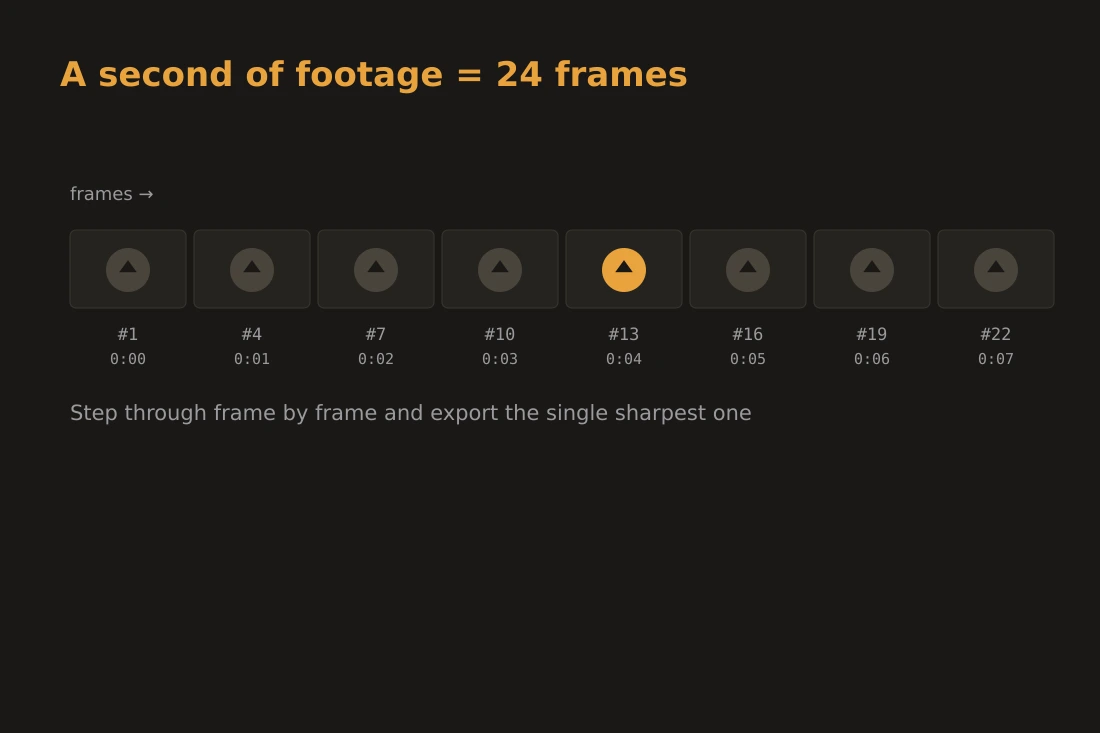
A video file is a sequence of still images displayed fast enough to create the illusion of motion. The number of images shown per second is the frame rate, expressed in fps. Common values are 24 fps for cinema, 25 fps for PAL broadcast, 30 fps for web video, and 60 fps for gaming footage. At 24 fps, a two-hour film contains around 172,800 individual frames. Each frame corresponds to a single moment in time; extracting one freezes that moment as a standalone image. The frame rate also determines how many frames you get per second of footage when you extract a batch: at 30 fps, pulling every frame from one minute of video gives you 1,800 images, which is often far more than you need. Extracting at a lower frame rate, or every Nth frame with tools that support it, is a practical way to reduce that volume while still covering the full duration.
Keyframes vs interpolated frames
Modern video codecs do not store every frame as a complete image. They use three frame types to save space. An I-frame, also called a keyframe, is a complete, self-contained image. A P-frame stores only the pixels that changed since the last I-frame or P-frame. A B-frame stores changes relative to both a previous frame and a future frame, requiring frames on either side to reconstruct it. Because a P-frame or B-frame is incomplete on its own, decoding one requires the surrounding reference frames. If those reference frames contain motion blur or a transition, the reconstructed image inherits that blur. An I-frame, by contrast, is decoded independently. It is always sharp because it does not borrow anything from neighbors. When extracting a frame to use as a thumbnail, landing on an I-frame gives you the cleanest possible result. Most codecs place I-frames at scene cuts, which are naturally sharp starting points.
Choosing the right moment
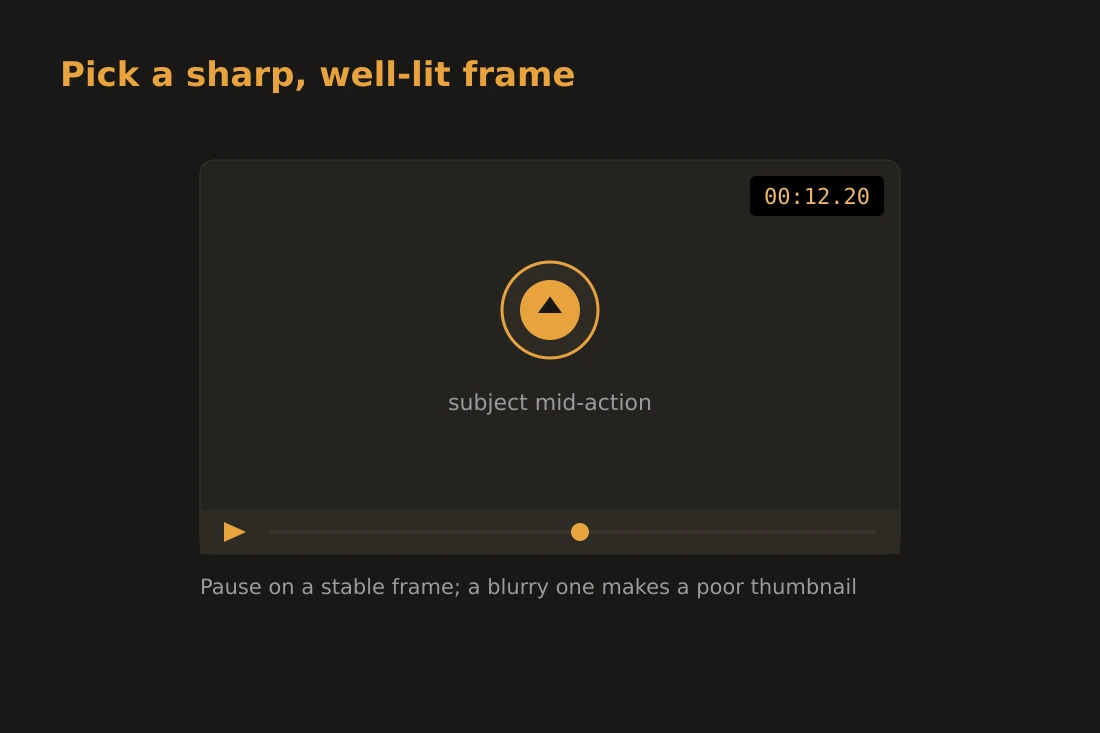
Even a well-decoded I-frame can make a poor thumbnail if the captured moment is unflattering. Several factors reduce thumbnail quality. Motion blur occurs when the camera or subject moves quickly during the frame exposure; the resulting smear makes a frame look soft even though the decode was clean. Transition frames caught mid-dissolve or mid-fade contain two overlapping images and rarely work as standalone pictures. Underexposed or overexposed frames, common at the start of a scene before auto-exposure settles, lose detail in the shadows or highlights. The best thumbnail frames come from moments of clear action or expression, good lighting, and a stable camera. Scrubbing through the video with a player that shows exact timestamps lets you identify those moments before you extract them. A frame that looks good paused in a player will generally look good as a still export.
Export: resolution, format, and every Nth frame
When you extract a frame, the exported image should match the video's native resolution. Scaling up introduces interpolation artifacts; scaling down discards pixels you may want. A 1080p video produces 1920x1080 pixel images, and a 4K video produces 3840x2160. For format, PNG preserves every pixel exactly and is the right choice when you need maximum sharpness for editing or further scaling. JPEG is smaller and fine for previewing or sharing, but it introduces compression artifacts around sharp edges. If you are building a contact sheet, a grid of small representative frames covering the full duration, extracting at a fixed frame rate rather than pulling every frame is the standard approach: requesting 1 frame per second from a 30 fps source gives you one image per second of footage, and a higher rate such as 5 or 10 fps gives a denser set for close inspection. The exact rate depends on how much detail you need versus how many images you want to handle.
Doing it locally with video-extract-frames
The video-extract-frames tool on Sunasty decodes your video entirely inside the browser using FFmpeg compiled to WebAssembly. You drop a file, choose a frame rate from 1 to 30 frames per second, pick PNG or JPEG, and the tool decodes frames at that rate in your browser's memory and offers the results as individual downloads, capped at 300 frames per run. Your video file never leaves your device. No bytes are sent to a server at any point during the process. This matters for footage that contains personal or sensitive content: a family recording, an interview, or raw footage before editing. The browser loads the video into a virtual file system in RAM, runs the FFmpeg decode, and hands the images back to you. The trade-off is that decoding is done in software on your CPU rather than by dedicated hardware, so a long high-resolution video takes longer than a native application would. For extracting a handful of frames or producing a contact sheet from a short clip, the speed is practical.
Tools in this article
- Extract video framesExtract still frames from a video as PNG or JPG images directly in your browser. No upload.
- Trim videoCut a video to a start/end time range directly in your browser. Fast stream copy or precise re-encode. No upload.
- Video to GIFConvert a video clip into an animated GIF directly in your browser. No upload.
Frequently asked questions
Why does my extracted frame look blurry?
The most common cause is landing on a P-frame or B-frame during a moment of motion. These frames store differences rather than complete images, and motion blur in the source footage carries into the decode. Try extracting the nearest I-frame, which corresponds to a scene cut or a periodic keyframe, for a sharper result.
Should I export frames as PNG or JPEG?
PNG if you plan to edit the frame, scale it up, or use it in a context where compression artifacts would be visible. JPEG if you need a smaller file for quick sharing or preview and the slight quality reduction is acceptable. For thumbnails that appear at a fixed small size, JPEG at a reasonable quality setting is usually fine.
How do I make a contact sheet from a video?
Pick a frame rate low enough to give you a manageable number of stills, rather than a single timestamp. For a two-minute clip, 1 frame per second gives you around 120 frames, which is dense enough to pick a good grid from; the output is capped at 300 frames per run either way. There is no coarser rate than 1 fps today, so for a sparser sheet, extract at 1 fps and keep only the frames you want for the final grid.