Article
Does an online screen recorder upload your video?
Plenty of sites that promise a free online screen recorder actually work by sending your recording to a server: a progress bar labeled "uploading" or "processing" is the giveaway. That defeats the point of recording something private, like an internal demo or a support call, on your own machine. A screen recorder that runs entirely inside the browser does not need a server at all. Here is what makes the difference, and a couple of ways to check which kind you are using.
Two very different processing paths
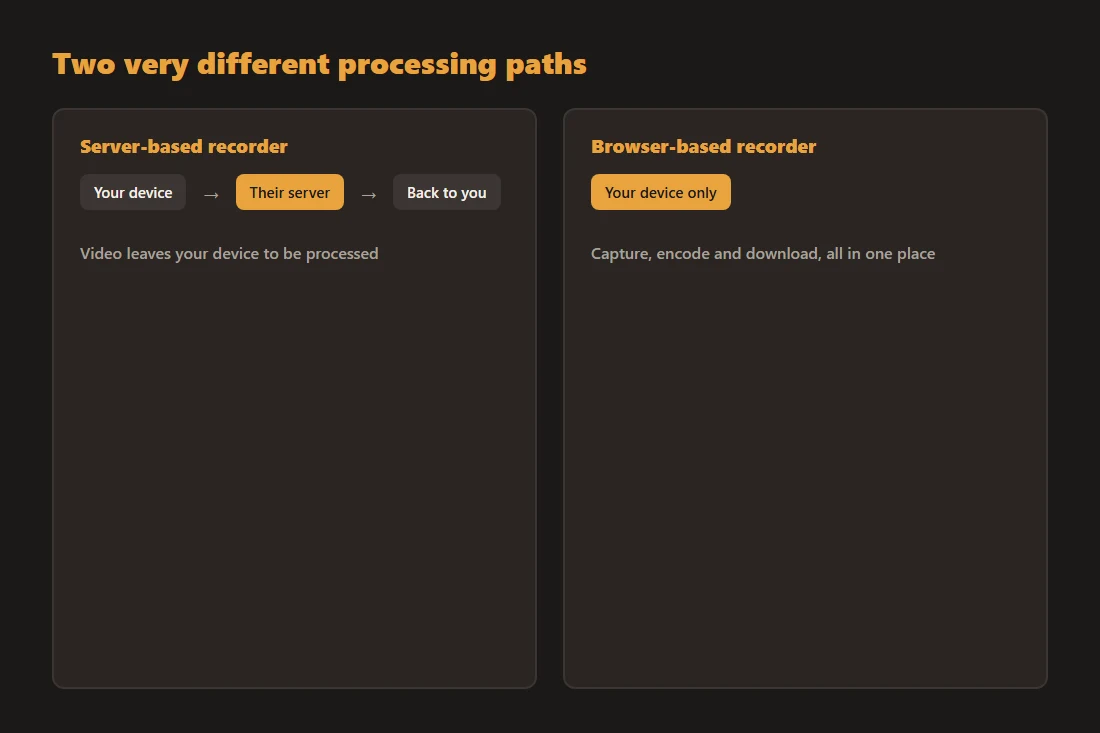
A server-based recorder captures your screen locally, but then sends the file to a remote machine to encode, trim or convert it, and sends a result back, sometimes hosted at a link rather than downloaded straight to your device. A browser-based recorder does the entire job on your computer: capture, encoding, and the final file assembly all happen in the tab, and the only "upload" is the one you choose to do yourself afterward, if you ever share the result at all.
How a real local recorder works
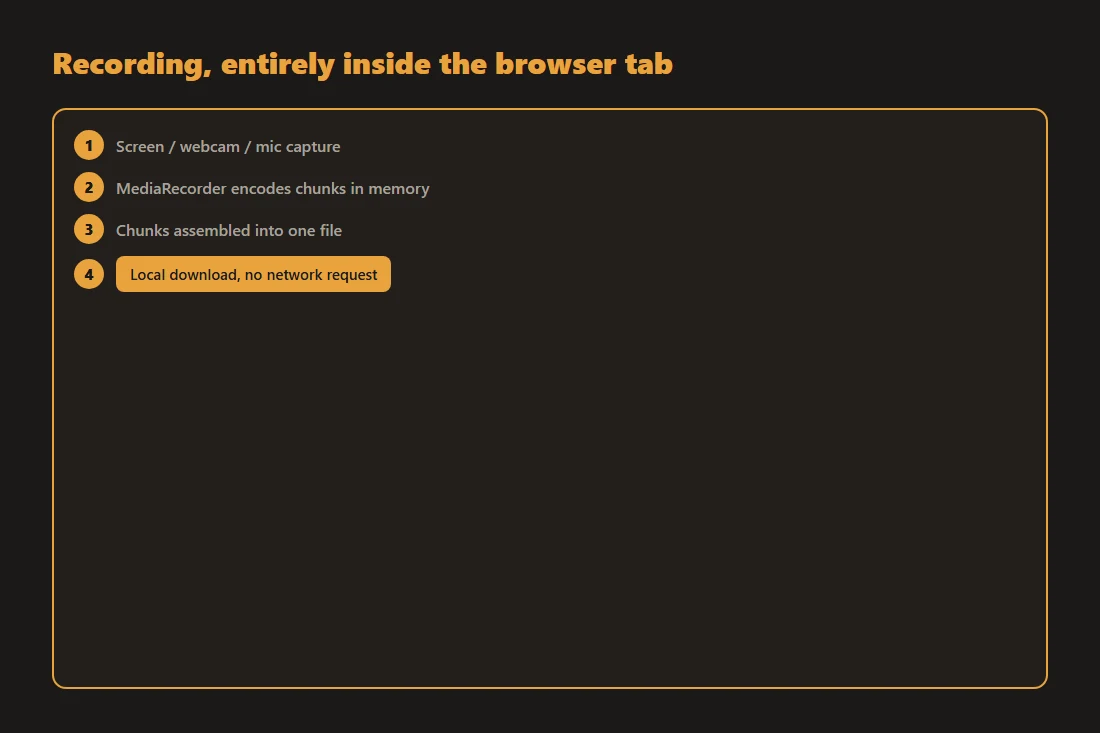
Modern browsers expose getDisplayMedia to capture the screen and getUserMedia for the webcam or microphone, and MediaRecorder to encode the stream into a video file, chunk by chunk, entirely in memory. Once recording stops, the chunks are assembled into a single file and a download link is created locally, no network request involved. Tools like screen-recorder, webcam-recorder and voice-recorder use exactly this pipeline: recording, encoding and the download link all happen without a single byte of the video leaving your device.
How to check a recorder yourself
Open your browser's developer tools, switch to the network tab, and record a short test clip. If no request appears while you record and stop, the tool is genuinely local. A second, simpler test: disconnect from the internet, then try recording and downloading. A browser-based recorder keeps working offline once the page is loaded; a server-based one fails or hangs the moment it needs to send your file somewhere it cannot reach.
What a local recorder still cannot protect
Recording locally only protects the video file itself from being sent anywhere without your say. It does not review what is inside the recording: if your screen shows a password field, a private message, or another app you meant to keep off camera, that content is captured exactly as shown. Check what is visible on your screen or in front of your webcam before you start, the same way you would before a video call.
A quick checklist before you use a recorder site
Does the tool start downloading the instant you stop recording, with no waiting message referencing a server? Does its privacy text say the recording never leaves your device, rather than a vaguer promise like "we don't store your files"? Does it keep working with the network disconnected? A yes to all three is a strong sign the tool is doing exactly what it should: recording, encoding and handing you the file, all in one place.
Tools in this article
Frequently asked questions
Can I verify myself that a screen recorder doesn't upload my video?
Yes. Open your browser's network tab before recording and watch for outgoing requests, or disconnect from the internet and try recording and downloading a clip. A genuinely local recorder keeps working offline and shows no network activity tied to the video content; a server-based one will fail or clearly try to reach a remote address.
Why do some free online recorders limit the length or add a watermark?
Hosted recorders that process video on a server incur real cost per recording, so length limits and watermarks are often used to push users toward a paid tier. A browser-based recorder has no per-recording server cost, so any length limit comes from your device's own memory rather than a billing quota, though very long recordings can still be constrained by how much RAM your browser tab has available.