How-to
Protect a PDF with a password
If you are about to email a contract, a payslip or a medical report, adding a password is the simplest way to keep it private. A password-protected PDF asks for a passphrase before it will open, and the file content is encrypted so it cannot be read even if the file is intercepted. This tool adds that protection entirely in your browser, with AES-256 if you choose it. Your document is never uploaded to any server.
Step by step
- Open the PDF Password tool and drop in the PDF you want to protect. The tool reads the file directly from your disk and works on it in memory, so the document stays on your device the whole time.
- Type the password recipients will need to open the file in the user password field. Pick AES-256 in the encryption strength menu for the strongest protection this format supports. The optional owner password lets you set a second password that controls editing and printing permissions separately.
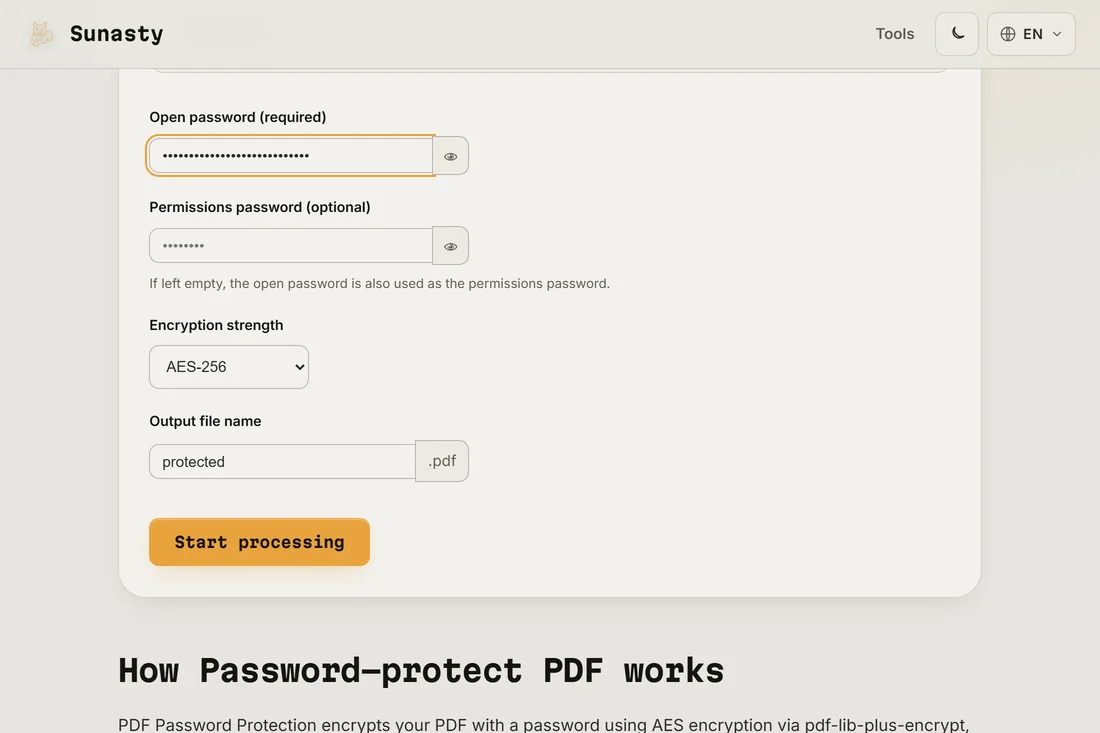
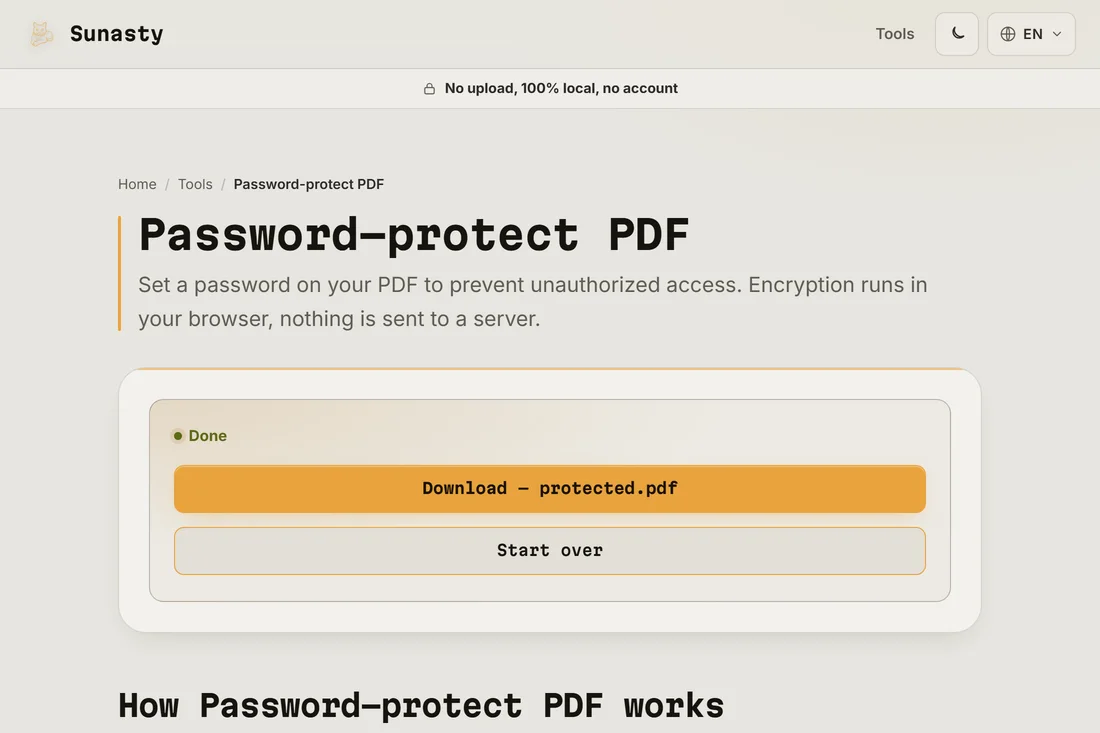
- Click the button to encrypt the PDF, then download the protected copy. Open it to confirm it now asks for the password before showing any content. Send the file and the password through two different channels so a single leaked message does not expose both.
Choosing the password and the encryption level
The user password is the one recipients type to open the document, so it has to be shared with them; the owner password is optional and governs permissions such as printing or copying text. Use a long passphrase rather than a short word: a sentence with a few numbers is both easier to remember and far harder to guess. For encryption strength, AES-256 is the strongest option the PDF format offers and is the right default for anything sensitive. AES-128 remains compatible with very old readers, but there is rarely a reason to drop below 256 today.
Encrypting other kinds of files
PDF passwords protect PDF documents specifically. If you need to encrypt a different kind of file, a spreadsheet, a ZIP archive or a folder of photos, the AES encrypt tool wraps any file in an AES-256 container you unlock with a passphrase. Once a PDF is protected you can still sign it with the PDF sign tool, since signing a protected document is a separate operation. All of these tools run locally in your browser.
AES-256 and RC4: what PDF encryption actually does
PDF encryption is specified in the PDF standard and has gone through several revisions. Older files used RC4 with 40-bit or 128-bit keys (PDF 1.4 and earlier), which are now considered weak. The current standard uses AES-256 (PDF 1.7 extension level 3 and PDF 2.0). When you set a password, the encryption handler derives a file encryption key from the password using a key derivation function, then uses that key to encrypt every content stream and string object in the file. The document catalog and cross-reference table remain unencrypted so that readers can find the encryption dictionary, but all page content, embedded fonts, and image data are ciphertext until the correct password is supplied. A separate owner password can restrict permissions such as printing or copying without preventing the file from being opened. The tool here applies AES-256 encryption using pdf-lib-plus-encrypt entirely in the browser; the unencrypted PDF is never sent over the network.
The tools used in this guide
Frequently asked questions
Can the password be recovered if I forget it?
No. The password is not stored anywhere; it is used to derive the AES key that encrypts the file. If you forget it, neither this site nor anyone else can open the document for you, which is exactly what makes the protection meaningful. Keep the passphrase in a password manager so you do not lock yourself out.
Is my PDF uploaded to a server?
No. The encryption happens inside your browser tab using JavaScript. Your PDF is read from your local disk, encrypted in memory and offered back to you as a download. Nothing is sent to any server. You can check this yourself: open your browser developer tools, watch the Network panel, and confirm no request carries your file.