Article
Why Excel mangles your CSV files
A patient ID that starts with three zeros. A gene named SEPT2. A sixteen-digit account number. Open any of these in a spreadsheet as a plain CSV file and Excel's importer does not just display them, it rewrites them: the zeros disappear, the gene name becomes a date, and the account number loses its last few digits. None of this is a bug exactly, it is what happens when a general-purpose number-and-date guesser meets text that only looks like a number or a date. Here is what actually happens to a CSV file the moment Excel opens it, and how to stop it before it happens.
Leading zeros disappear
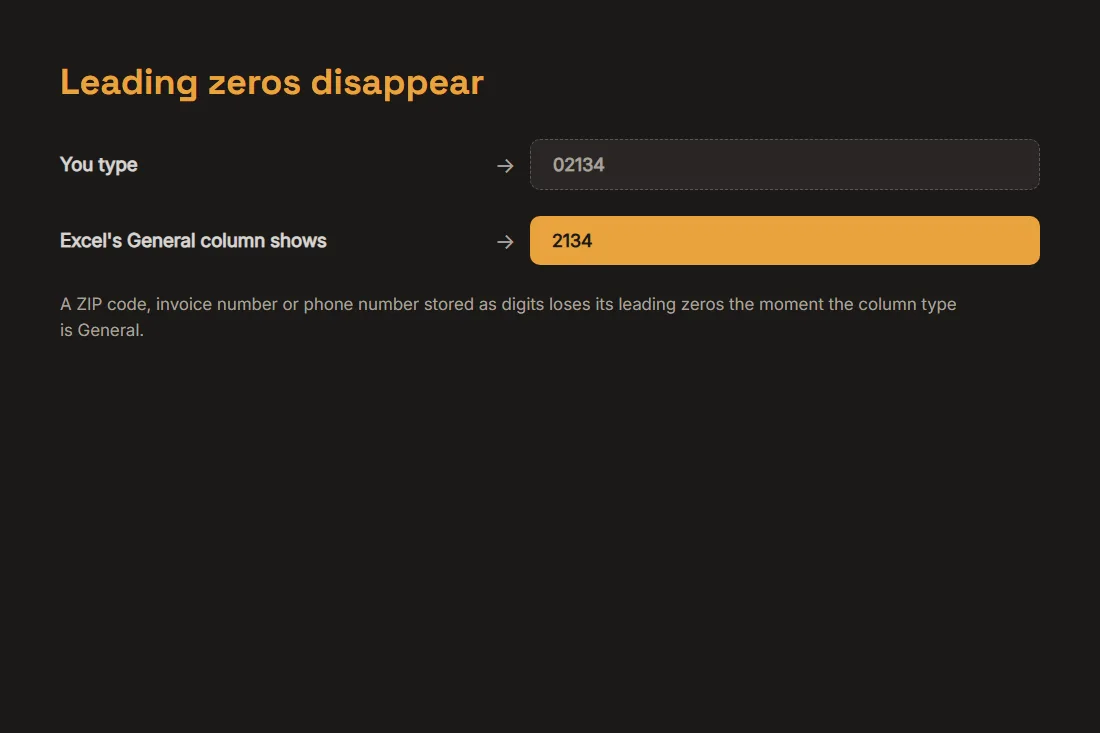
Type 02134 into a cell and Excel's default column type, General, reads it as a number and drops the leading zero: 2134. This hits any code that is stored as digits but is not really a quantity, US ZIP codes, French postal codes, employee or invoice numbers, phone numbers. Nothing is technically lost from the underlying CSV file, the text next to the cell stays unchanged, until you save the workbook, at which point Excel writes back whatever it displayed, and the zeros are gone for good. The fix is to tell Excel the column is text before it gets a chance to guess: through Data > From Text/CSV (or Get Data > From File) you can set each column's data type explicitly, or add an apostrophe before a value in a single cell to force text.
Text turns into dates without asking
The same guesser also looks for date-shaped text. A cell containing MAR1 or SEPT2, read as March 1 or September 2, gets silently converted to a date value and reformatted, with no warning shown. This is not hypothetical: in 2020 the HUGO Gene Nomenclature Committee renamed around 27 human gene symbols, including SEPT2 and MARCH1, specifically because spreadsheet software kept turning them into dates whenever a dataset was opened, a problem serious enough that a 2016 survey of genomics papers found autocorrect errors like this in roughly one in five publications that shipped supplementary Excel files. The lesson generalizes past gene names: any short alphanumeric code that happens to look like a day and a month is at risk the moment someone opens your CSV in a spreadsheet, not just yours.
Very long numbers lose their last digits
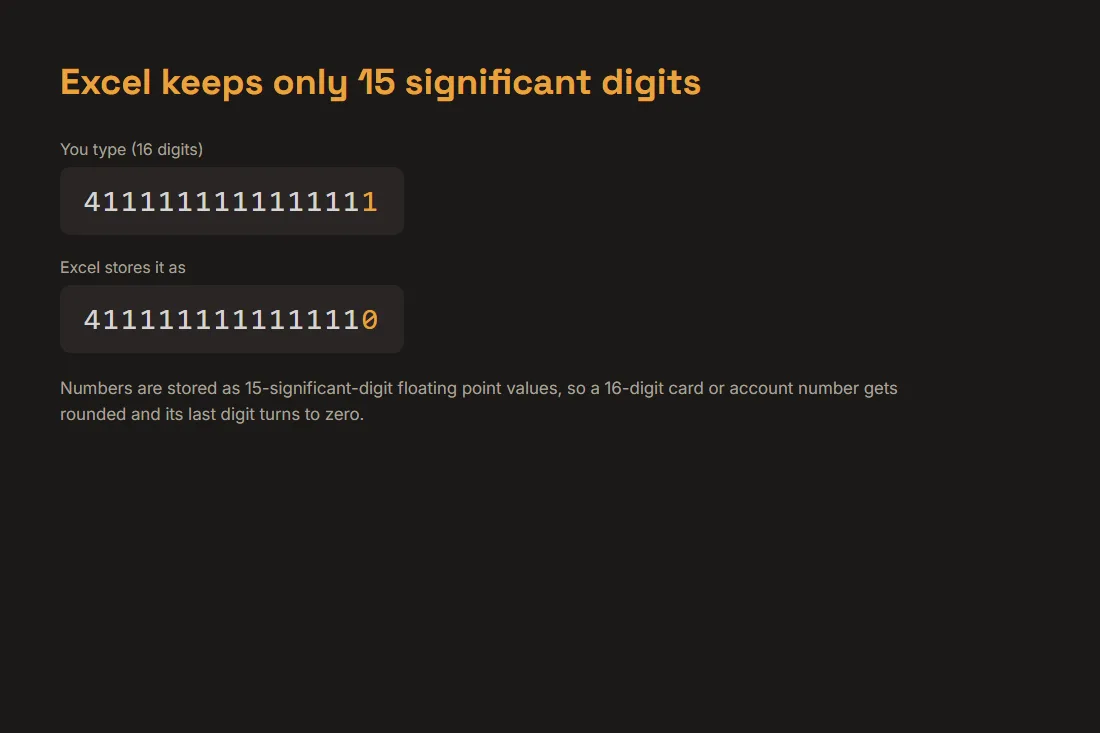
Excel stores every number as a floating-point value with 15 significant digits of precision, a limit Microsoft documents directly. A sixteen-digit card or account number such as 4111111111111111 gets rounded to fit, so the last digit or two silently turn to zero and the value is no longer the one you typed. Formatting the cell afterward will not bring the missing digits back, because the underlying stored number has already been rounded; the only fix is to import the column as text, or prefix the value with an apostrophe, before Excel ever treats it as a number.
Accented text turns into garbage
Encoding is a separate failure mode from autocorrection. A CSV file with no byte-order mark is plain bytes; if it was saved as UTF-8, Excel on Windows will typically open it assuming the system's own codepage instead, so accented letters, currency symbols and emoji come out as mojibake, a string like café showing up as something closer to café. The safe path when producing a CSV for Excel is to save it as CSV UTF-8 or add a UTF-8 byte-order mark; the safe path when consuming one is to import through Data > From Text/CSV, which lets you choose the source encoding explicitly instead of trusting a double-click to guess right.
Moving data between formats without opening it in Excel
None of this is really an Excel bug, it is what a spreadsheet's number-and-date guesser is built to do, and it applies however the file is opened, not just in Excel. The safest way to reshape a CSV file or check that a column really stays text before it reaches any spreadsheet is to work on it directly: our data converter parses CSV with a standard quoting-aware parser and never reinterprets a value's type, so a ZIP code or gene name stays exactly the text you gave it. It runs entirely in your browser, nothing you paste is uploaded anywhere. That only protects the conversion step, though: if the output is still going to be opened in a spreadsheet afterward, mark the sensitive columns as text there too.
Tools in this article
Frequently asked questions
How do I stop Excel from removing leading zeros from a CSV?
Do not open the file by double-clicking it. Import it instead through Data > From Text/CSV (or Get Data), which shows a column-by-column data type picker; set the ZIP code, ID or phone number column to Text before finishing the import. A quick per-cell fix is to type an apostrophe before the value, like '02134, which forces text without changing what is displayed.
Why did Excel turn my ID or code into a date?
Excel's General column type actively looks for date-shaped text, patterns like a short word plus a number, or two numbers separated by a dash or slash, and converts anything that matches, with no confirmation asked. This is exactly what forced the renaming of gene symbols such as SEPT2 and MARCH1 in 2020. Import the column as Text, the same way as for leading zeros, to stop the guess before it happens.
Does converting my CSV another way avoid these problems entirely?
It avoids them for that conversion step, not forever. A parser that treats every field as plain text, like our data converter, will not rewrite a ZIP code or a gene name while turning a CSV into JSON. But if the output still ends up opened in a spreadsheet later, by you or by whoever receives it, that program's own importer gets another chance to reinterpret the values, so the sensitive columns need to be marked as text there too.