Article
Encrypt a file before you put it in the cloud
Storing a file in Dropbox, Google Drive or OneDrive is convenient, and by default it also means the provider can technically access the file's content: standard cloud storage encrypts data in transit and at rest with keys the provider itself controls, not a key only you hold. Adding your own encryption layer before the upload changes that, at the cost of a little extra friction. Here is what that actually buys you, and how to do it with tools that never see the file either.
What encrypted at rest does and does not mean
When a cloud provider says a file is encrypted at rest, it usually means the storage servers themselves are protected against someone stealing the physical disks, not that the provider is locked out of the content. The provider holds the keys, which is exactly what lets it show a thumbnail preview, index the file for search, or comply with a legal request to hand over readable content. A small number of specialized providers advertise zero-knowledge or end-to-end encrypted storage, where only you hold the key; mainstream general-purpose cloud storage does not work that way by default.
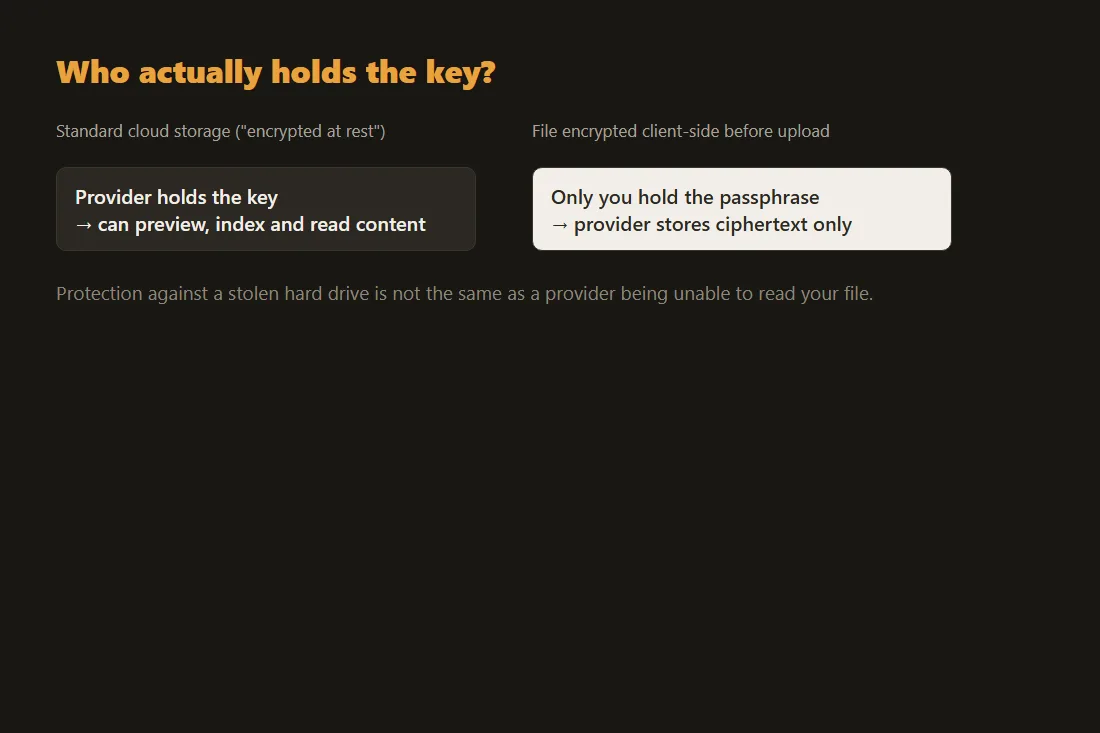
Client-side encryption puts you back in control of the key
The fix does not require switching cloud providers: encrypt the file yourself, on your own device, before it ever reaches the upload dialog. What the provider then stores is ciphertext it cannot read without the passphrase, which only you hold. This is a different intention from encrypting a file to send it to one specific recipient over email or chat; here the file is going into your own long-term storage, so the passphrase only needs to live with you, not be shared with anyone else.
Encrypting text and small files before upload
Our AES encryption tool encrypts pasted text or small content, up to about 1 MB, with a passphrase using AES-256-GCM and PBKDF2 key derivation at 310,000 iterations, entirely in your browser. The output is ciphertext you can paste directly into a cloud-hosted note or upload as a small text file; nobody without the passphrase, including whoever hosts the storage, can read it. It is built for notes, credentials, small documents and similar content, not for encrypting a large binary file such as a video or a disk image.
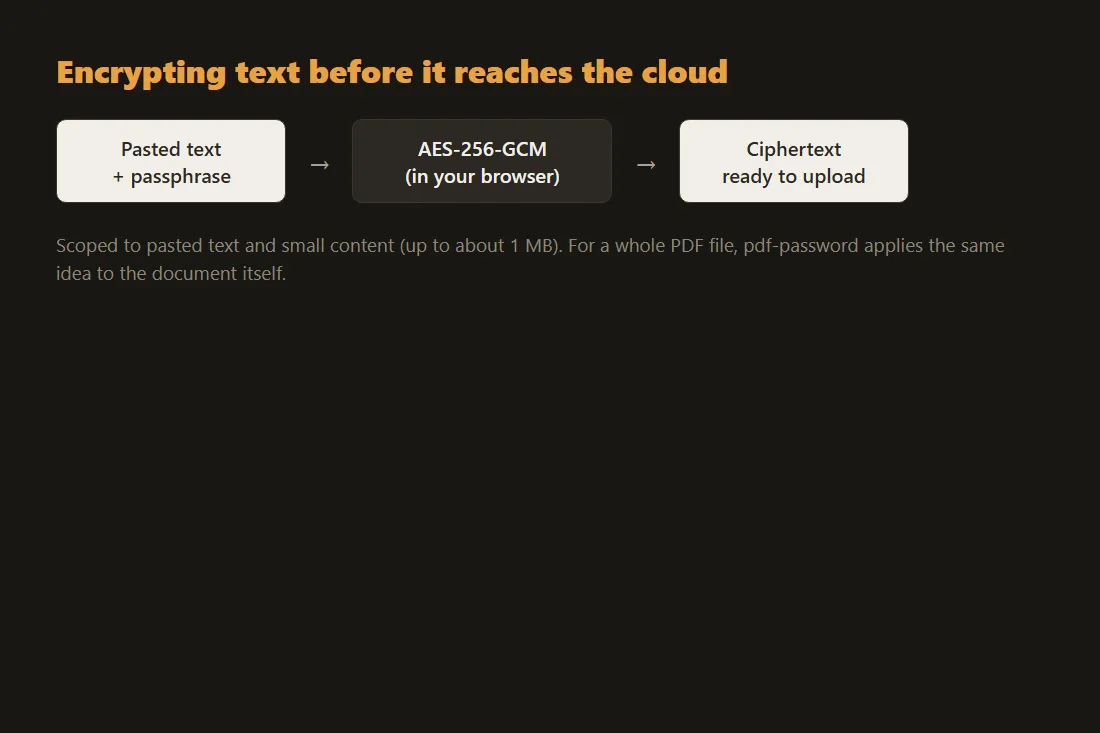
Protecting a whole PDF with a password instead
For a complete document you want to keep as a PDF, our PDF password tool adds real AES encryption to the file itself rather than to pasted text, so the PDF you upload to cloud storage requires that password to open anywhere, including inside the storage provider's own preview pane. That covers the common case of archiving a scanned document, a contract or a statement without relying on the provider's access controls alone.
Choosing and storing a passphrase that actually holds
Client-side encryption is only as strong as the passphrase behind it: a short or reused one can be guessed, defeating the whole point. Our password generator creates a long, random passphrase entirely locally, which you then need to keep somewhere durable and separate from the encrypted file itself, a password manager rather than a note stored next to the ciphertext it protects. Losing that passphrase means losing the file: there is no recovery path around client-side encryption by design.
Tools in this article
- AES Encrypt / DecryptEncrypt or decrypt text using AES-256-GCM. Your passphrase never leaves your browser.
- Password GeneratorGenerate strong, random passwords with custom rules. Uses crypto.getRandomValues. No upload.
- Password-protect PDFEncrypt a PDF with a password directly in your browser. No upload.
Frequently asked questions
Is Google Drive, Dropbox or OneDrive already encrypting my files?
Yes, but with keys the provider controls, not a key only you hold. That protects against someone stealing the physical storage hardware; it does not stop the provider itself, or anyone who compels it, from reading a file's content, unlike a file you encrypt yourself before uploading.
What is the difference between encrypting a file for cloud storage and encrypting one to send?
The intention differs: storage encryption protects a file sitting in your own account long-term, so only you need the passphrase, while sending a file to someone else means sharing the passphrase with that one recipient through a separate channel. The same AES encryption tool covers both; only who ends up holding the passphrase changes.
Can I encrypt an entire folder or a large video file before uploading it?
Not with this site's browser-based tools today: the AES encryption tool is scoped to pasted text and small content up to about 1 MB, and the PDF password tool only applies to PDF files. A large binary file such as a video currently needs a dedicated desktop encryption application before it goes into cloud storage.